How to Undo Send in Zeninbox
Learn how to use the Undo Send feature in Zeninbox to stop an email from being sent within a selected time frame, giving you more control over your messages.
Written By lucidgrowth
Last updated Over 1 year ago
Introduction
The "Undo Send" feature in Zeninbox allows you to retract an email immediately after sending it. It’s perfect for those moments when you spot a typo, forget an attachment, or realize you sent the email to the wrong person. This feature helps you correct mistakes and avoid miscommunications, giving you peace of mind while managing your emails.
Key Features
One-Click Undo: Easily cancel the sending of an email with a single click on the “Undo” prompt.
Benefits of Using the Undo Send Feature
Prevents Mistakes: Correct errors in emails before they reach the recipient.
Reduces Stress: Provides a buffer period that lets you double-check your message after hitting "Send."
Saves Time: Avoids the need for follow-up emails or apologies if you catch a mistake early.
Step-by-Step Guide
Follow these steps to use the "Undo Send" feature in Zeninbox:
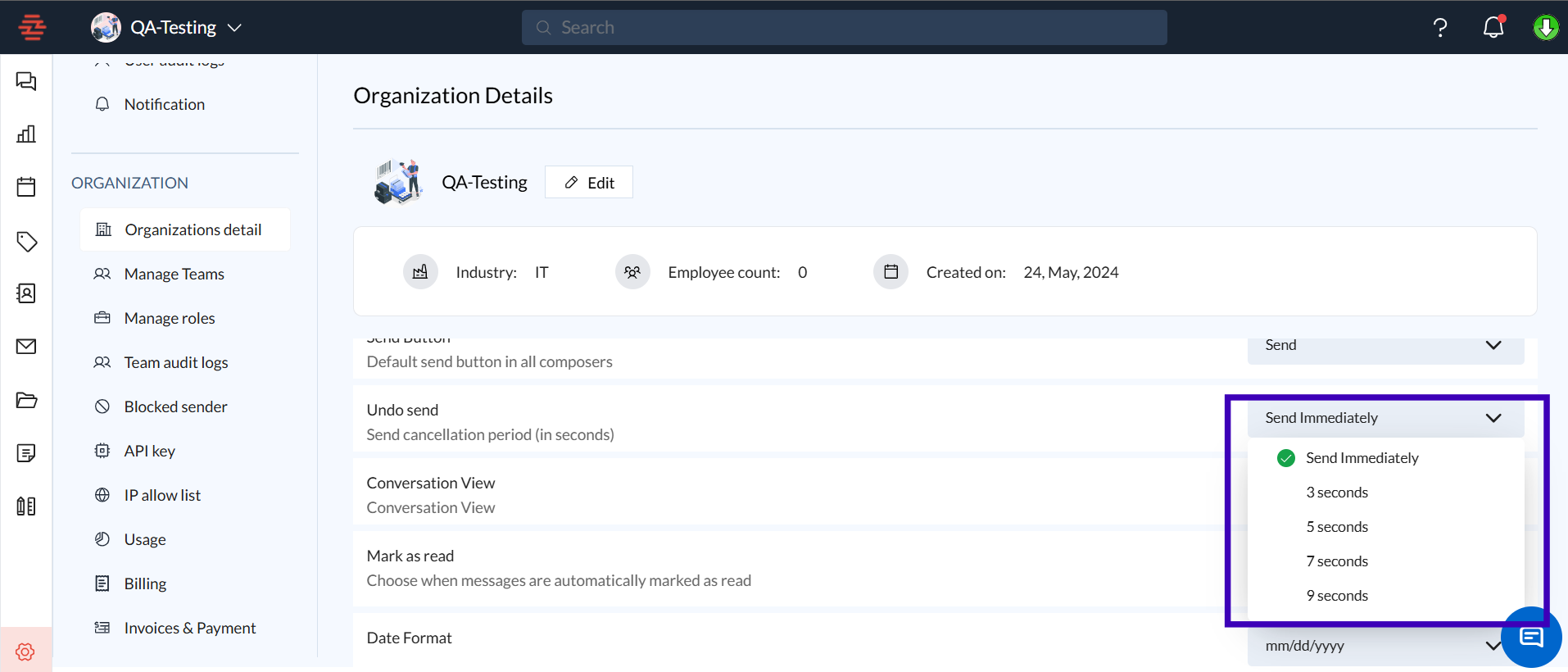
Step 1: Configure Undo Send Time Window
Open Zeninbox and navigate to Settings.
Click on Email Preferences and find the Undo Send option.
Click Save to apply your changes.
Step 2: Send an Email
Compose your email as usual and click Send.
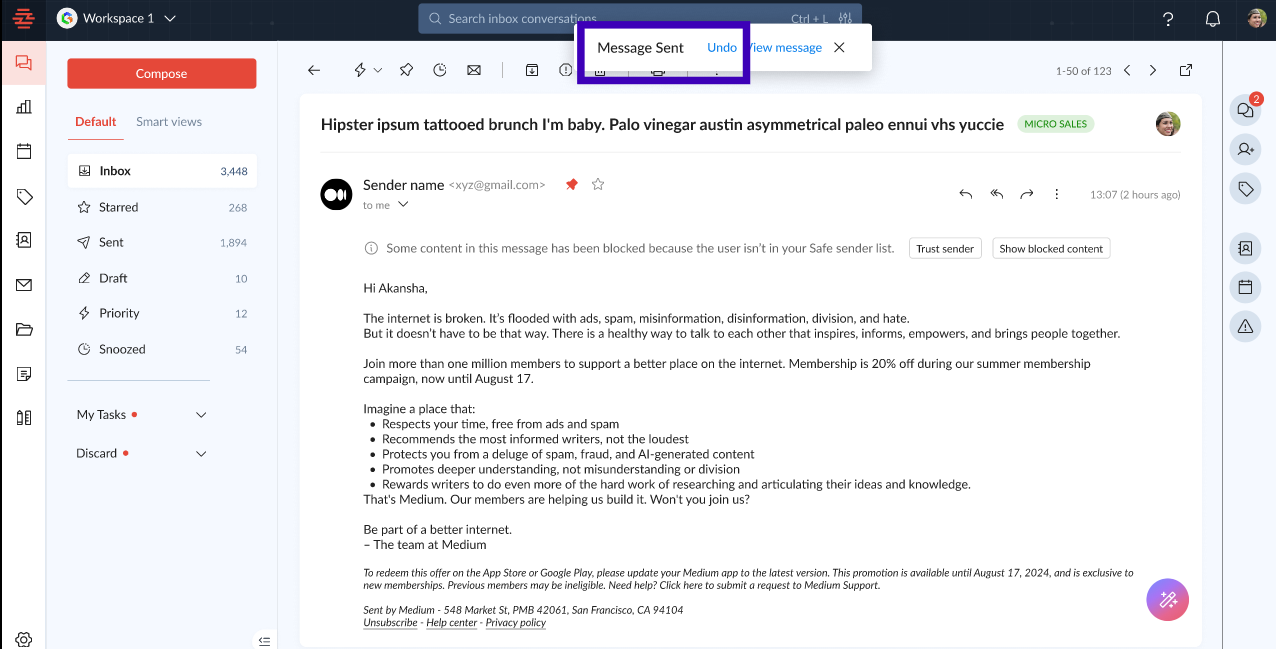
Step 3: Click “Undo”
After sending, a message will appear at the bottom of the screen saying, “Your message has been sent. Undo.”
Click Undo within the time window you set earlier.
Your email will reopen, allowing you to make any edits or discard the message altogether.
Conclusion
The "Undo Send" feature in Zeninbox ensures you have control over your emails, even after hitting the send button. If you have any further questions about managing email settings, contact our support team for personalized assistance.