Using Mentions and Shared with Me in Zeninbox
Learn how to track messages where you're mentioned and access emails shared with you to streamline collaboration and stay focused on what matters.
Written By lucidgrowth
Last updated Over 1 year ago
Introduction
The "Mention and Shared with Me" feature in Zeninbox helps you stay connected with your team by keeping track of emails and conversations where you are mentioned or that are shared directly with you. This ensures that you never miss out on important messages or collaborative efforts, making it easier to manage tasks and respond to team interactions promptly.
Key Features
Mentions
When a team member mentions you in a comment or note within an email thread, it is automatically flagged in your “Mentions” tab, ensuring you are aware of discussions that require your attention.Shared Emails
Emails that are shared with you, either by being directly forwarded or through collaborative tagging, appear in the “Shared with Me” section, making it easy to access conversations that require your input.Notifications for Mentions
Receive real-time notifications whenever you are mentioned in a thread so you can respond without delay.Centralized View
Access all mentions and shared emails in one convenient location, saving you time from searching through multiple threads.
Benefits of Using Mentions and Shared with Me
Enhanced Collaboration: Stay in the loop with team discussions and ensure that no important message slips through the cracks.
Improved Response Time: Real-time notifications help you quickly address comments or questions from your team.
Organized Communication: Keep track of emails and threads that involve you, making it easier to find and respond to relevant conversations.
Better Focus: Prioritize emails that require your direct involvement, allowing you to focus on the most critical tasks.
Step-by-Step Guide to Using Mentions and Shared with Me
Step 1: Viewing Your Mentions
Navigate to the Mentions Tab: In your Zeninbox dashboard, click on the “Mentions” tab located in the side menu.
See Recent Mentions: Here, you’ll find all the threads and conversations where you have been mentioned. Each mention is highlighted for easy visibility.
Click to Open: Select any mention to open the full email thread and see the context of the mention.
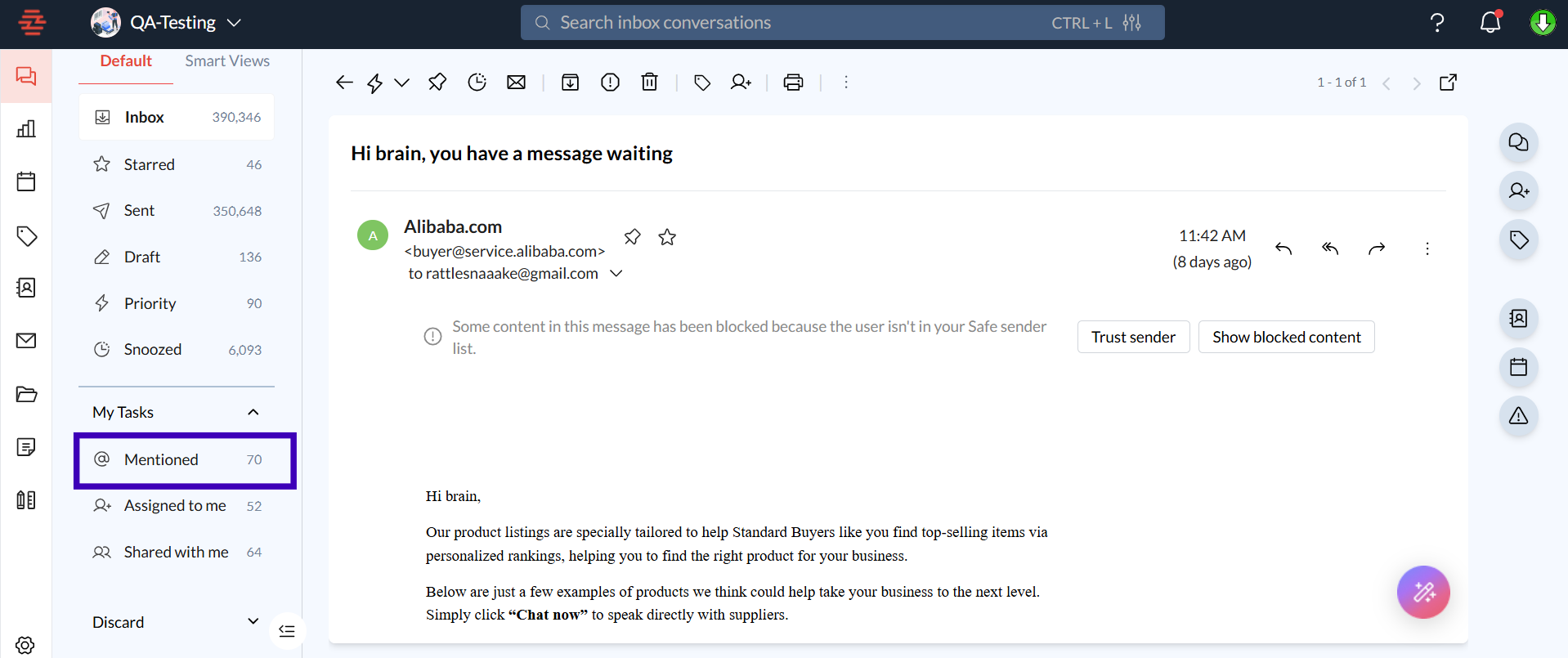
Step 2: Accessing Emails Shared with You
Go to the “Shared with Me” Section: On the same side menu, click on “Shared with Me.”
Browse Shared Conversations: This section displays emails and threads that have been shared directly with you by team members.
Open Shared Emails: Click on any shared email to view the message and respond if needed.
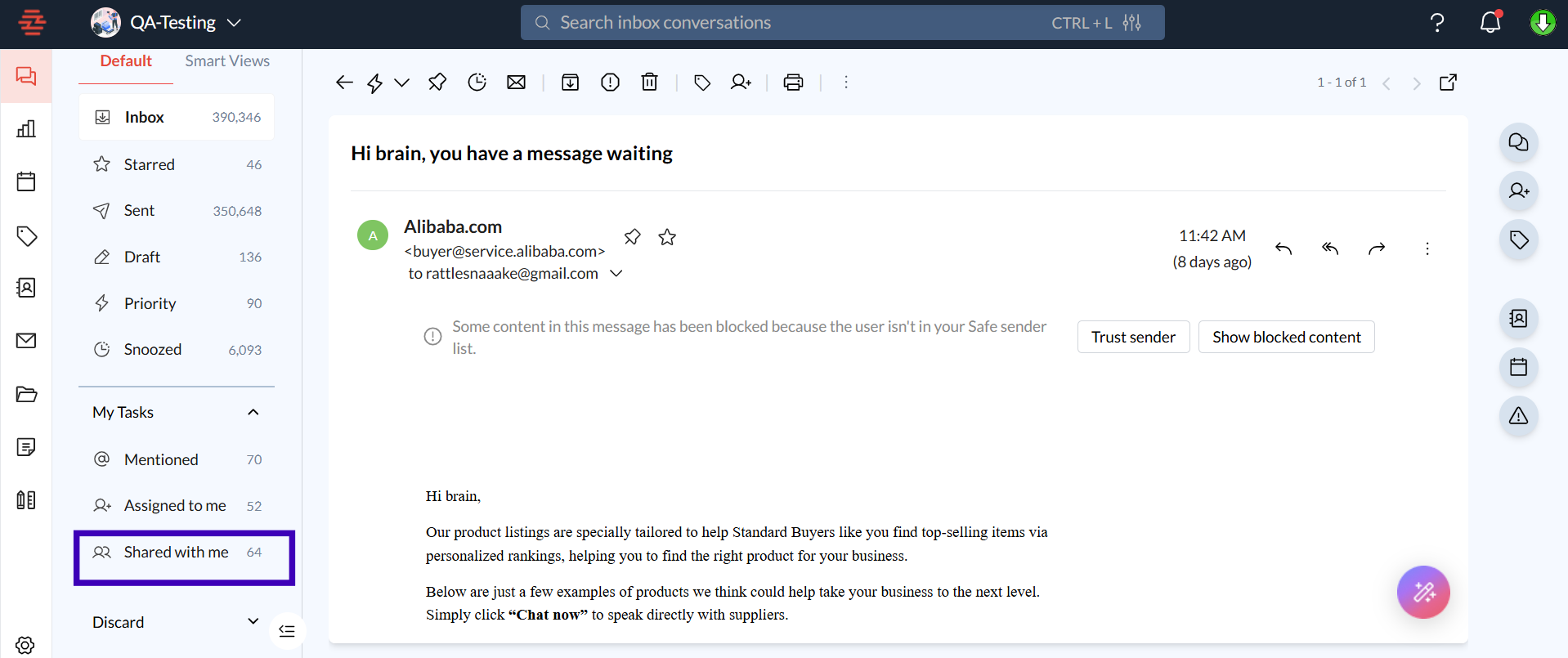
Step 3: Responding to Mentions
Open a Mentioned Thread: Click on a thread where you have been mentioned.
Add a Comment or Reply: Use the reply field to add your response directly within the thread.
Tag Additional Team Members: If needed, mention other team members in your response to loop them into the conversation.
FAQs
Q: Why am I not receiving notifications for mentions?
A: Ensure that your notification settings are enabled for mentions. Go to Settings > Notifications and verify that the option for mention alerts is turned on.
Q: Can I see who else was mentioned in a thread?
A: Yes, within the thread view, you can see all team members who were mentioned, allowing for better transparency in team discussions.
Conclusion and Next Steps
The "Mention and Shared with Me" feature in Zeninbox is a powerful tool for staying connected and engaged with your team. By keeping track of important mentions and shared emails, you can ensure timely responses and active participation in collaborative efforts. Happy collaborating!