How to Split Conversations in Zeninbox
Written By lucidgrowth
Last updated Over 1 year ago
Introduction
Zeninbox's Split Conversation View is a helpful feature that allows you to view multiple conversations side-by-side. This makes it easier to compare emails, track different threads simultaneously, and manage responses without switching back and forth between messages. This guide will walk you through how to use the Split Conversation View in Zeninbox and when it might be most beneficial for you.
Step-by-Step Guide to Using the Split Conversation View
Step 1: Access Your Inbox
Open Zeninbox and navigate to your Inbox.
Locate the conversation you want to view in split mode.
Step 2: Open the Split View
Click on the conversation you wish to view.
In the upper right corner of the conversation view, you’ll see a Split View icon (looks like two side-by-side windows).
Click the Split View icon to activate the split mode.
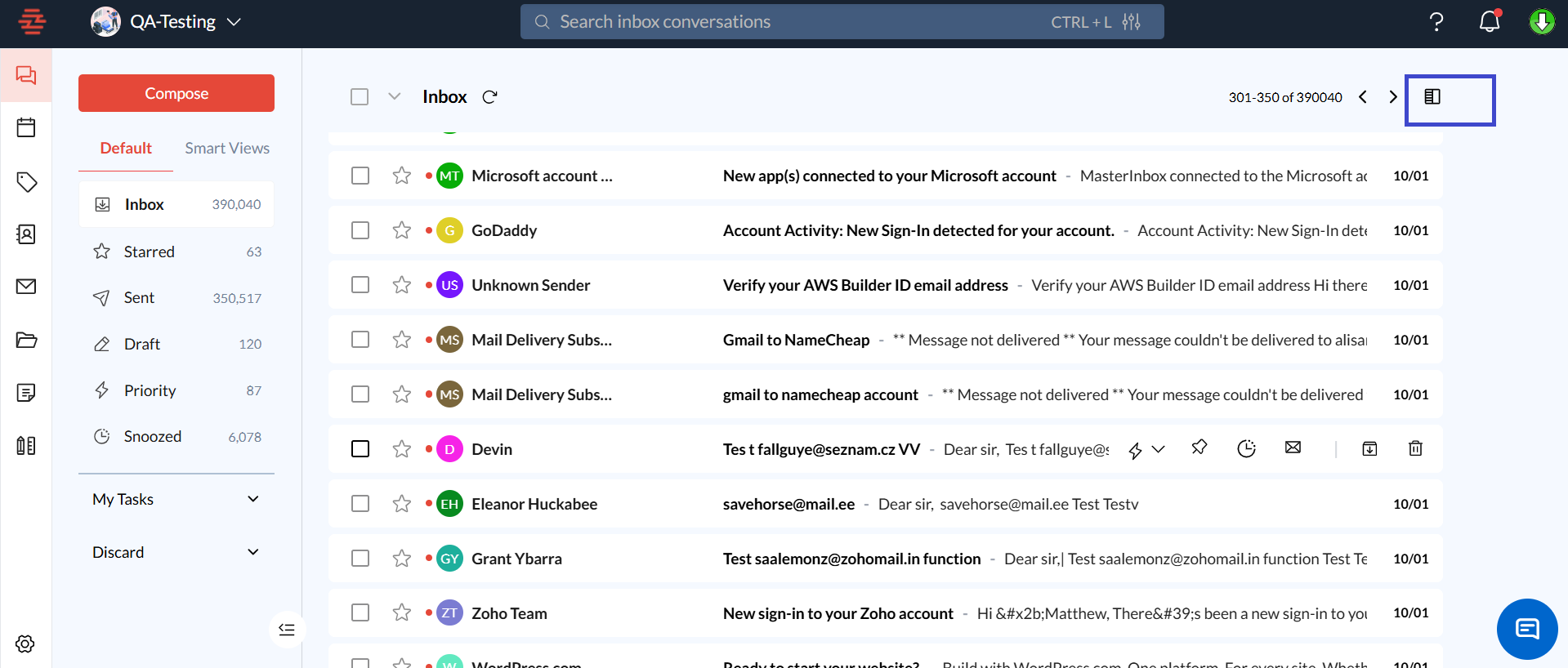
Step 3: Select Additional Conversations to Compare
With the Split View active, you can select another conversation from your inbox.
Click on any other conversation, and it will open alongside the initial thread in the split view.
This allows you to see two different conversations at the same time.
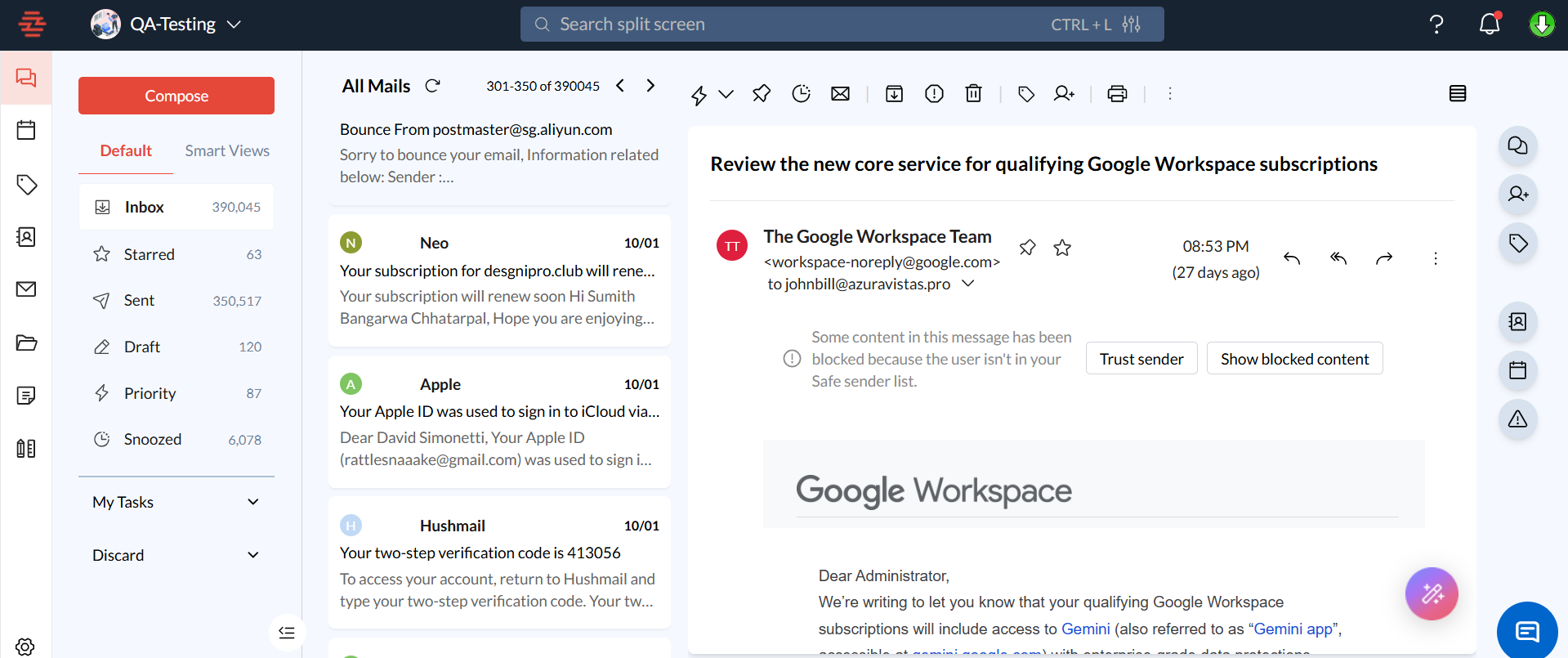
Benefits of Using the Split Conversation View
Compare Conversations Easily: The split view is perfect for comparing information across different threads without needing to switch between them.
Manage Responses Faster: Quickly respond to multiple conversations by viewing them side-by-side, making it easier to keep track of follow-up actions.
Improved Productivity: With split view, you can handle related conversations simultaneously, saving time and improving workflow efficiency.
Common Issues/FAQs
Q: How do I return to a single conversation view?
A: Click the List View button in the corner of any pane to close that conversation, which will return you to a single-view mode.
Conclusion/Next Steps
The Split Conversation View in Zeninbox is designed to help you stay organized and manage multiple email threads with ease. By using this feature, you can save time and improve your productivity when dealing with numerous conversations. If you have any further questions or need additional support, check out our Help Center or reach out to our support team.