How to Snooze Conversations for Later
Learn how to snooze conversations in Zeninbox to temporarily remove them from your inbox and get reminded at a time that works best for you.
Written By lucidgrowth
Last updated Over 1 year ago
Introduction
The "Snooze" feature in Zeninbox allows you to temporarily hide email conversations and have them reappear in your inbox at a specified time. This is particularly helpful for managing emails that require follow-up or attention at a later date, ensuring that they don’t get lost in the shuffle. With the snooze feature, you can keep your inbox focused on current tasks while still staying on top of important conversations.
Key Features of Snoozing Conversations
Custom Reminders: Set a specific date and time for when a snoozed conversation will return to your inbox.
Pre-set Options: Choose from commonly used time intervals, such as “Tomorrow,” “Next Week,” or “Later Today.”
Automatic Notification: Receive a notification when a snoozed conversation reappears, ensuring that you don’t miss important follow-ups.
Organized Workflow: Keep your inbox clean by temporarily removing emails that don’t need immediate attention.
Benefits of Using the Snooze Feature
Stay Focused: Keep your inbox free of distractions by snoozing emails that don’t need immediate responses, allowing you to focus on what matters now.
Better Time Management: Schedule follow-ups at times that align with your workflow, ensuring that you address conversations when it’s most convenient.
Never Miss a Follow-Up: With automatic reminders, snoozed emails will reappear right when you need to take action, helping you stay on top of important tasks.
Step-by-Step Guide to Snoozing Conversations
How to Snooze an Email Conversation
Open the Email: Navigate to the email conversation you want to snooze in your inbox.
Click on the Snooze Icon: Look for the “Snooze” icon in the email toolbar.
Select a Time: Choose from one of the pre-set snooze options, such as “Tomorrow” or “Next Week.” Alternatively, select “Pick a Date & Time” to customize when the conversation should reappear.
Tip: Use the custom option if you have a specific date in mind for follow-up.
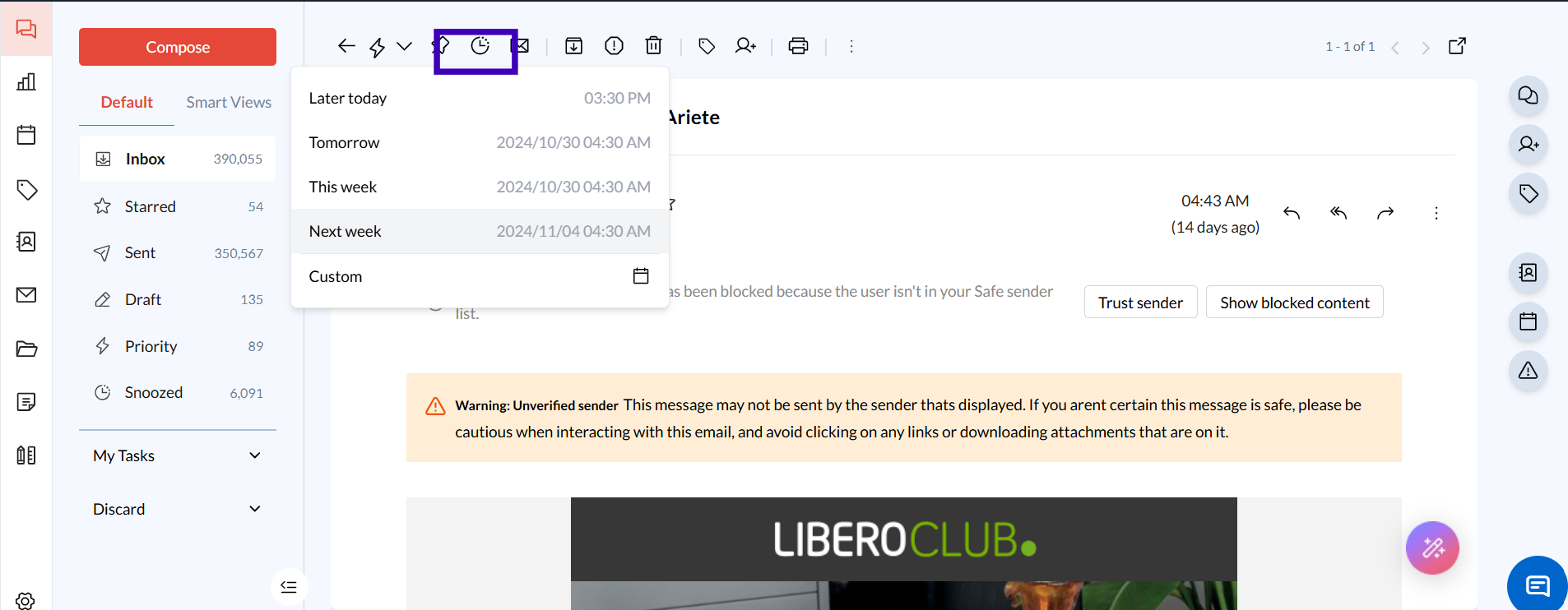
Confirm: Click “Snooze” to finalize your selection. The conversation will disappear from your inbox and reappear at the chosen time.
Managing Snoozed Conversations
Access Snoozed Emails: Click on the “Snoozed” label in the left sidebar to see a list of all your currently snoozed conversations.
Unsnooze an Email: Open a snoozed conversation and click on “Unsnooze” if you want to bring it back to your inbox immediately.
Edit Snooze Time: Select a different date and time if you want to adjust when the conversation will reappear.
Use Cases for Snoozing Conversations
Client Follow-Ups: If a client asks you to check back next week, snooze their email until then to ensure it reappears when it’s time to reach out.
Project Reminders: Snooze project-related emails until closer to the deadline, keeping your inbox focused on current tasks.
Managing Personal Tasks: Use the snooze feature to remind yourself of personal emails, such as event reminders or payment confirmations, that you need to address later.
FAQs
Why isn't my snoozed email reappearing at the set time?
Double-check that the correct time zone is set in your Zeninbox settings, as this may affect when snoozed emails return.
Can I snooze multiple emails at once?
Yes, select multiple emails and use the snooze icon from the toolbar to apply the same snooze time to all selected conversations.
What happens if I accidentally snooze an important email?
You can access it anytime from the “Snoozed” folder and bring it back to your inbox by clicking “Unsnooze.”
Conclusion
The snooze feature in Zeninbox offers a powerful way to manage your email workflow, ensuring that important conversations return to your attention when you’re ready for them. By using snooze effectively, you can maintain a clean and focused inbox while never missing a follow-up. If you need further assistance, feel free to reach out to our support team.