How to download and preview attachments
Learn how to easily preview and download email attachments in Zeninbox to access important files quickly and efficiently.
Written By lucidgrowth
Last updated Over 1 year ago
Introduction
Downloading and previewing attachments in Zeninbox is a simple process that allows you to access important documents, images, and files directly from your emails. With these features, you can quickly review attachments without needing to leave the platform, ensuring you have all the information you need at your fingertips. This guide will walk you through the steps for both downloading and previewing attachments, helping you manage your email attachments effortlessly.
Key Features of Downloading and Previewing Attachments
Quick Preview: Instantly view attachments like PDFs, images, and documents without needing to download them.
Download Single or Multiple Files: Download individual attachments or multiple files at once, making it easy to save what you need.
Attachment Viewer: Built-in viewer for common file types, allowing you to see content directly within Zeninbox.
Step-by-Step Guide to Downloading and Previewing Attachments
Previewing Attachments
Open the Email with the Attachment: Navigate to the email containing the attachment you want to preview.
Click on the Attachment Thumbnail: A small thumbnail of the attachment will appear below the email content. Click on this thumbnail to open the preview.
Tip: The preview feature supports file types like PDFs, images (JPEG, PNG), and certain document formats.
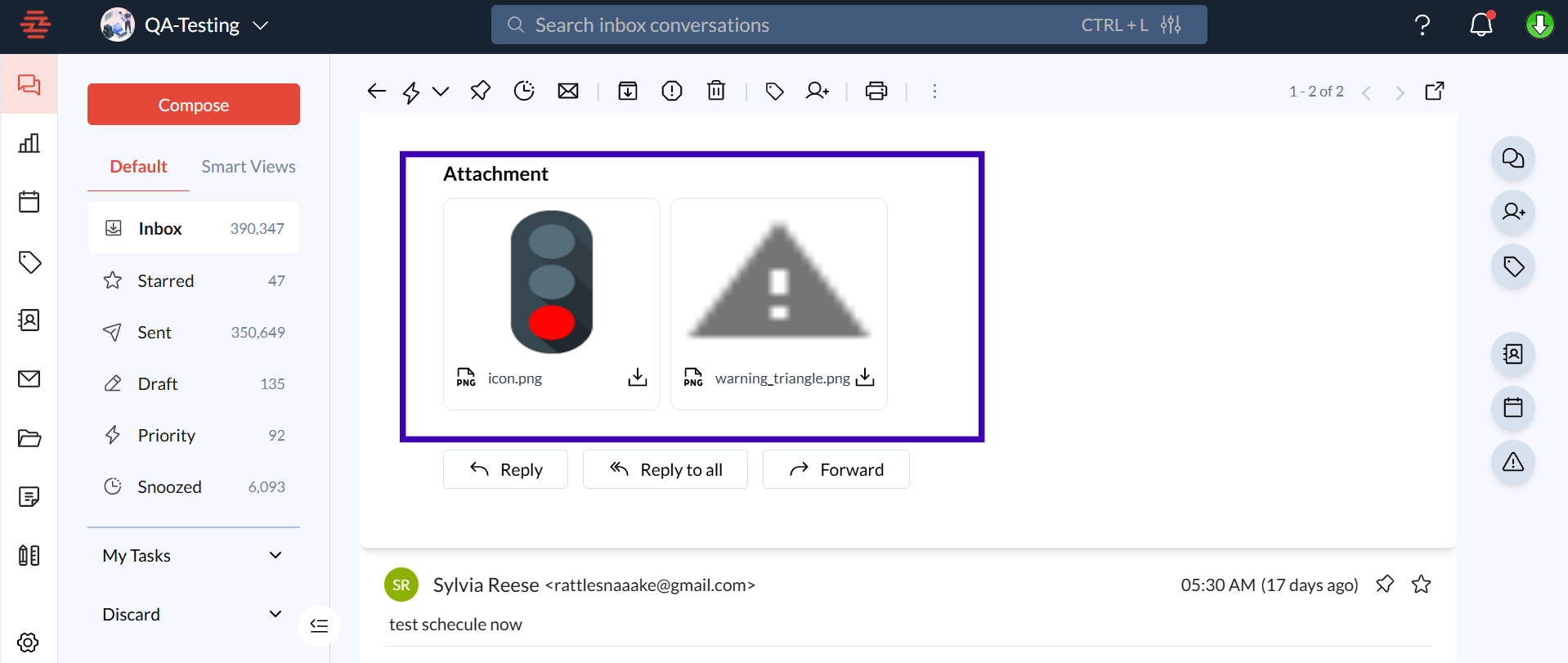
View the Attachment in the Built-In Viewer: The attachment will open in a new window within Zeninbox, allowing you to review the content without downloading it.
Close the Preview: Click the “X” in the top-right corner of the preview window to return to your email.
Downloading Attachments
Open the Email: Find and open the email that contains the attachment you want to download.
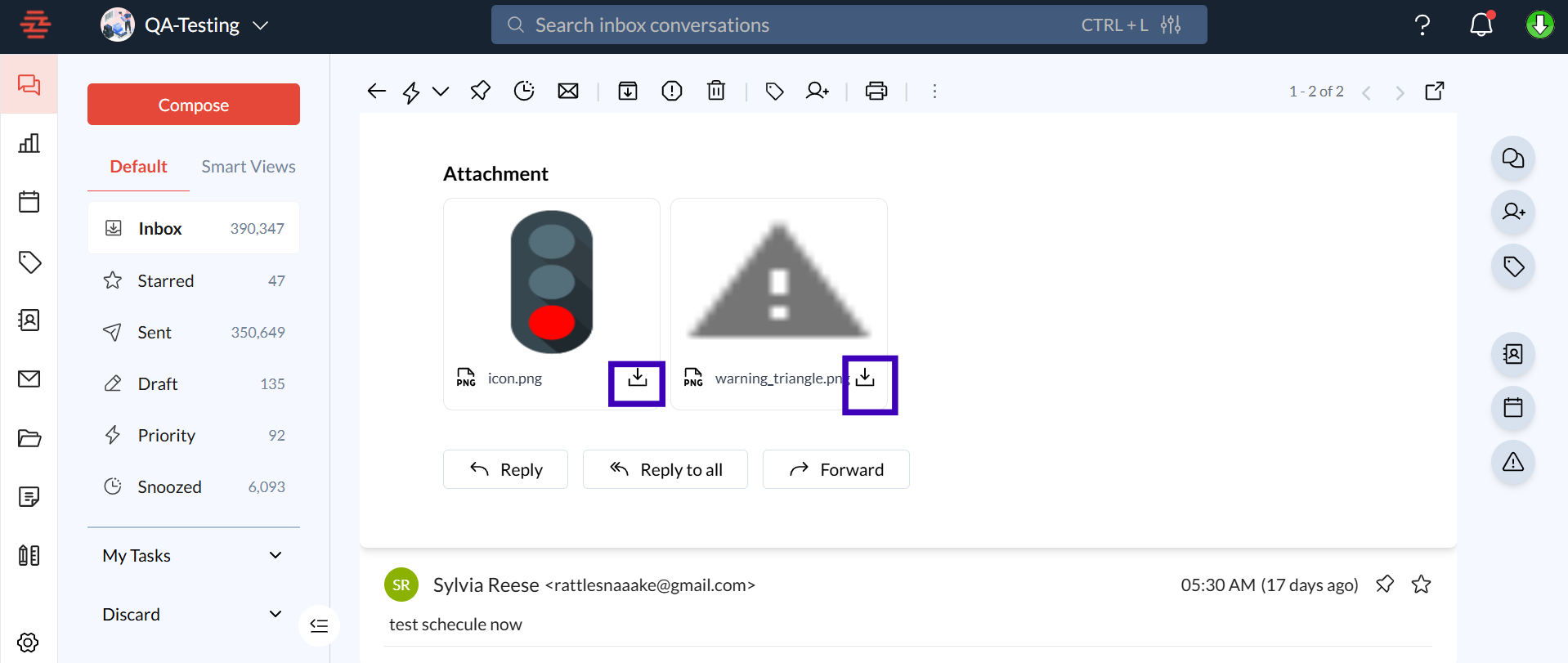
Click the Download Icon: Below the attachment thumbnail, click the “Download” icon (usually represented by a downward-facing arrow).
Choose a Location: Select the location on your device where you would like to save the file, then click “Save.”
FAQs
Why can't I preview some attachments?
The preview feature supports common file types like PDFs and images. If you cannot preview a file, try downloading it instead.
Downloading and previewing attachments in Zeninbox makes it easy to access and manage your important files directly from your inbox. Whether you need to quickly review a document or save files for future reference, these features ensure a smooth experience. If you encounter any issues, don’t hesitate to reach out to our support team for assistance.