Composing and Replying in Zeninbox
Learn how to compose new emails and reply efficiently to messages in Zeninbox, with tools to streamline your communication workflow.
Written By lucidgrowth
Last updated Over 1 year ago
Introduction
Composing and replying to emails in Zeninbox is designed to be efficient and user-friendly, enabling you to manage your conversations seamlessly. Whether you're starting a new conversation or responding to an existing thread, Zeninbox provides a range of tools to help you communicate effectively. This guide will walk you through the essentials of composing and replying so you can make the most of your email experience.
Key Features of Composing and Replying
Rich Text Editor: Format your emails with bold, italics, lists, and more to ensure your message is clear and professional.
Attach Files: Easily include attachments from your device or Zeninbox Drive to share important documents and files.
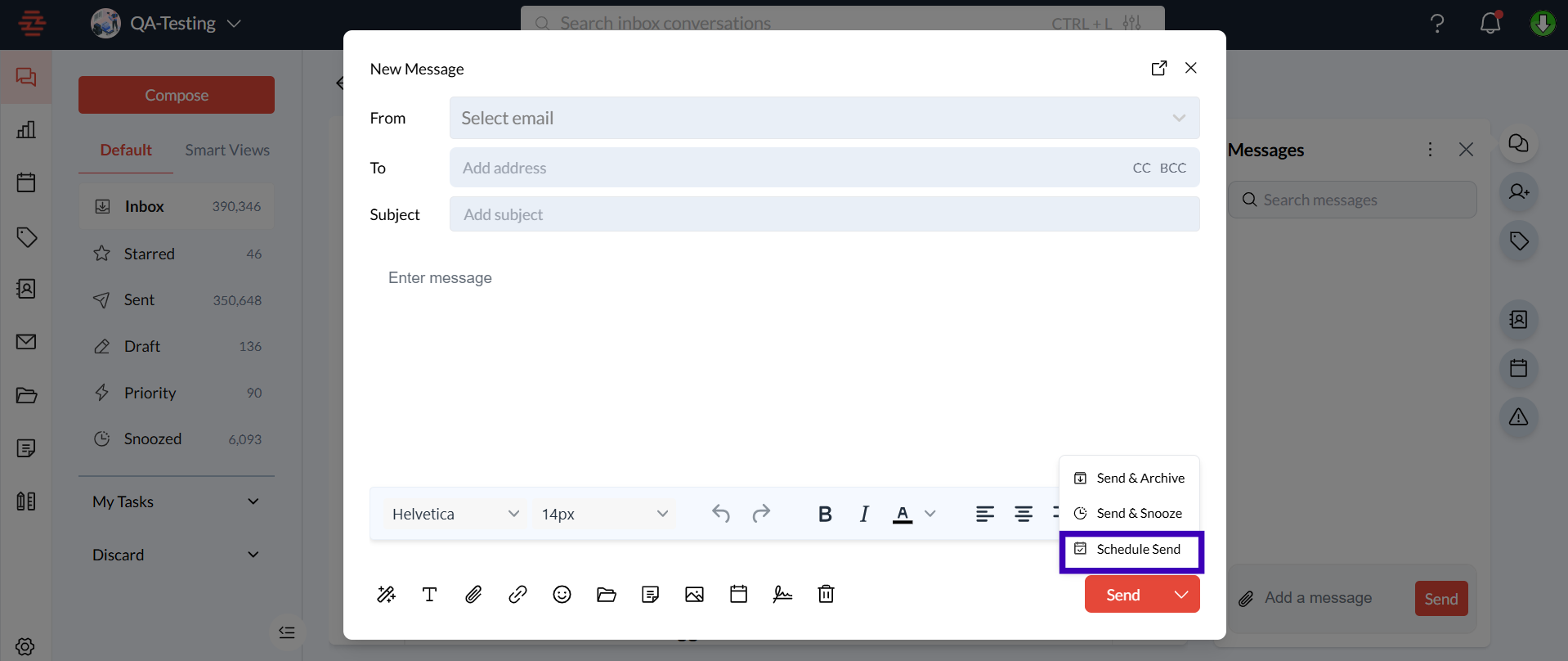
Scheduled Send: Set a specific time for your email to be sent, perfect for reaching recipients at the best time.
Send Later, Send & Snooze, Send & Archive: Choose how to manage your sent emails with options to snooze or archive after sending.
AI Compose Assistance: Use the "Compose with AI" feature to generate draft content quickly based on prompts.
Step-by-Step Guide to Composing and Replying
Composing a New Email
Start a New Email: Click on the “Compose” button at the top-left corner of your Zeninbox interface.
Enter Recipients: Add the recipient's email address in the "To" field. Use the "Cc" and "Bcc" fields if you need to include other recipients.
Subject and Body: Write your subject line in the “Subject” field. Then, enter your message in the main body area.
Tip: Use the rich text editor to format your message as needed.
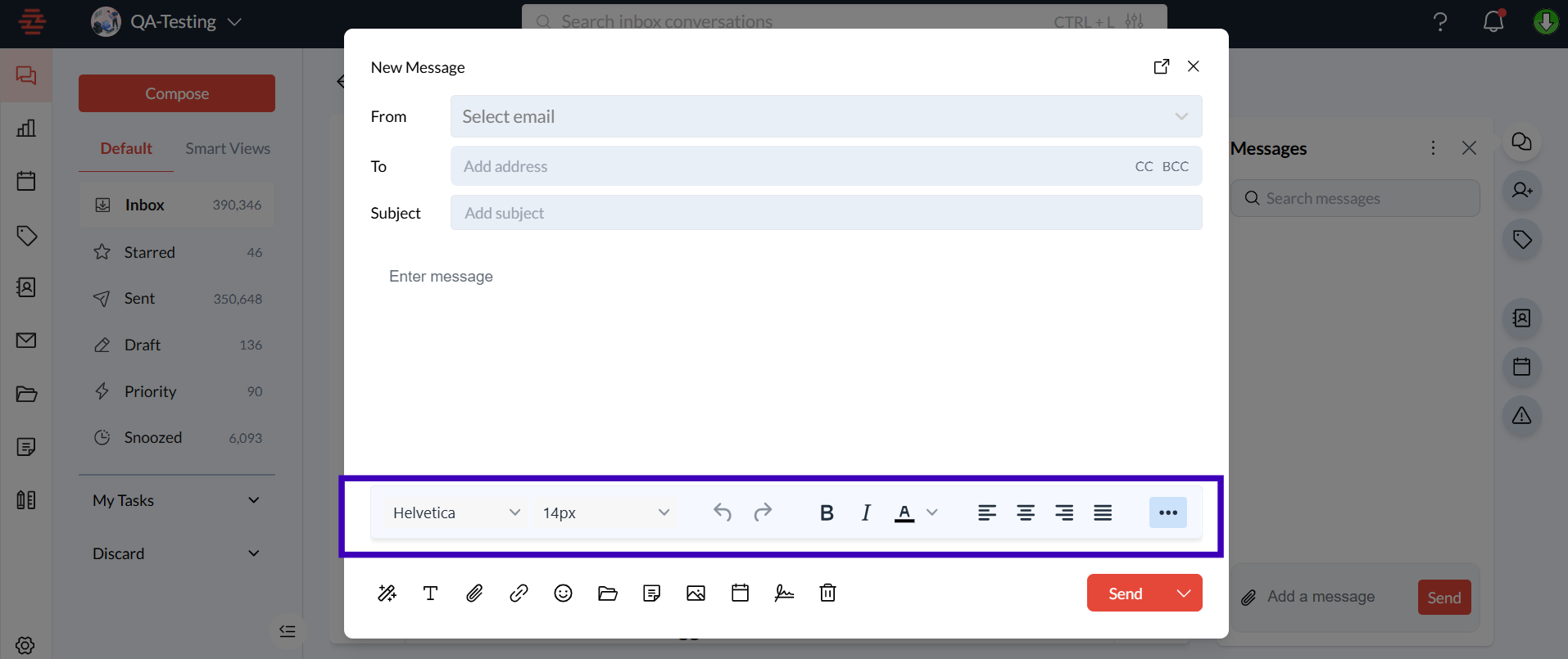
Add Attachments: Click on the paperclip icon to add files from your device or Zeninbox Drive.
Schedule or Send: Click “Send” to send immediately, or use the drop-down menu to select “Schedule Send” if you want to set a specific time for sending.
Replying to an Email
Open the Email Thread: Click on the email thread you want to respond to in your inbox.
Click Reply, Reply All, or Forward: Select the appropriate option based on who you want to respond to.
Tip: Use "Reply All" if you want to include all original recipients in your response.
Draft Your Response: Write your message in the text box that appears. You can use formatting options as needed.
Send Your Reply: Click “Send” when you’re ready to respond or use the scheduling options if preferred.
Using AI Compose Assistance
Activate AI Compose: While composing or replying, click on the “Compose with AI” button.
Provide a Prompt: Enter a brief description of what you want to communicate. For example, “Draft a follow-up email about the meeting.”
Review and Edit: The AI will generate a draft. Review and edit it as necessary before sending it.
FAQs
How do I attach multiple files?
You can attach multiple files by selecting them all when clicking the paperclip icon or by dragging them into the email window.
Can I unsend an email?
Yes, you can use the “Undo Send” feature immediately after sending an email. This option will appear at the top of your screen for a few seconds after you send an email.
Conclusion
Composing and replying to emails in Zeninbox is designed to streamline your communication needs, allowing you to focus on what matters. With features like rich text formatting, AI assistance, and scheduling, you can tailor your messages to your audience and ensure they are sent at the perfect time. If you encounter any issues or have further questions, our support team is here to help.