How to Print an Email or Save as PDF in Zeninbox
Written By lucidgrowth
Last updated Over 1 year ago
Introduction:
Printing an email or saving it as a PDF is a simple way to store important messages or share them outside of Zeninbox. Whether you need a hard copy for record-keeping or want to save an email digitally, Zeninbox provides an easy way to do this. This guide will walk you through the process step by step.
Step-by-Step Guide:
Open the Email You Wish to Print or Save as PDF:
Navigate to your Zeninbox dashboard and find the email you want to print.
Click on the email to open it.
Access the More Options Menu:
In the top-right corner of the email view, you will see an options icon (three dots).
Click on this icon to reveal more options.
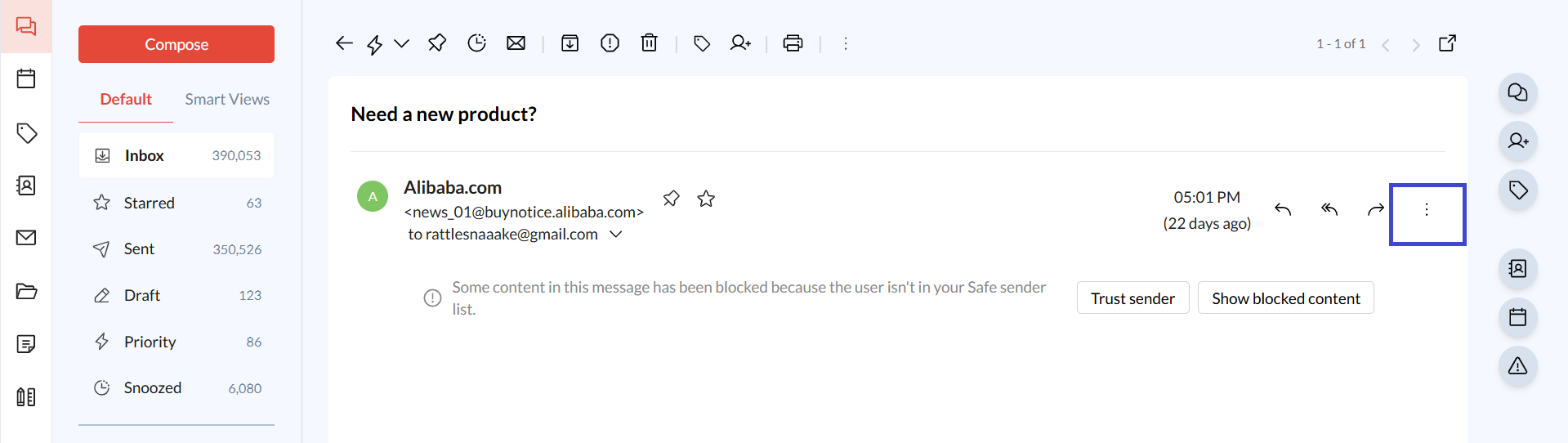
Select the Print Option:
From that, click on “Print.”
This will open a print preview of your email.
Choose Printing or Saving as PDF:
To Print: Select your printer from the dropdown menu and click “Print” to create a physical copy.
To Save as PDF: Change the destination to “Save as PDF” in the print dialog.
Click “Save,” choose a location on your computer, and give the file a name before saving.
Common Issues/FAQs:
Q: Why can’t I find the print option?
A: Make sure you’ve opened the email fully. The print option will appear in the More Options menu (three dots) on the top right of the email.
Q: Can I save the email attachments along with the email as a PDF?
A: The PDF will only include the text content of the email. Attachments need to be downloaded separately.
Q: My PDF doesn’t look right. What can I do?
A: Ensure that the print preview displays the email correctly before saving. Adjust the page orientation (Portrait or Landscape) as needed.
Conclusion:
Printing or saving an email as a PDF in Zeninbox is a convenient way to keep a copy of important communications. Follow the steps above to easily create a physical or digital copy of your emails. If you encounter any issues, feel free to reach out to our support team for further assistance. For more guides like this, check out our Help Center.