Using Bulk Actions in Zeninbox
Learn how to save time by managing multiple emails at once with Bulk Actions in Zeninbox. Organize, archive, assign, or delete emails effortlessly!
Written By lucidgrowth
Last updated Over 1 year ago
Introduction
Bulk action in Zeninbox allows you to perform multiple actions on several emails simultaneously, helping you manage your inbox more efficiently. This feature is particularly useful when you need to organize, archive, delete, or categorize multiple conversations at once, saving you time and reducing manual effort. Understanding how to use bulk actions effectively can streamline your workflow and keep your inbox organized.
Key Features of Bulk Action
Select Multiple Conversations: Quickly select multiple emails at once using checkboxes next to each conversation.
Perform Common Actions: Apply actions like delete, archive, mark as read/unread, label, snooze, assign, pin, and priority in one step.
Filter and Apply: Combine bulk actions with filters to target specific conversations, such as those from a particular sender or within a certain date range.
Step-by-Step Guide to Using Bulk Action
Selecting Multiple Conversations
Open Your Inbox: Navigate to the inbox where you want to perform a bulk action.
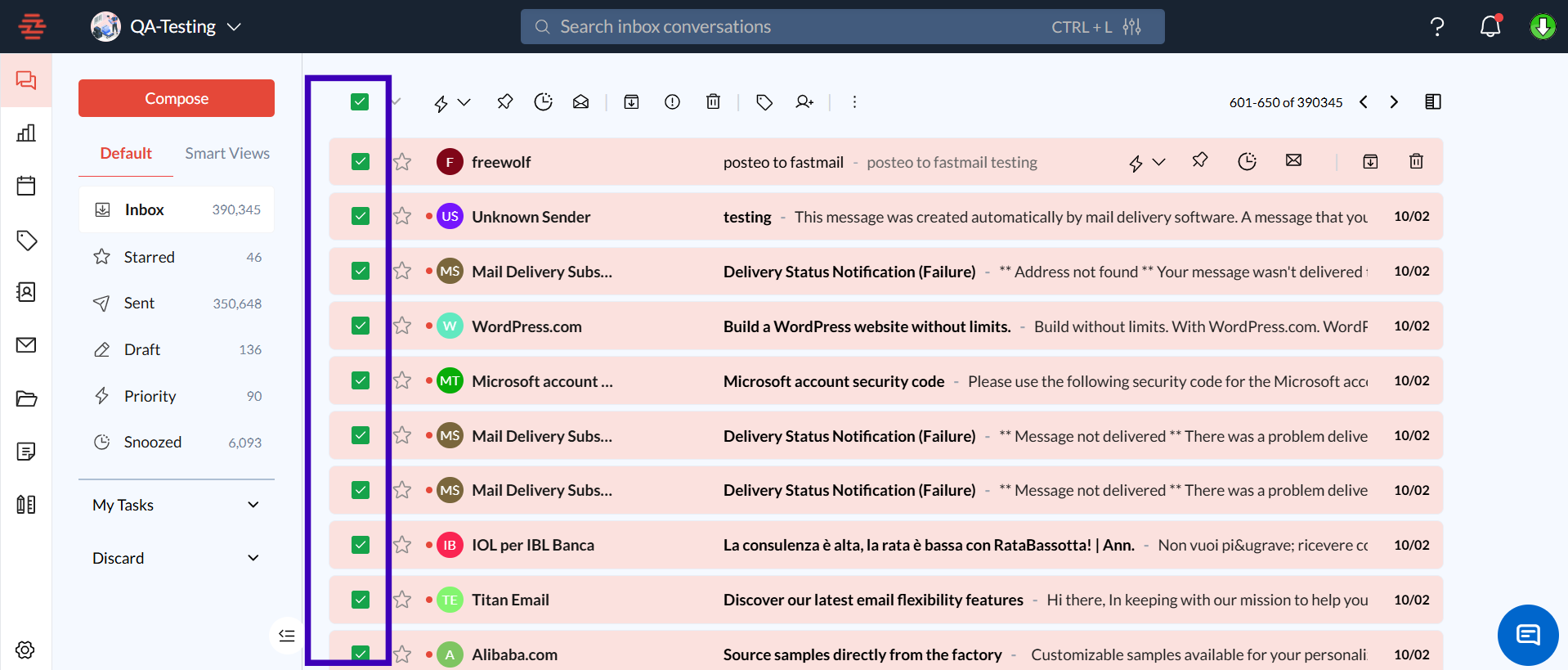
Select Emails: Click the checkboxes next to each email you want to include in the bulk action. Alternatively, use the “Select All” checkbox at the top to select all visible conversations.
Tip: Use the filter option before selecting to narrow down specific conversations.
Applying Bulk Actions
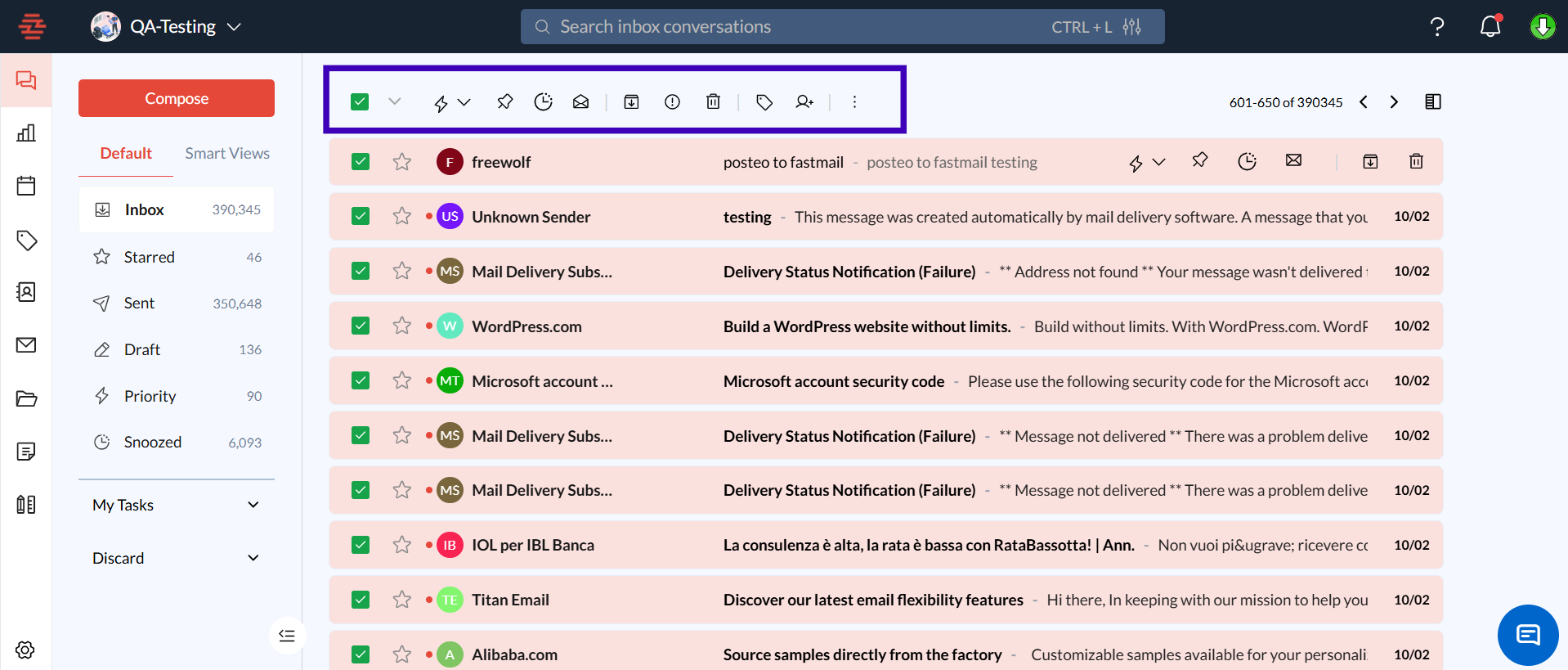
Choose an Action: After selecting emails, click on the desired action from the toolbar at the top of the inbox (e.g., “Delete,” “Archive,” “Mark as Read,” “Label”).
Confirm the Action: A confirmation prompt may appear for actions like deletion. Click “Yes” to proceed.
Wait for Confirmation: A notification will confirm that the action has been applied to the selected conversations.
Use Cases for Bulk Action
Archiving Old Emails: Quickly archive all emails older than 6 months to keep your inbox clean while preserving important records.
Tagging Similar Conversations: Apply tags like “Client,” “Internal,” or “Urgent” to multiple emails at once, helping you categorize conversations more effectively.
Deleting Spam or Unwanted Emails: Use filters to select all emails from unwanted senders and delete them in one go, saving you from repetitive clicks.
FAQs
Why can't I select more than 50 conversations at once?
The “Select All” function is limited to 50 emails per page for performance reasons. To work with more emails, apply filters and select them page by page.
Can I apply a bulk action across all filtered results, not just those on the current page?
Yes, when you filter your conversations, an option will appear to “Select all conversations that match this filter.” Use this to apply actions across the entire filtered set.
What should I do if I accidentally delete important emails using bulk action?
Use the “Undo” option immediately after performing the action. If too much time has passed, you can retrieve the emails from the Trash Box within 30 days.
Conclusion
Bulk actions in Zeninbox are a powerful way to manage large volumes of emails with minimal effort. By using selection tools, filters, and the ability to undo actions, you can maintain an organized inbox and keep your workflow smooth. If you need additional support, feel free to reach out to our support team.