How to Search in Zeninbox
Written By lucidgrowth
Last updated Over 1 year ago
Introduction
Zeninbox's search functionality, accessible from the centralized search bar on every page, allows you to quickly find specific emails, attachments, or conversations. With advanced filters, you can tailor your search results to meet your needs, ensuring you find exactly what you're looking for.
Step-by-Step Guide to Using Search in Zeninbox
1. Locate the Centralized Search Bar
The search bar is always available at the top center of any page within Zeninbox.
You can start typing directly into this bar to search for keywords related to your emails or contacts.
2. Enter Your Search Query
Type in keywords, such as a sender's name, subject, or any other specific word in the body of the email.
As you type, Zeninbox will display instant search results below the search bar, including relevant emails and contacts.
3. Use Advanced Search Filters
Click the filter icon (funnel symbol) to open advanced search options.
The available filters may vary based on the current page you’re viewing:
From: Find emails from a particular sender.
To: Filter emails addressed to a specific recipient.
Subject: Search for emails containing specific words in their subject line.
Include/Exclude Words: Specify terms that must be present or absent in the email body.
Size: Search for emails based on file size (e.g., greater than 2MB).
Date Range: Choose a date range for your search.
Has Attachment: Limit results to emails that contain attachments.
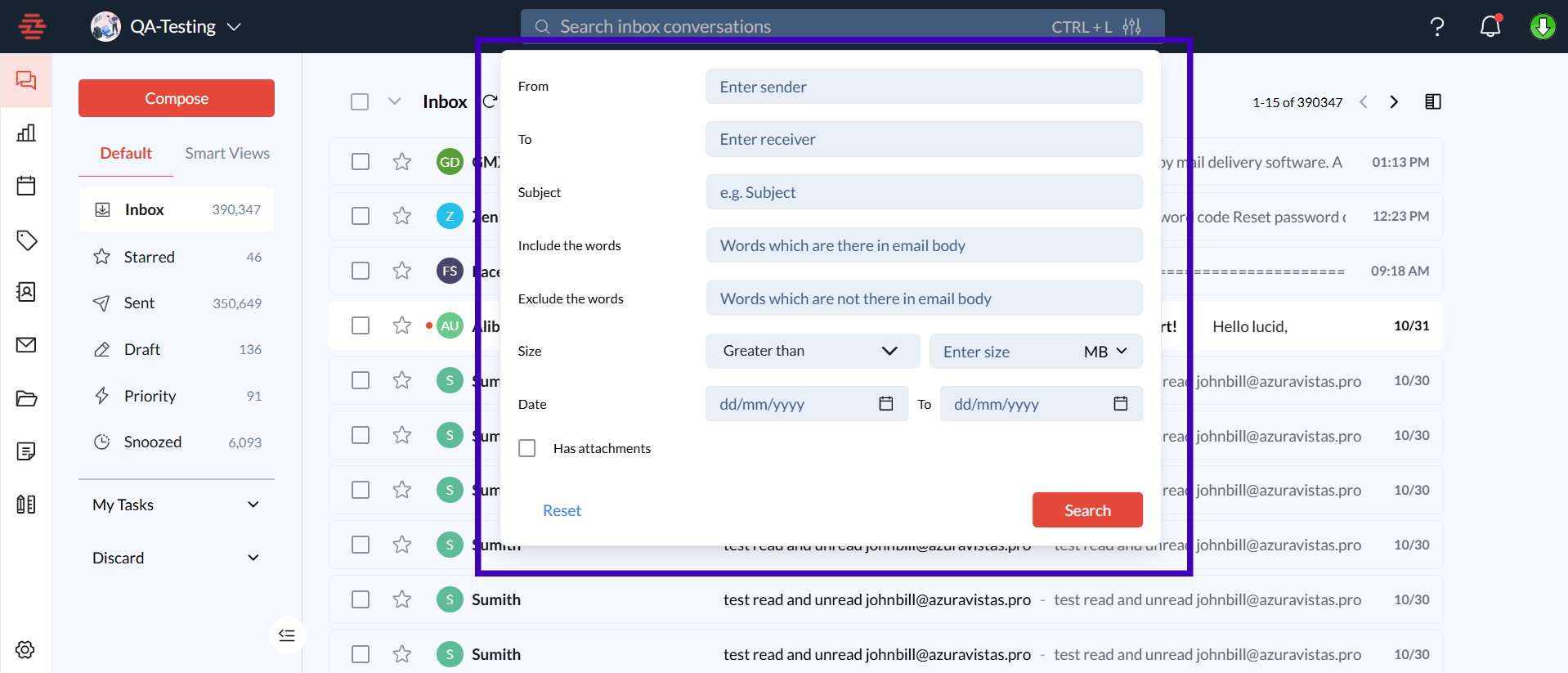
4. Apply Filters and Execute the Search
Once you have entered your desired filters, click the Search button.
The search results will display all emails matching your criteria.
Click on an email or conversation to open it directly from the results.
Common Issues and Troubleshooting
Issue: No Results Found
Verify Keywords: Make sure the keywords or phrases are correct.
Clear Filters: If your search is too specific, try removing some filters.
Check Date Range: Ensure that the selected date range includes the time frame you need.
Issue: Search Results are Slow
Refresh the Page: This can help if your internet connection is stable.
Update Your Browser: Ensure that your browser is up-to-date for the best experience.
Clear Cache: Sometimes, clearing your browser’s cache can improve performance.
Conclusion
Zeninbox’s powerful search feature, complete with advanced filtering, helps you manage your inbox with ease. By utilizing the search bar and its options, you can find exactly what you need in seconds. For more tips on using Zeninbox, check out our [Advanced Search Techniques Guide][#] or contact our support team for help.