Assigned Emails and Internal Conversations in Zeninbox
Discover how to manage assigned emails and collaborate using internal conversations in Zeninbox, ensuring seamless teamwork and efficient communication.
Written By lucidgrowth
Last updated Over 1 year ago
Introduction
Assigned internal conversations in Zeninbox are designed to facilitate smooth collaboration between team members by assigning email threads and discussing them privately within the team. This feature ensures that every email is managed efficiently, allowing teams to communicate internally about specific threads without involving external recipients. It’s particularly useful for customer support, sales, and any scenario where team coordination is key.
Key Features of Assigned, Internal Conversations
Conversation Assignment: Assign specific email threads to team members, ensuring clear ownership and accountability for follow-ups.
Internal Chat: Discuss email threads privately within the Zeninbox interface, keeping all internal notes and feedback separate from external communications.
Team Mentions: Use “@mentions” to tag team members in internal conversations, making sure they receive notifications for urgent matters.
Priority Indicators: Mark assigned conversations as high priority to ensure they receive immediate attention.
Status Updates: Track the status of assigned conversations to monitor progress and ensure timely responses.
Step-by-Step Guide to Using Assigned, Internal Conversations
Assigning a Conversation to a Team Member
Open the Email Thread: Navigate to the conversation you want to assign in your inbox.
Click on the “Assign” Icon: This icon is located at the top of the email thread.
Select a Team Member: Choose the team member from the dropdown list. You can also add a note for additional context if needed.
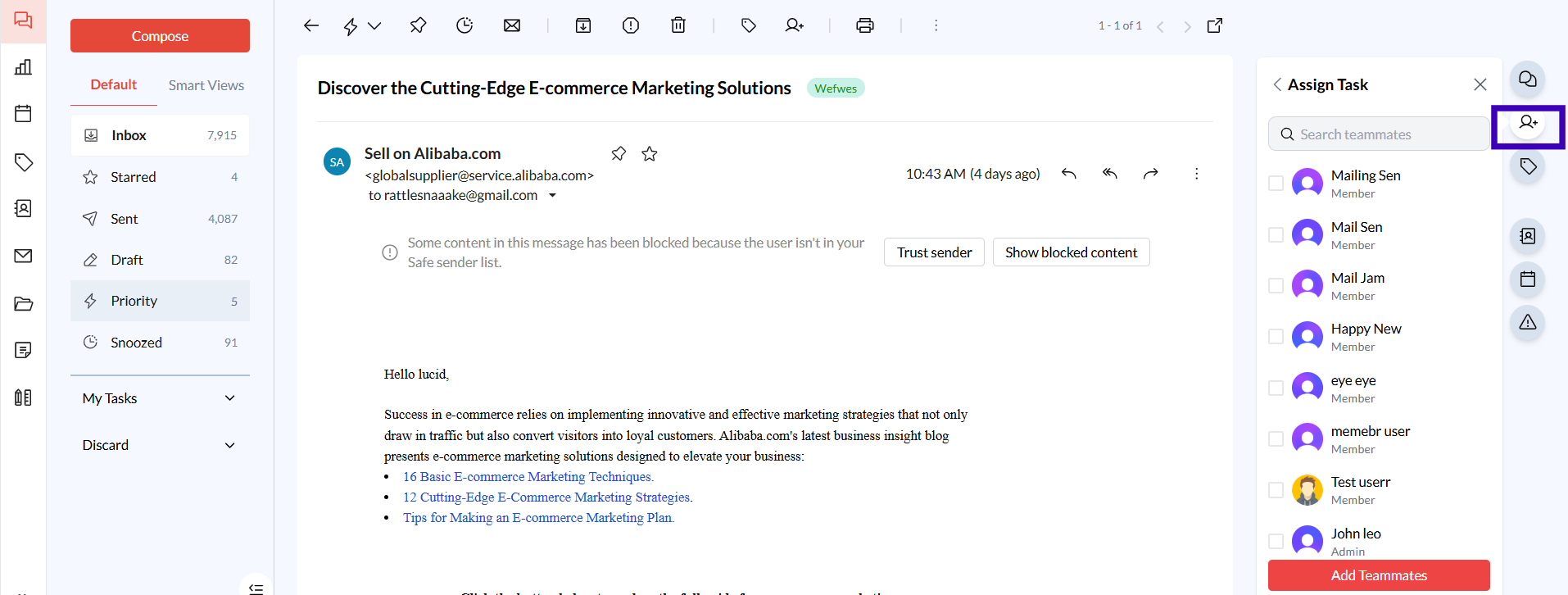
Click “Assign”: The conversation will now be assigned to the selected team member, and they’ll receive a notification.
Starting an Internal Conversation
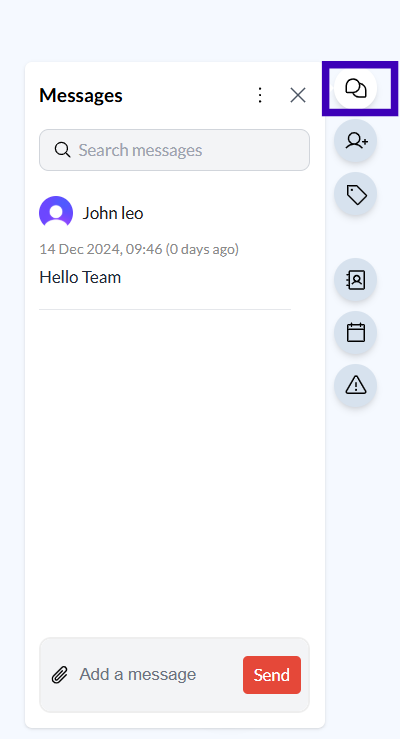
Open the Assigned Conversation: Go to the email thread that has been assigned or that you want to discuss internally.
Click on the “Internal Chat” Button: This button is located next to the main email reply options.
Type Your Message: Use the chat box to share feedback, ask questions, or provide instructions.
Mention Team Members: Use “@” followed by their name to mention a specific team member, ensuring they are notified of the message.
Send the Message: Click “Send” to post your internal comment. All messages will remain visible to your team but hidden from external recipients.
Marking a Conversation as High Priority
Open the Assigned Conversation: Navigate to the conversation in your inbox.
Click on the “Priority” Icon: Mark the conversation as a high priority to ensure it stands out in the assigned section.
Save Changes: This will update the priority status and make it easier for the assignee to identify urgent tasks.
Conclusion
Assigned internal conversations in Zeninbox help ensure that every email is managed efficiently and that team members can collaborate without leaving the platform. By using assignment features, internal chats, and priority indicators, you can keep your team aligned and on top of important conversations. For more information on how to use other collaboration features in Zeninbox, check out our guide on Team Collaboration Tools. If you have any further questions, feel free to reach out to our support team for assistance.