How to Reply to and Forward Emails in Zeninbox
Learn the simple steps to reply to emails and forward them to others in Zeninbox, ensuring smooth and efficient communication.
Written By lucidgrowth
Last updated Over 1 year ago
Introduction
In Zeninbox, knowing how to reply to, forward, and resend an email ensures smooth communication with your contacts. These actions allow you to continue conversations, share information, or correct mistakes with ease. This article guides you through each process, helping you understand when and how to use these features effectively.
Step-by-Step Guide
How to Reply to an Email
Replying to an email is essential when you want to continue a conversation with the sender or include all participants in a thread. Here’s how you can do it:
Open the Email: Navigate to the inbox and select the email you want to reply to.
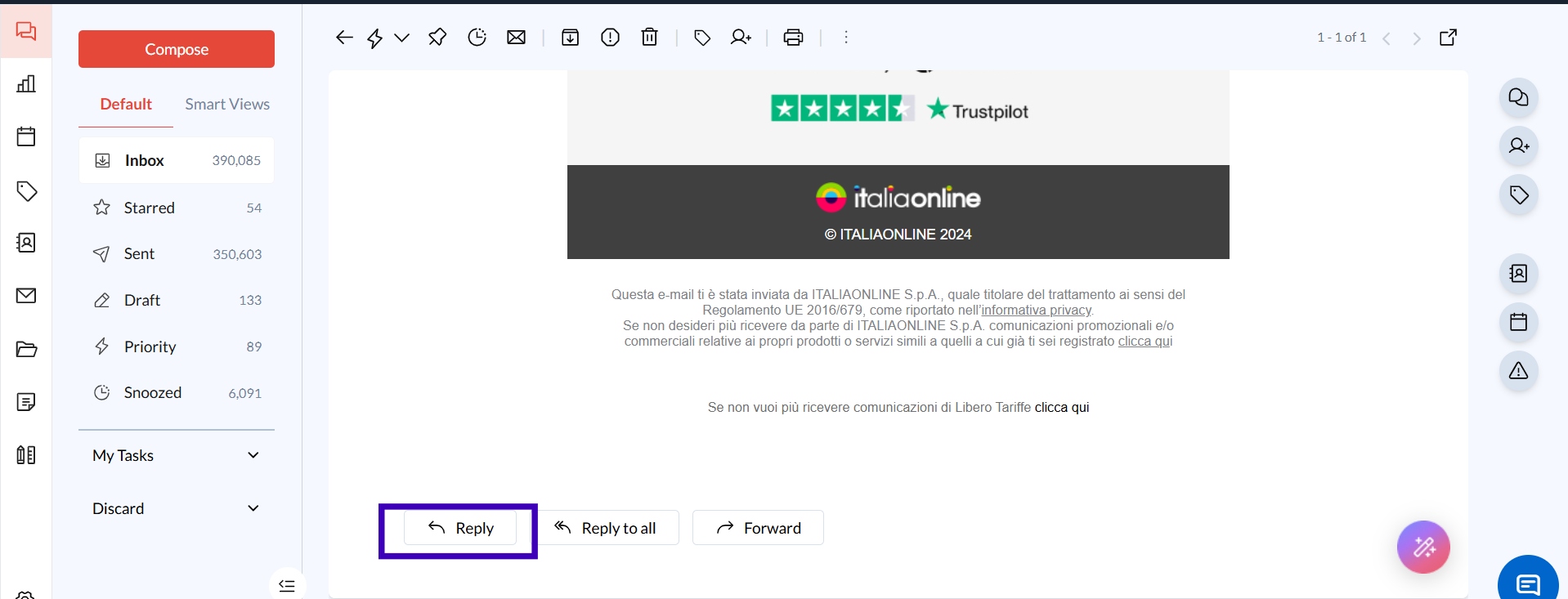
Click on the "Reply" Button: This option is typically located at the top and bottom of the email view.
Compose Your Message: Write your response in the text area that appears. Zeninbox allows you to use rich text formatting, making your response more engaging.
Send Your Reply: Click on the "Send" button once you are satisfied with your message.
How to Forward an Email
Forwarding an email is helpful when you need to share a message with someone who wasn't initially included in the conversation.
Open the Email: Find and select the email you want to forward.
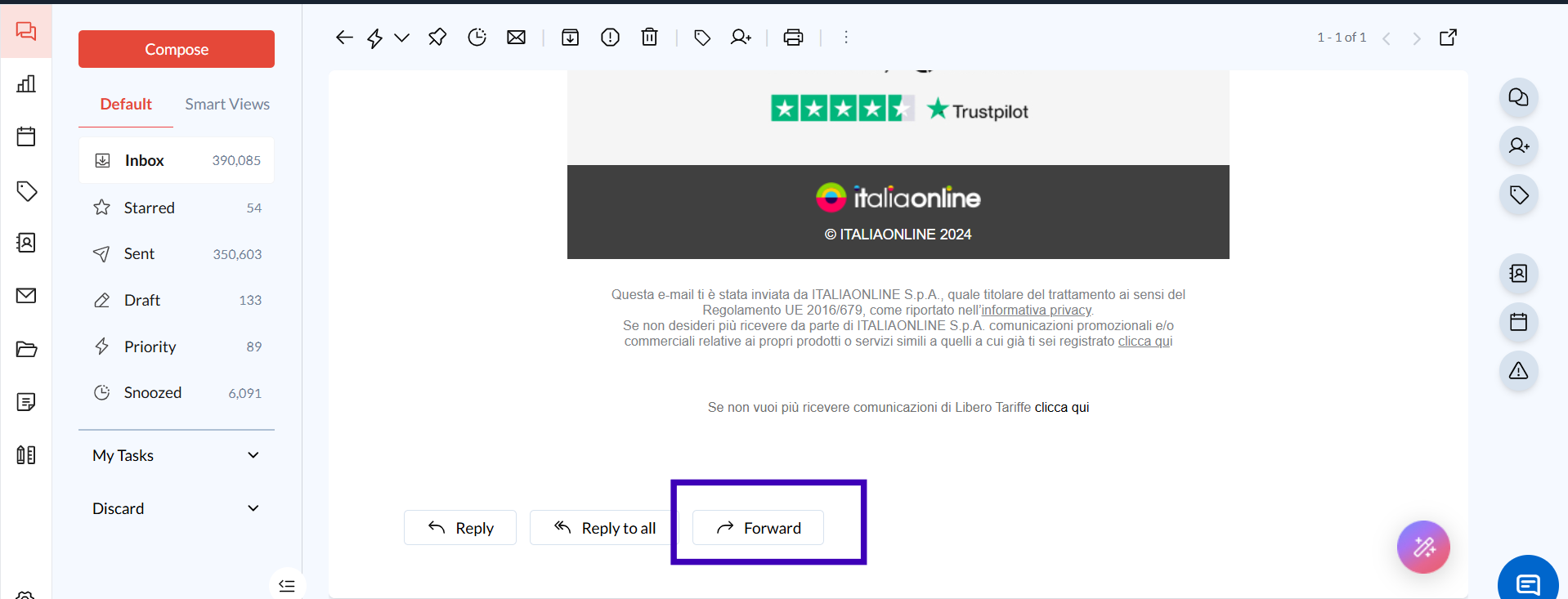
Click on the "Forward" Button: This option is generally beside the "Reply" button.
Enter the Recipient's Email: Type the recipient’s address in the “To” field.
Send the Email: Click "Send" to forward the email to the new recipient.
Conclusion
Understanding how to reply to, forward, and resend emails in Zeninbox ensures efficient communication, helping you stay connected and share information effortlessly. If you need more help with advanced features like scheduling emails or using templates, visit our [Help Center]or contact our support team.