Add Style and Image to Your Signature in Zeninbox
Written By lucidgrowth
Last updated Over 1 year ago
Introduction
Adding style and images to your signature in Zeninbox helps you create a personalized, professional touch for every email you send. With this feature, you can customize your email signature by including text styling, logos, or other images that represent your brand or identity. This article explains how to set up and enhance your signature with these elements, making your emails more visually appealing and impactful.
Prerequisites
Before adding style and images to your signature, ensure the following:
Account Permissions: You must have a Zeninbox account with access to the signature settings.
Image Requirements: Supported image formats include JPEG, PNG, and GIF.
Important Note: Changes to your signature will apply to new emails but will not affect emails already sent.
Step-by-Step Instructions
Step 1: Access Signature Settings
Log in to Zeninbox with your credentials.
Click on the Mail Boxes icon in your dashboard and open the desired Mailbox.
Navigate to the Signature tab.
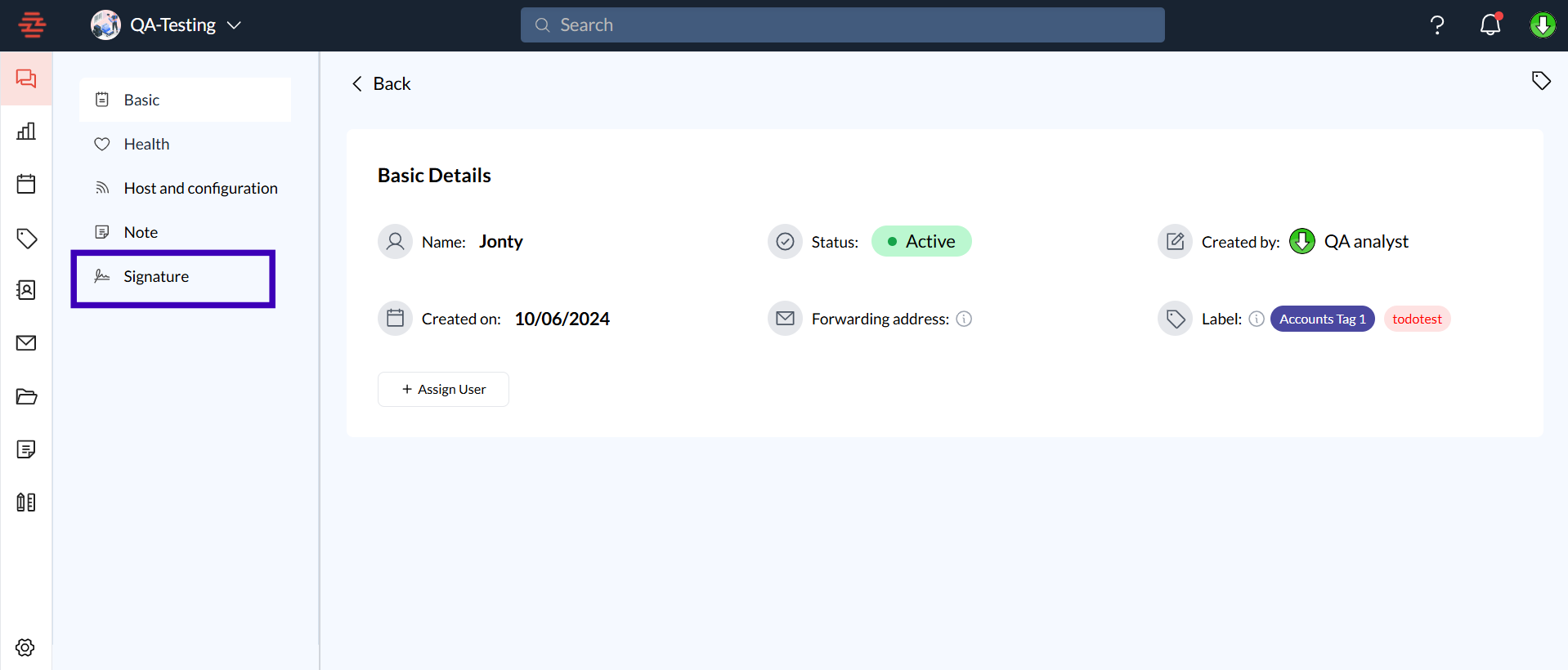
Step 2: Add Text and Style to Your Signature
In the Signature Editor, type in the text you want for your signature (e.g., your name, job title, company).
Use the text formatting toolbar to adjust the style:
Bold, Italic, or Underline text for emphasis.
Change Font by selecting from the drop-down list.
Adjust Font Size for better readability.
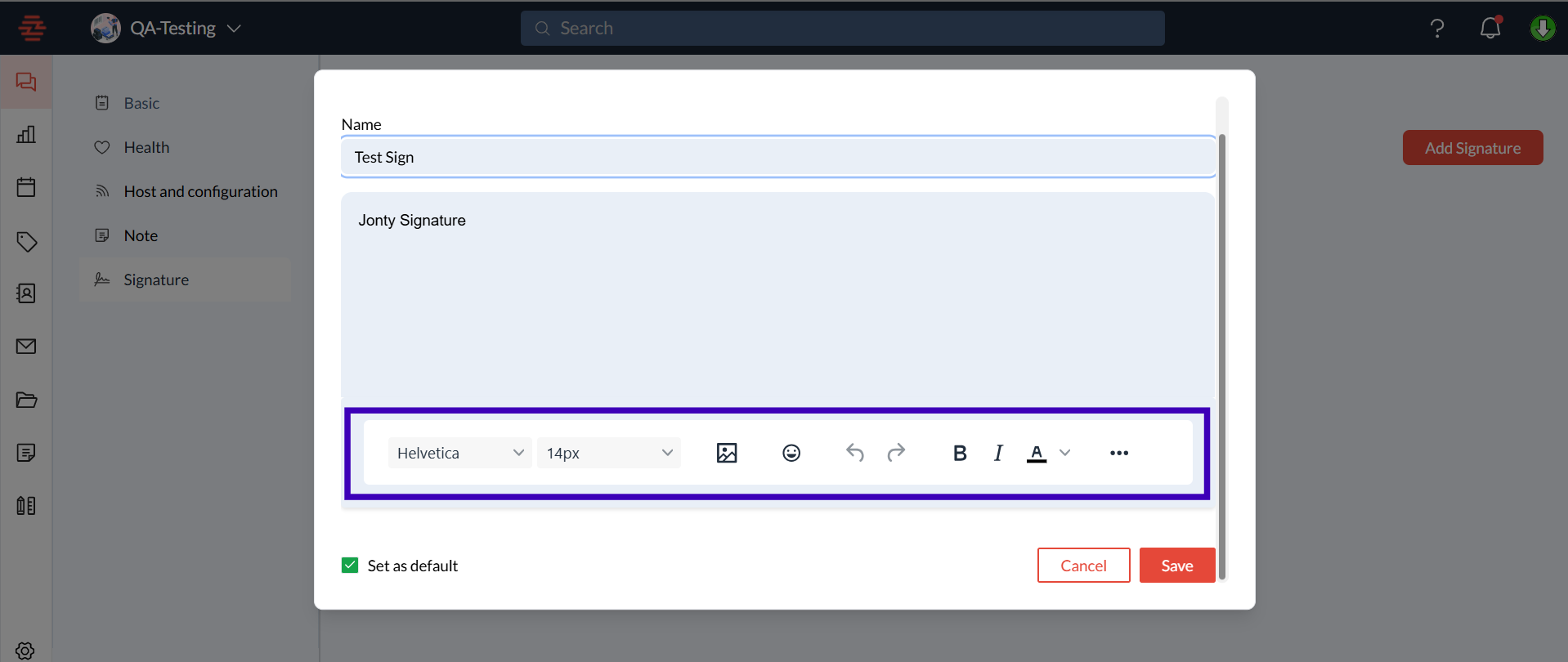
Step 3: Insert an Image
Click the Insert Image icon in the signature editor toolbar.
Upload your image from your computer or drag and drop it into the designated area.
Adjust the size and alignment of the image directly within the editor for the best appearance.
Click Save to apply changes.
Conclusion and Next Steps
With Zeninbox, adding style and images to your email signature is a simple way to enhance your professional communication. Try setting up your custom signature today and make your emails stand out!
If you need further assistance, contact our support team through the Help Center or email us at support@zeninbox.ai.