Managing Your Unified Inbox in Zeninbox
Discover how to manage all your emails in one place with the Zeninbox Unified Inbox. Stay organized and on top of your messages!
Written By lucidgrowth
Last updated About 1 year ago
Introduction
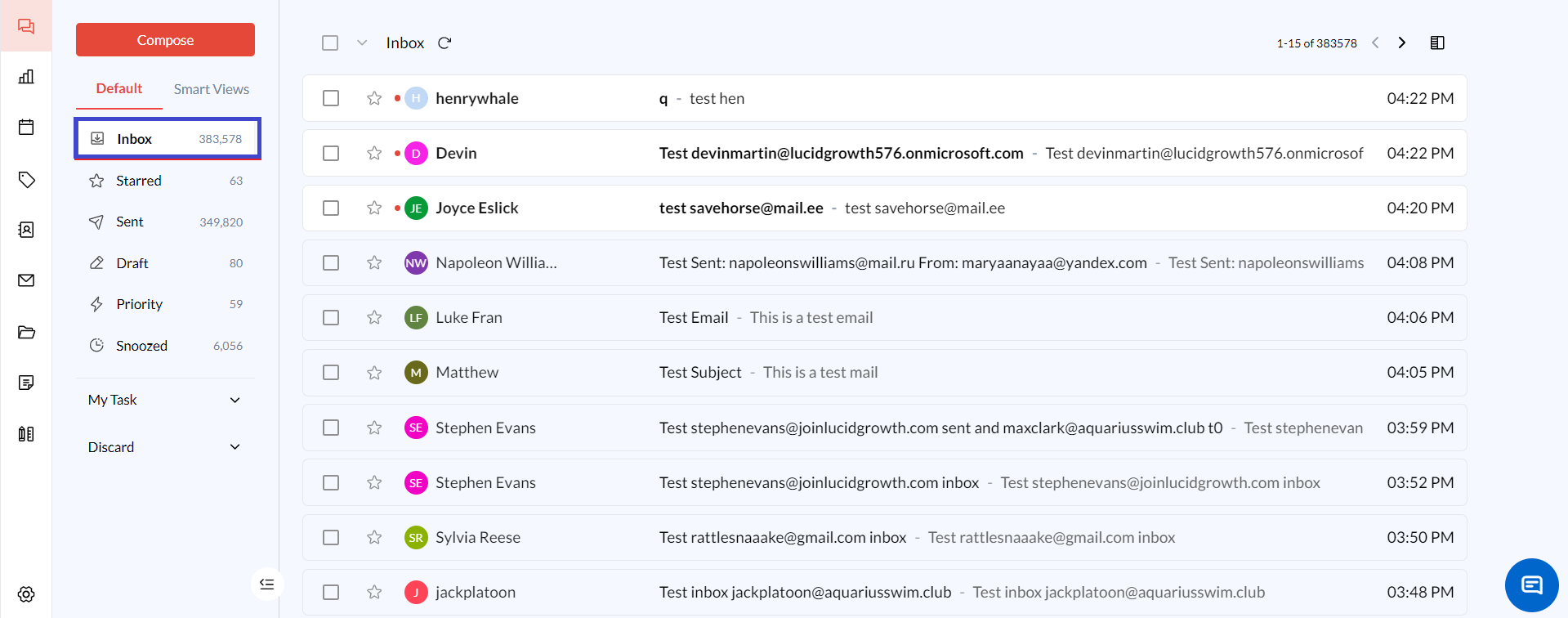
The inbox is the central hub of Zeninbox, where all your emails from various accounts come together in one organized place. It allows you to manage and access your messages, sort them, and perform actions such as replying, archiving, or categorizing with ease. Understanding how the inbox functions is key to maximizing your productivity and keeping your communication streamlined.
Key Features
Unified Inbox
View emails from multiple accounts in a single, organized interface. No more switching between different email platforms.Smart Categorization
Automatically sorts incoming emails into predefined categories like Work, Personal, Promotions, and more, helping you focus on what matters most.Quick Actions
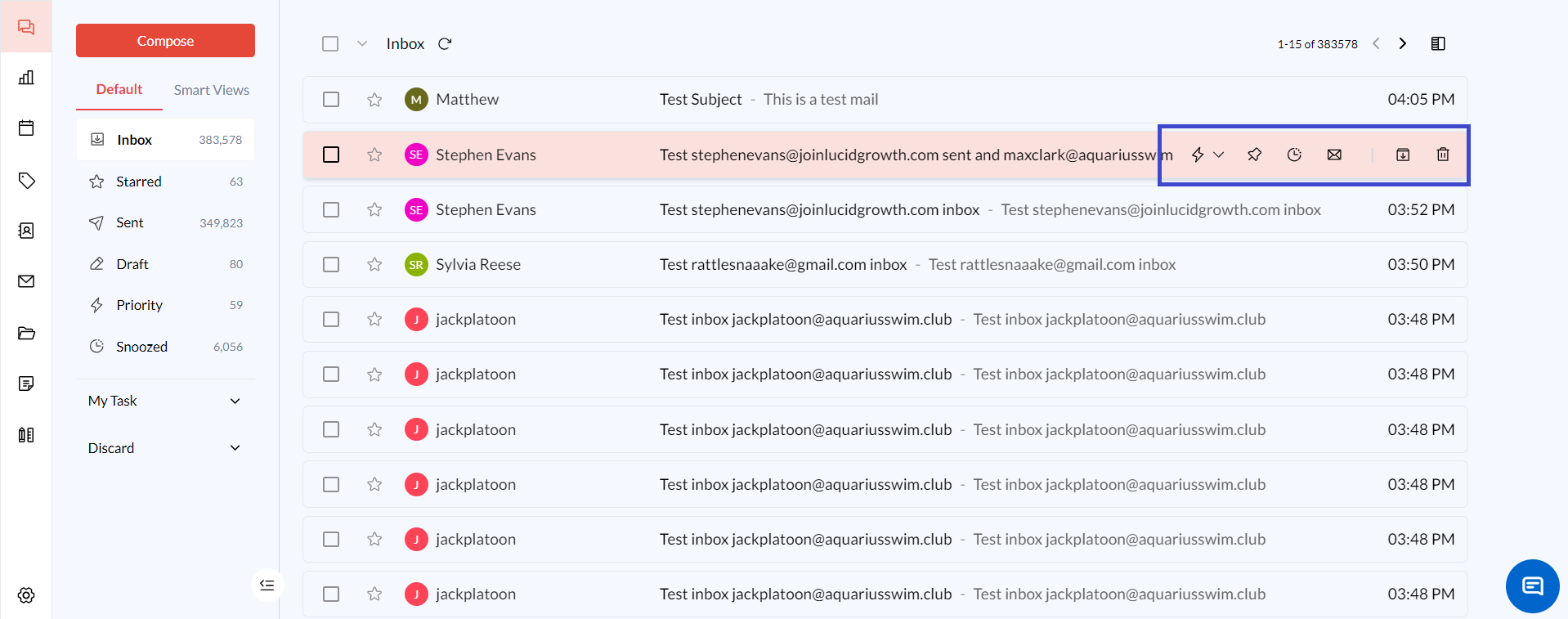
Perform common actions like replying, archiving, or marking emails as read/unread directly from the inbox without needing to open each message.Custom Filters
Create custom filters to automatically organize your emails. Set rules based on keywords, sender, or subject lines to sort your emails the way you want.Priority Inbox
Highlight and prioritize important emails, ensuring that critical messages are always at the top of your list.Search and Filter Options
Use advanced search and filter capabilities to quickly find specific emails, attachments, or conversations within your inbox.
Benefits of Using the Inbox
Centralized Management: The inbox centralizes all your communication, making it easy to manage multiple accounts without the need for multiple logins.
Enhanced Productivity: With features like quick actions and smart categorization, you can process emails faster, leaving more time for other important tasks.
Organized Workflow: Custom filters and priority settings help keep your inbox organized, reducing clutter and allowing you to focus on high-priority messages.
Improved Communication: Quickly respond to emails or assign them to team members directly from the inbox, ensuring timely communication.
Step-by-Step Guide to Using the Inbox
Step 1: Accessing the Unified Inbox
Log in to Zeninbox: Enter your credentials on ZenInbox and access your account.
Navigate to the Inbox: Click on the “Inbox” tab in the main menu to view all your emails.
Step 2: Using Quick Actions
Hover over an Email: To access quick actions like “Reply,” “Archive,” or “Mark as Read,” hover over the email in your inbox.
Click the Desired Action: Select the action directly from the inbox to perform it without opening the email.
FAQs
Q: How can I mark multiple emails as read?
A: Select the checkbox next to each email, then click the “Mark as Read” button at the top of the inbox.
Conclusion and Next Steps
Understanding how to use the inbox effectively is crucial for staying organized and on top of your emails. For more assistance, visit our Support Page or reach out to our team at support@zeninbox.ai. Happy emailing!