Does Zeninbox Support MMS?
Find out how Zeninbox handles multimedia messages (MMS) and integrates attachments for seamless communication.
Written By lucidgrowth
Last updated Over 1 year ago
Introduction
Zeninbox supports MMS (Multimedia Messaging Service), allowing you to send and receive multimedia messages such as images, videos, and audio directly through your email interface. This feature enables you to seamlessly integrate multimedia communication into your regular email workflow, making it easier to share rich content without switching between different apps. Understanding how to use MMS within Zeninbox can greatly enhance your communication capabilities.
Key Features of Zeninbox Supports MMS
Send Multimedia Files: Easily send images, videos, and audio files through MMS directly from your Zeninbox interface.
Receive and View MMS: Automatically receive multimedia messages, with the ability to view attachments directly in your email thread.
Attachment Preview: Preview images and videos before downloading, ensuring that you have the right content at a glance.
Step-by-Step Guide to Using MMS in Zeninbox
Sending an MMS
Compose a New Message: Click on the “Compose” button in your Zeninbox interface.
Attach Multimedia Files: Use the “Attach File” icon to add images to your message.
Tip: Ensure that your file size meets the allowable limits for smooth delivery.
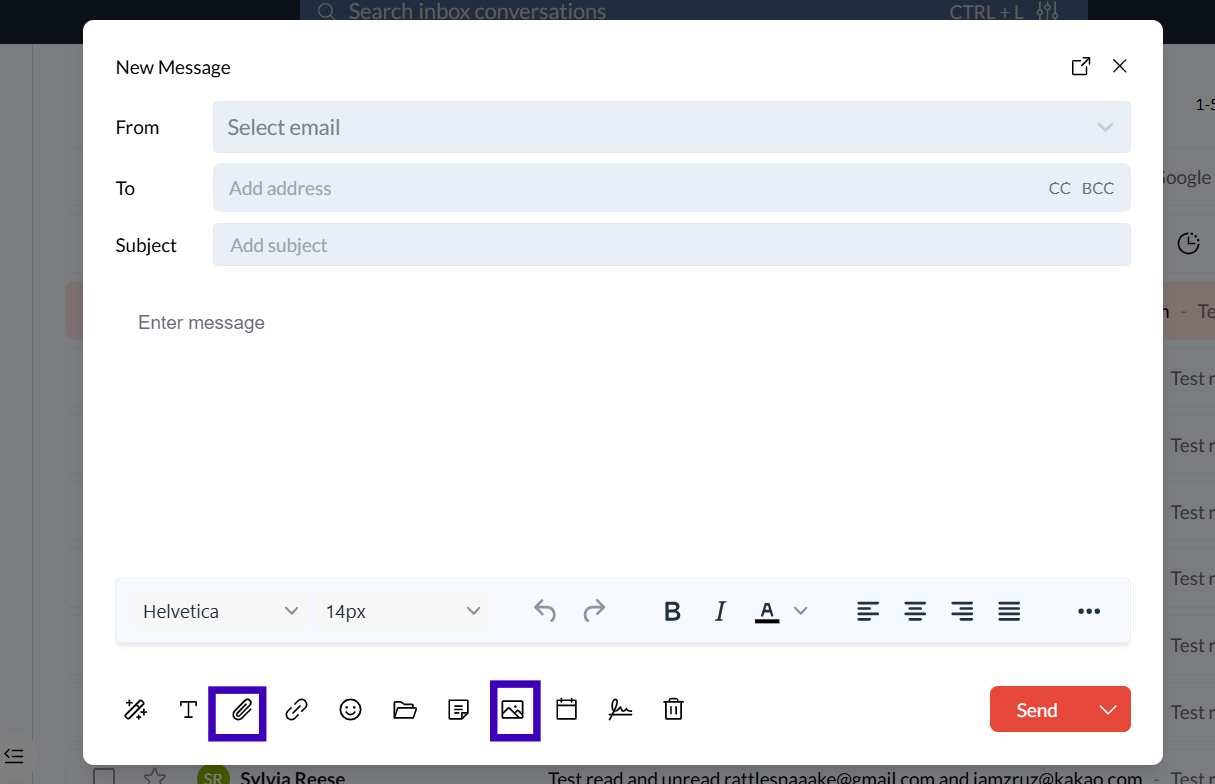
Add Recipients: Enter the recipient’s mobile number or email address that supports MMS.
Send the Message: Click “Send,” and your multimedia message will be delivered to the recipient’s device.
Receiving and Viewing MMS
Open the Message: Navigate to the inbox and click on the email or message containing the MMS.
Preview the Attachment: Click on the attachment thumbnail to preview images or videos without downloading them.
Download the File: If you want to save the file, click the “Download” button below the preview.
Filtering MMS Messages
Use the Filter Option: Click on the “Filter” button in your inbox.
Select Filter: Choose “Has attachments” from the filter options to view only messages with attachments.
Apply the Filter: Click “Search” to see a list of all conversations that include MMS files.
Conclusion
With Zeninbox’s MMS support, you can easily integrate multimedia content into your communication, making it more dynamic and effective. Whether you’re sharing product visuals with clients or collaborating with your team, the ability to send and receive MMS through your email enhances your flexibility and productivity. If you have any questions, feel free to reach out to our support team for assistance.