Setting Up Out of Office in Zeninbox
Learn how to set up and manage your Out of Office responses in Zeninbox to keep your contacts informed while you're away.
Written By lucidgrowth
Last updated Over 1 year ago
Introduction
The Out of Office feature in Zeninbox allows you to set your availability status to notify others that you're currently away and won't be responding to emails or meetings. This feature is ideal for periods when you’re unavailable, such as vacations, sick leave, or other times when you need uninterrupted focus. With Out of Office enabled, Zeninbox can automatically decline meetings on your behalf, ensuring your contacts are informed of your absence.
Prerequisites
Calendar Integration: Out of Office works best with a connected calendar to manage meeting invites and notifications effectively.
Step-by-Step Instructions
Access the Calendar:
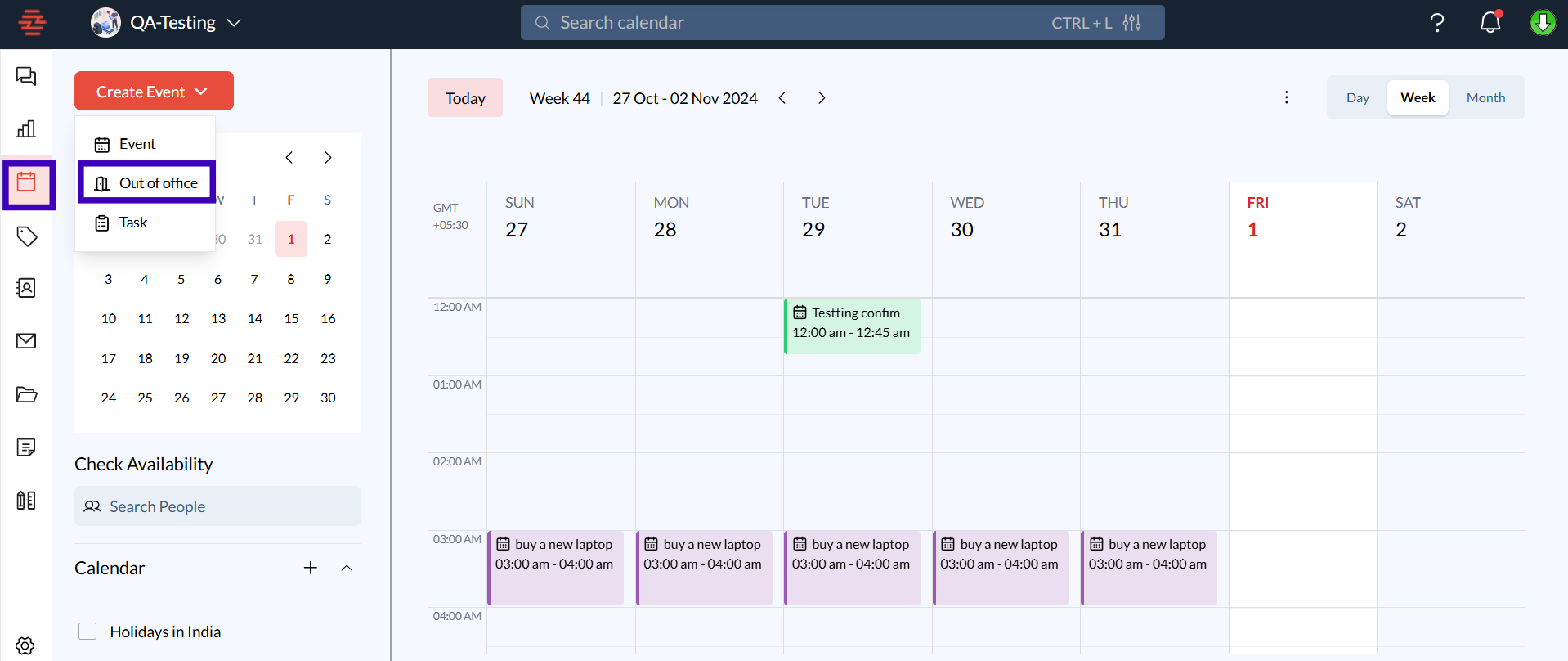
From the Zeninbox dashboard, click on the Calendar icon on the left sidebar to open your calendar view.
Initiate Out-of-Office Setup:
Click on the Create Event button at the top left of your calendar.
From the dropdown options, select Out of Office.
Set Out of Office Details:
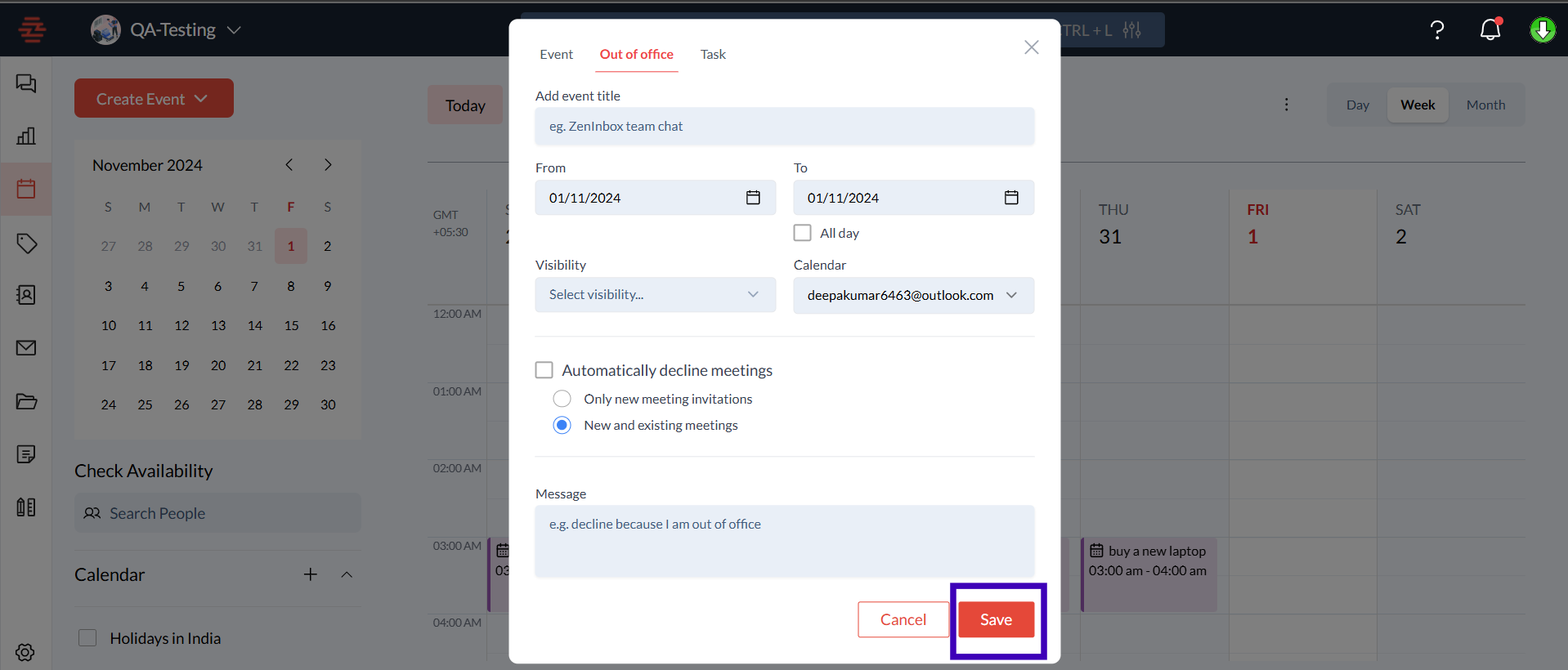
Add Event Title: Enter a title that describes your Out of Office status (e.g., "On vacation" or "Unavailable").
Set Date Range: Select the From and To dates for when you’ll be out of office. You can also check the All day option if applicable.
Choose Visibility: Select whether you want the Out of Office status visible to others or restricted.
Automatically Decline Meetings:
To avoid incoming meeting invitations during your absence, check the Automatically decline meetings box.
You can choose between:
Only new meeting invitations: Declines only new meetings scheduled during your absence.
New and existing meetings: Declines both new invitations and existing meetings within your specified timeframe.
Add a Message (Optional):
Add a custom message to inform senders about your absence. For example: "I'm currently out of the office and will respond upon my return."
Save Changes:
Click Save to apply your Out of Office status. Zeninbox will now manage your calendar and notify others as per your settings.
Additional Tips and Best Practices
Check Availability Before Setting Out of Office:
Use the Check Availability feature to ensure your absence doesn’t overlap with critical team activities.
Use 'Do Not Disturb' for Shorter Breaks:
For brief periods where you need to focus without fully setting Out of Office, consider enabling the Do Not Disturb option instead. This mutes notifications but doesn't automatically decline meetings.
Common Issues and Troubleshooting
Out of Office Not Syncing with Calendar:
Ensure that your calendar is connected and that permissions are granted for Zeninbox to manage meetings.
Meeting Declines Not Being Sent:
Check that the Automatically decline meetings option is enabled and properly configured.
Confirm you have an active internet connection, as syncing requires connectivity.
Conclusion and Next Steps
Setting your Out of Office status in Zeninbox ensures smooth communication while you're away. It reduces scheduling conflicts and keeps your contacts informed. Once you return, remember to disable Out of Office status to resume normal availability.
For more information visit the Help Center. If you need additional assistance, reach out to our support team.