How to Save and Attach Emails as .eml Files in Zeninbox
Learn how to save emails as .eml files and attach them to other emails in Zeninbox for easy sharing and record-keeping.
Written By lucidgrowth
Last updated Over 1 year ago
Introduction
Saving and attaching emails as .eml files in Zeninbox allows you to keep the original structure and content of an email, including headers, attachments, and metadata. This is particularly useful when you need to share an entire email conversation or store emails outside of Zeninbox for backup or compliance purposes. This guide will walk you through how to save an email as a .eml file and attach it to a new message.
Key Features
.eml File Format: A commonly used format for email messages, preserving the entire content of an email, including text, attachments, and formatting.
Forward as Attachment: Share saved emails by attaching .eml files to new messages, keeping the original content intact.
Step-by-Step Guide
Step 1: Save an Email as a .eml File
Open Zeninbox and navigate to the email you want to save.
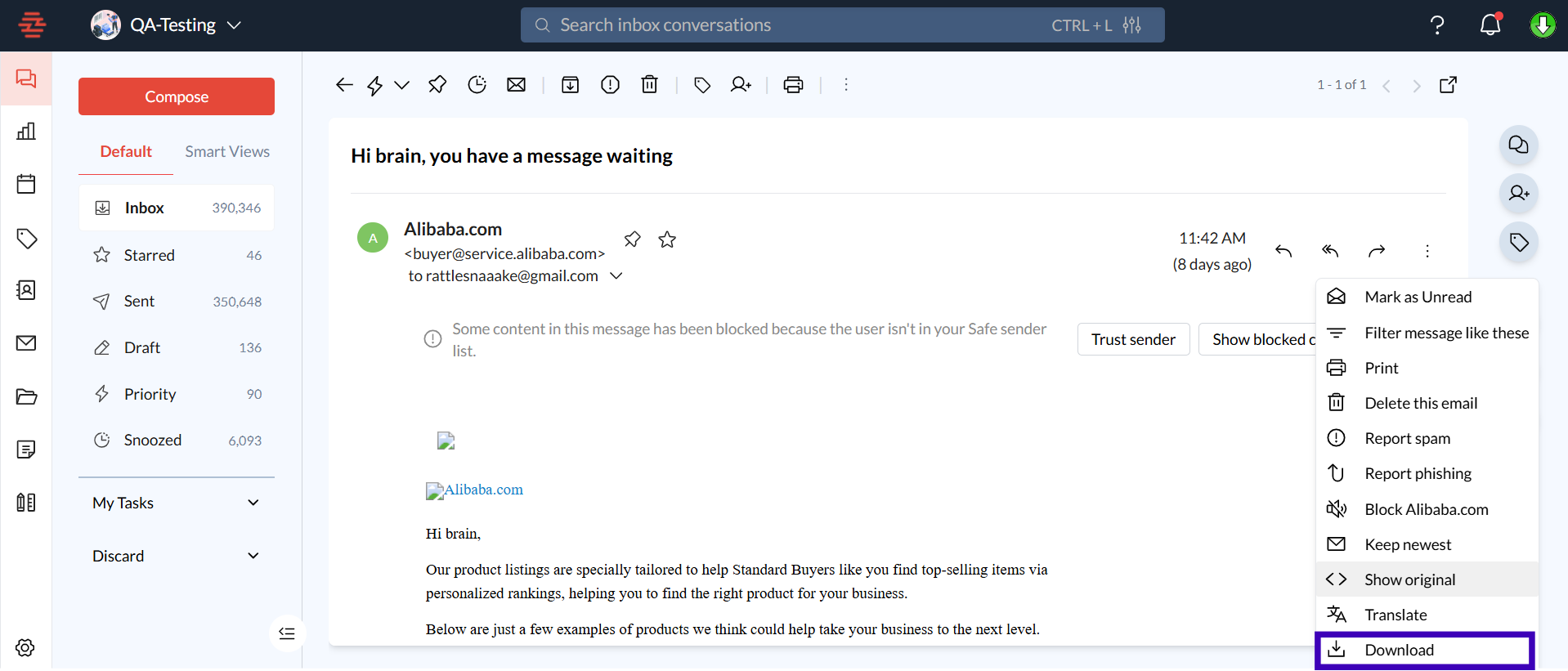
Click on the More Options menu (three dots) next to the email.
Select Download from the dropdown list.
Choose a location on your device where you want to save the .eml file and click Save.
Step 2: Attach a .eml File to a New Email
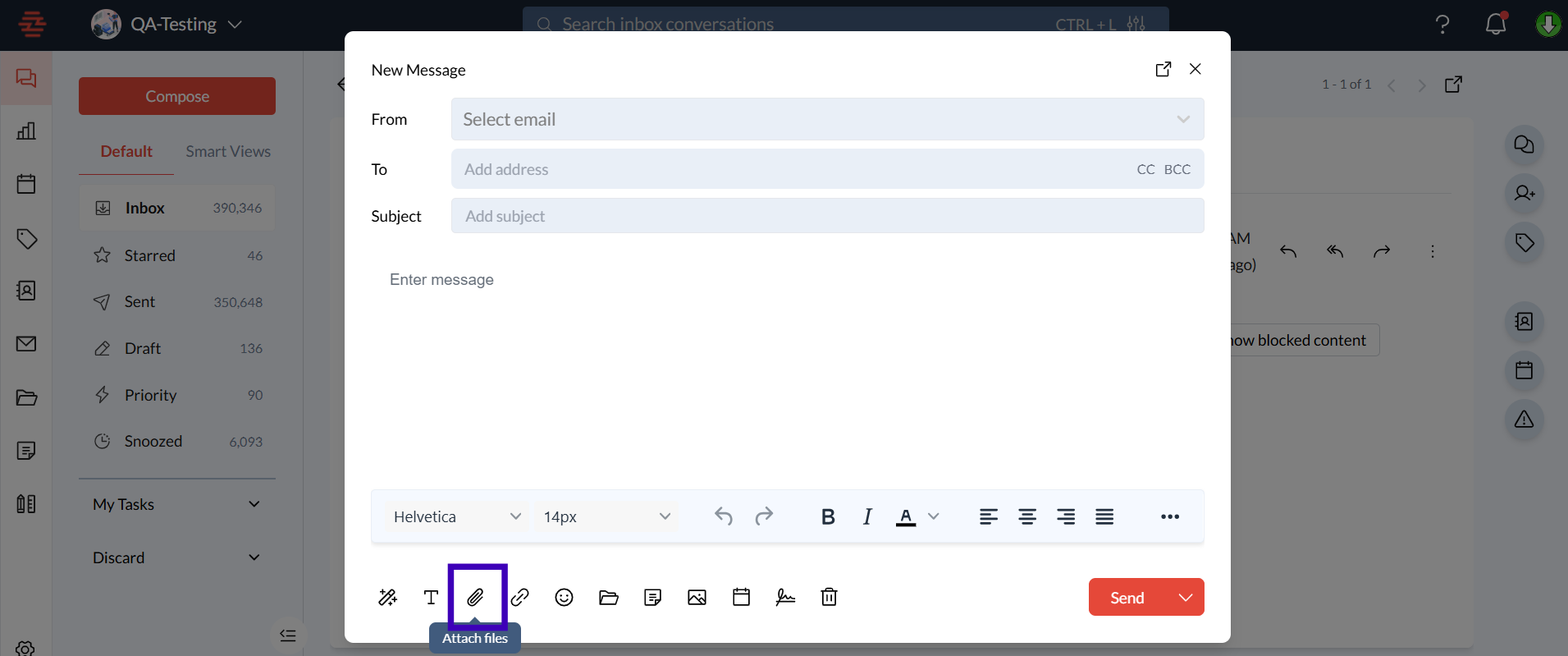
Open Zeninbox and click on Compose to create a new email.
Click the Attach icon (paperclip) in the email composition window.
Navigate to the location where the .eml file is saved, select the file, and click Open to attach it to your email.
Step 3: Send the Email with the .eml Attachment
Review the attached .eml file to ensure it is correct.
Add any necessary message to the body of your email.
Click Send to send the email with the .eml attachment.
FAQs
Q1: Why can't I open a .eml file on my device?
A: Ensure you have an email client that supports .eml files, such as Outlook or Thunderbird. If the file does not open automatically, try importing it directly into the email client.
Q2: Can I attach multiple .eml files to one email?
A: Yes, you can attach multiple .eml files by selecting them during the attachment process.
Q3: What should I do if my .eml file is too large to send?
A: If the .eml file exceeds the size limit, consider compressing it into a ZIP file or using a cloud storage link for sharing.
Conclusion
Saving and attaching emails as .eml files in Zeninbox helps you maintain the integrity of your emails while making it easy to share detailed conversations. For more information, reach out to our support team.