Collaborative Inbox in Zeninbox
Discover how to use the Collaborative Inbox in Zeninbox to streamline teamwork, assign emails, and manage shared communications efficiently.
Written By lucidgrowth
Last updated Over 1 year ago
Introduction
A Collaborative Inbox in Zeninbox is designed to help teams manage shared email addresses more effectively, such as support@company.com or sales@company.com. It allows multiple team members to access, respond to, and manage emails from a single inbox, ensuring that no important messages are overlooked. This feature is ideal for teams that need to work together to handle customer inquiries, sales leads, or internal requests, making communication more streamlined and efficient.
Key Features of Collaborative Inbox
Shared Access: Allows multiple users to access and manage a common inbox, making it easier to handle incoming messages as a team.
Assign Conversations: Assign specific emails to team members, ensuring clear ownership and responsibility for follow-ups.
Internal Comments: Team members can leave internal notes and comments on emails, allowing for seamless internal discussions without the recipient seeing these messages.
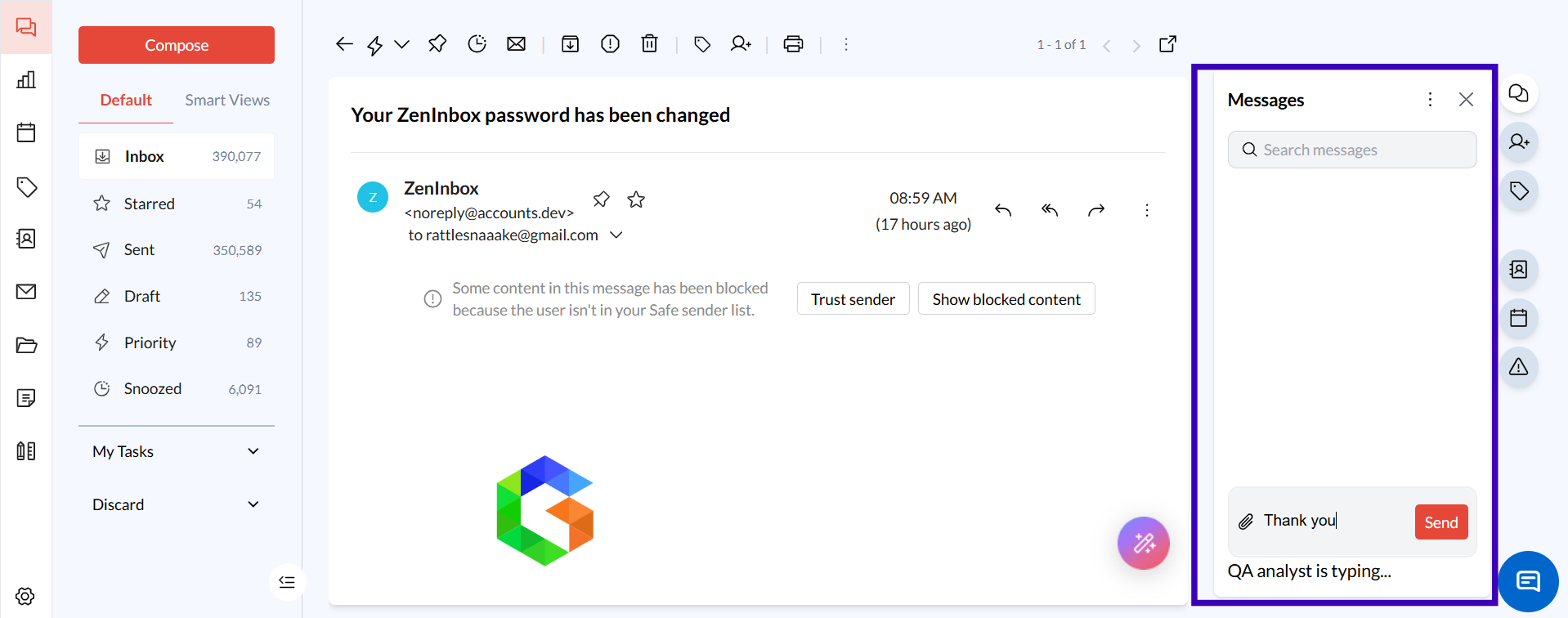
Real-Time Updates: See when another team member is replying to or viewing an email, helping to avoid duplicated efforts.
Activity Tracking: Track the actions taken on emails, such as who replied, assigned, or archived the conversation, providing visibility into team performance.
Step-by-Step Guide to Setting Up a Collaborative Inbox
Creating a Collaborative Inbox
Access the side Panel: Go to the Zeninbox admin panel and click on “Mailboxes.”
Add a New Inbox: Click on “Add mailbox” and enter the email address you want to set up as a shared inbox.
Invite Team Members: Add team members who will have access to the inbox from settings. You can assign roles such as Admin, Manager, or Contributor.
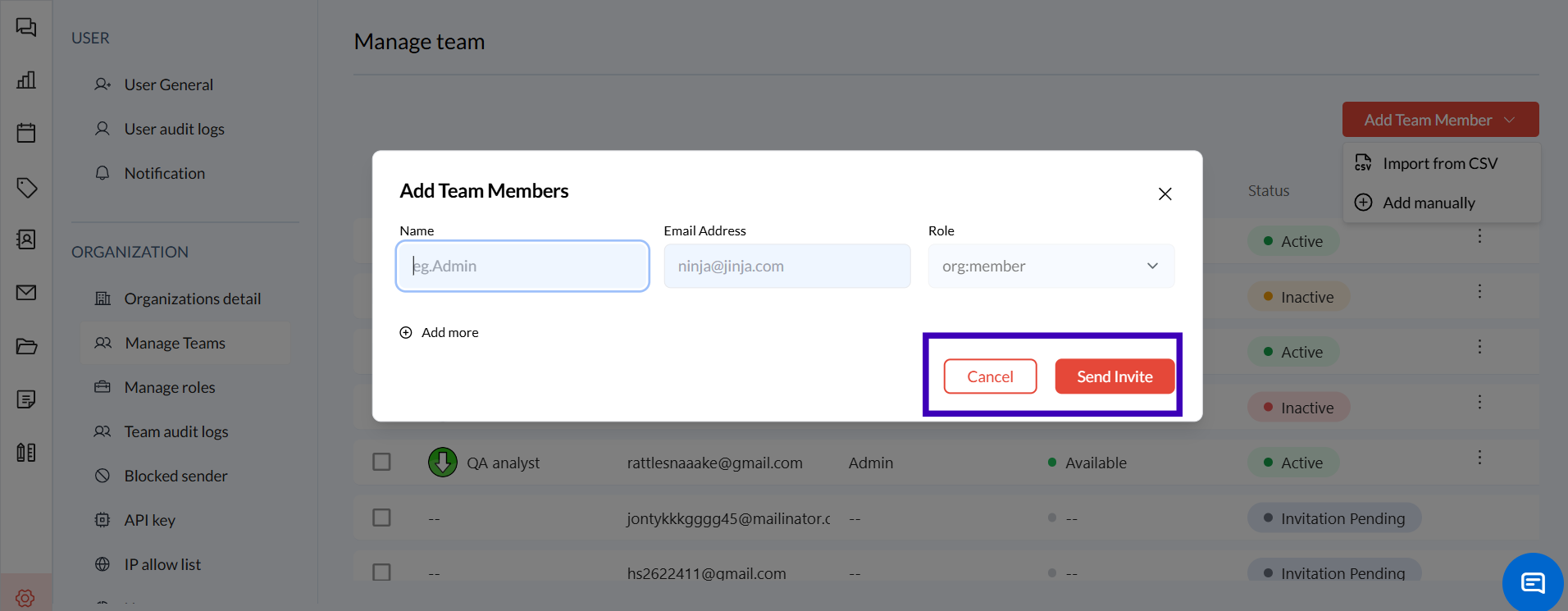
Set Permissions: Define what actions each team member can perform, such as assigning emails or viewing internal notes.
Save and Activate: Click “Save” to create the collaborative inbox. It will now be available for all invited team members.
Using the Collaborative Inbox
View Shared Conversations: Access the collaborative inbox from your Zeninbox dashboard. You will see all incoming messages in the shared inbox.
Assign Conversations: Select an email and click on the “Assign” button to assign it to a specific team member.
Leave Internal Comments: Click the “Internal Messages” button while viewing a conversation to add notes or feedback for your team.
A Collaborative Inbox in Zeninbox empowers your team to work together seamlessly, ensuring that every message is handled efficiently and with a personal touch. By leveraging assignment features, internal comments, and automation, you can transform the way your team manages shared communication. For further assistance, feel free to reach out to our support team.