Sending Options in the Zeninbox Composer
Choose how to send emails with options like Send Later, Send & Snooze, and Send & Archive for flexible delivery.
Written By lucidgrowth
Last updated About 1 year ago
Introduction
Zeninbox offers a variety of sending options within its email composer, giving you the flexibility to manage how and when your emails are sent. Whether you want to schedule an email for later, archive a conversation immediately after sending, or set reminders for follow-up, the composer’s sending options make it easy to stay on top of your communication.
Key Features
Send Now
Instantly send your email with a single click, ensuring that your message reaches the recipient immediately.Send Later
Schedule emails to be sent at a future date and time, perfect for reaching recipients at their optimal time or managing different time zones.Send & Archive
Send your email and automatically move the conversation to the archive, keeping your inbox clean while ensuring the message is stored for future reference.Send & Snooze
Send your email and snooze the conversation until a specific time, bringing it back to your inbox when you want to follow up or revisit it.
Benefits of Using the Composer's Sending Options
Flexibility in Communication: Schedule emails according to your recipient’s time zone or availability.
Improved Inbox Management: Use "Send & Archive" to keep your inbox organized without losing track of important conversations.
Efficient Follow-Ups: Use reminders to ensure you never miss out on following up with clients or colleagues.
Time-Saving Automation: Automate when and how emails are revisited with "Send & Snooze" to maintain focus on other tasks.
Step-by-Step Guide to Using Sending Options
Step 1: Accessing Sending Options
Compose a New Email: Click on the “Compose” button in Zeninbox to start drafting a new message.
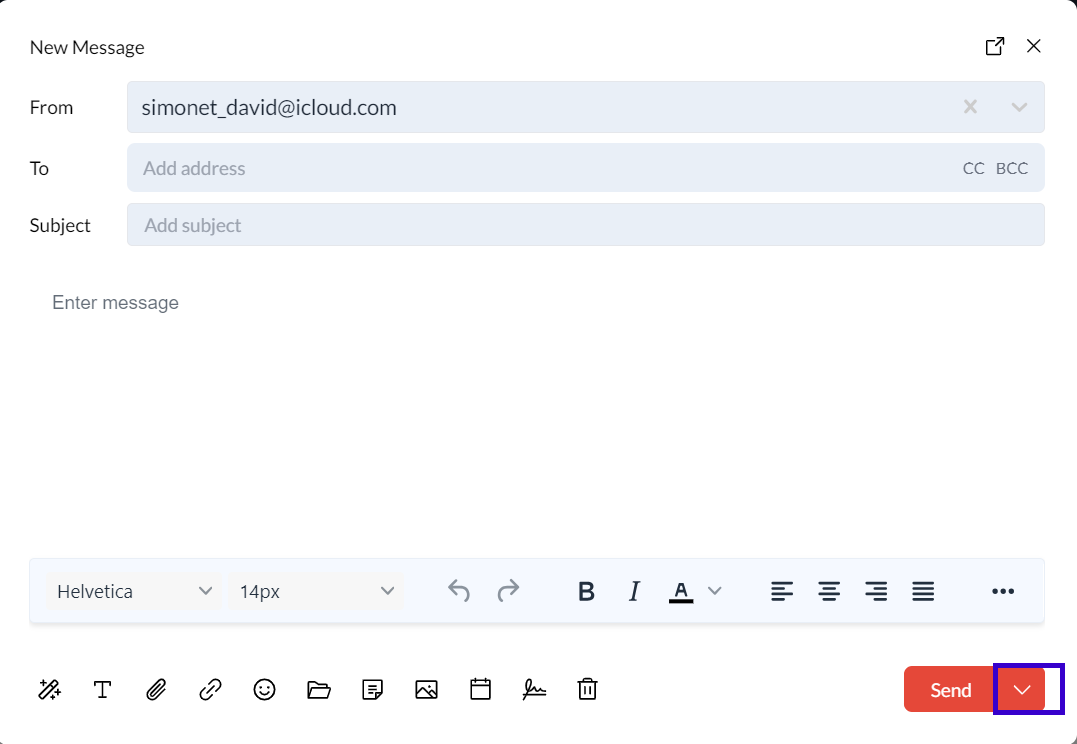
Click on the Dropdown Arrow Next to the Send Button: Find the small dropdown arrow beside the “Send” button to reveal additional sending options.
Step 2: Using Send Later
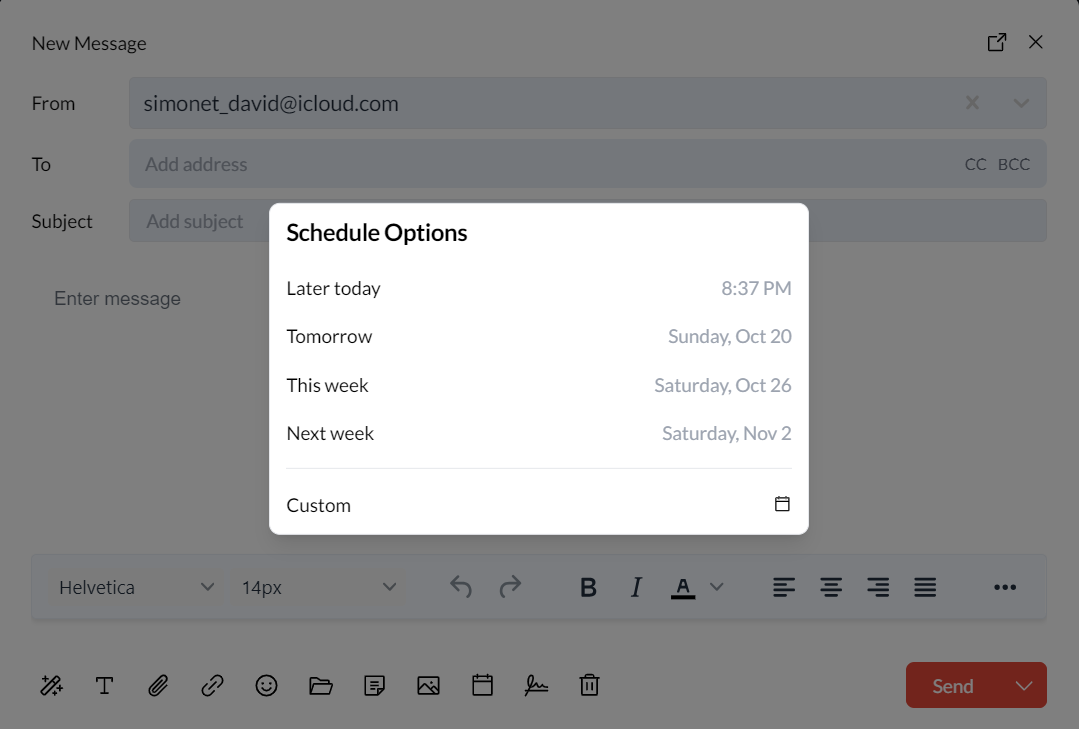
Select “Send Later”: From the dropdown, choose “Send Later.”
Pick Date and Time: A calendar will appear, allowing you to select the date and time you want the email to be sent.
Confirm and Schedule: Click “Schedule” to save your settings. The email will be sent automatically at the chosen time.
Step 3: Using Send & Archive
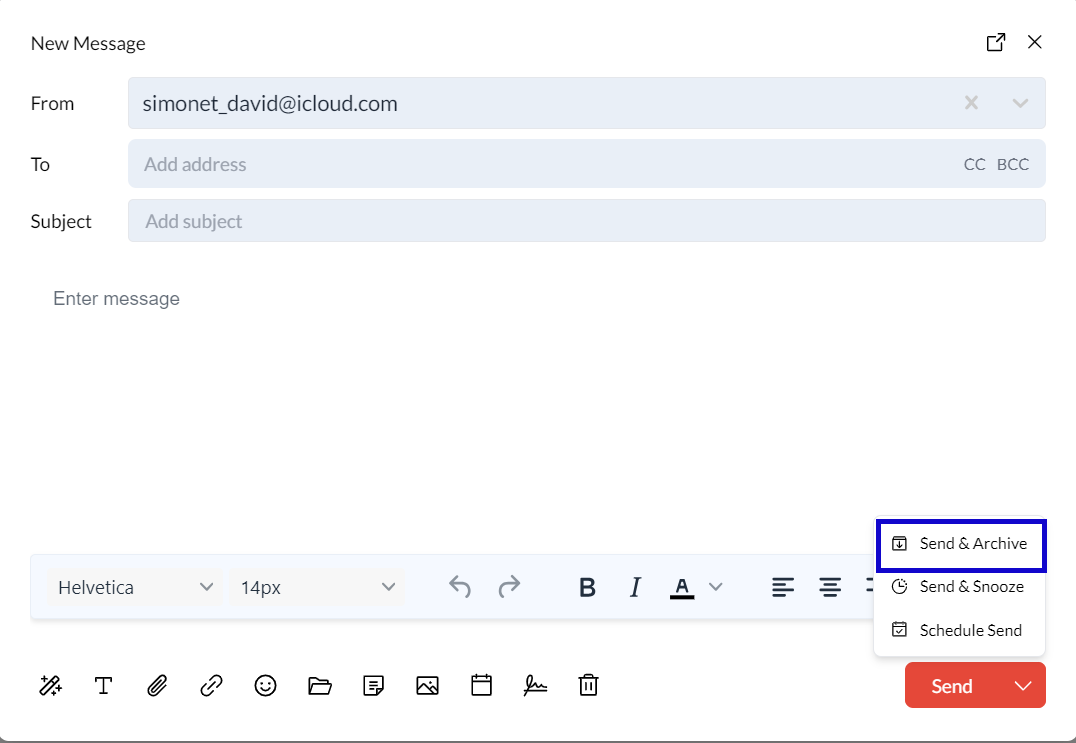
Select “Send & Archive”: Choose this option if you want the email to be sent and then immediately moved to the archive.
Click “Send”: Your message will be sent, and the conversation will be removed from your main inbox, keeping it tidy.
FAQs
Q: Can I change the scheduled time after selecting “Send Later”?
A: Yes, go to your “Draft” folder, find the email, and select “Edit” to adjust the time.
Q: Will the recipient see that I’ve used the “Send & Archive” option?
A: No, the “Send & Archive” action is only visible to you and helps in organizing your own inbox.
Q: What happens if I use “Send & Snooze” and the recipient replies before the snooze time?
A: The conversation will automatically appear back in your inbox when the recipient responds, even if the snooze time hasn’t arrived yet.
Q: Can I cancel a scheduled email before it’s sent?
A: Yes, go to the “Draft” folder, select the email, and click “Cancel Send” to prevent it from being sent.
Conclusion and Next Steps
Zeninbox’s versatile sending options in the email composer offer the flexibility to manage when and how your messages are sent. This ensures that your communication is timely and your inbox stays organized. Explore these features and adjust them based on your workflow to make the most of your email management. Visit our Help Center or contact us at support@zeninbox.ai Happy emailing!