Welcome to Zeninbox
Get started with Zeninbox and discover how it simplifies email management, boosts productivity, and enhances collaboration for your team.
Written By lucidgrowth
Last updated About 1 year ago
Introduction
Welcome to Zeninbox! We're thrilled to have you onboard. Zeninbox is an all-in-one email management platform designed to help you organize, automate, and simplify your communication. Whether you're managing multiple email accounts or collaborating with your team, Zeninbox provides the tools you need to stay on top of your tasks and stay productive. This guide will walk you through the basics of getting started, ensuring a smooth transition to using Zeninbox.
Key Features
Unified Inbox: Manage all your email accounts in one place, eliminating the need to switch between multiple platforms.
Smart Categorization: Automatically sort your emails into categories like work, promotions, and social, helping you focus on what's most important.
Automation Workflows: Set up rules to automate repetitive tasks such as tagging, forwarding, or archiving emails.
Team Collaboration: Share conversations with team members, assign emails, and keep track of ongoing discussions.
Advanced Security: Protect your emails with built-in security features, including spam detection and identity verification.
Customizable Notifications: Stay informed with notifications tailored to your preferences, ensuring you never miss important updates.
Step-by-Step Guide to Getting Started
Step 1: Create Your Zeninbox Account
Visit the Zeninbox Website: Go to www.zeninbox.ai
Click “Sign Up”: Find this button at the top-right corner of the homepage.
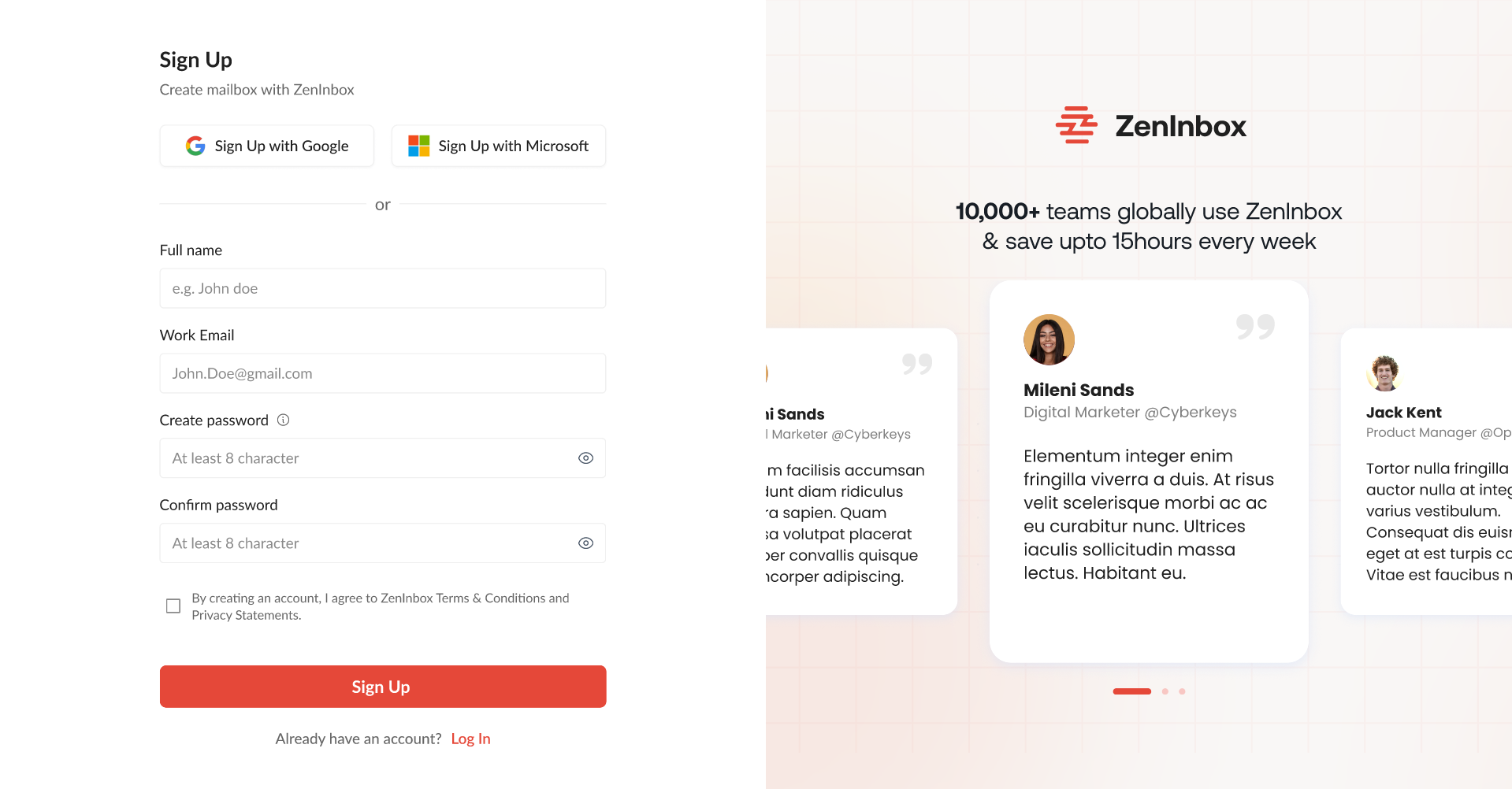
Enter Your Information: Provide your name, email address, and create a password. You can also sign up using your Google or Microsoft account.
Verify Your Email: Check your inbox for a verification email from Zeninbox and click the link to confirm your account.
Step 2: Connect Your Email Accounts
Access Settings: Click the gear icon in the top-right corner of your dashboard.
Choose "Email Accounts": Select the option to add a new email account.
Select Your Email Provider: Choose from Gmail, Outlook, Yahoo, and more.
Authenticate Your Account: Follow the prompts to log in and grant Zeninbox access to your email account.
Complete Syncing: Your emails will start importing automatically.
FAQs
Q: Can I connect multiple email accounts?
A: Yes! Zeninbox supports connecting multiple email accounts. Simply repeat the email connection steps for each account you want to add.
Q: How do I contact support if I encounter issues?
A: Reach out to our support team via support.zeninbox.ai or email us at support@zeninbox.ai for assistance.
Conclusion
We hope you enjoy using Zeninbox to manage your emails and boost your productivity. Now that you're all set up, explore our “Help Center“ for more tips on making the most of Zeninbox. If you have any questions or need further help, our Support Team is just a click away. Happy emailing!