Profile in Zeninbox
Manage your personal details, preferences, and account settings to customize your Zeninbox experience.
Written By lucidgrowth
Last updated Over 1 year ago
Introduction
The Profile section in Zeninbox, accessible from the top right corner of the interface, allows you to manage your availability status, view local time, and access various account-related options. It’s designed to give you quick access to essential settings and resources, making it easier to stay updated and maintain control over your Zeninbox experience.
Step-by-Step Instructions
Accessing Your Profile:
Log in to your Zeninbox account.
Click on your Profile icon located at the top right corner of the screen.
This icon typically displays your profile picture or initials.
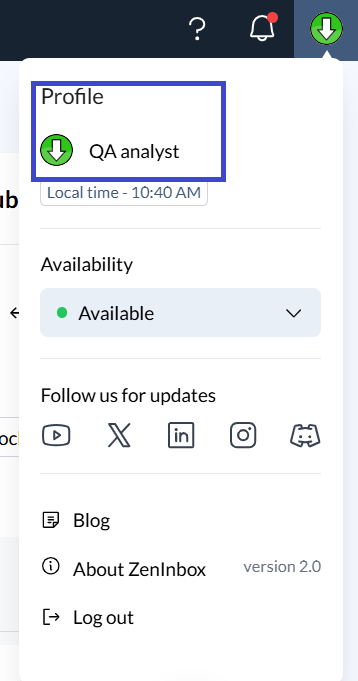
Managing Profile Options:
Local Time:
View your current local time directly within the Profile menu, which is displayed for your reference.
Example: If you are in EST-5:00, the time will reflect the correct zone.
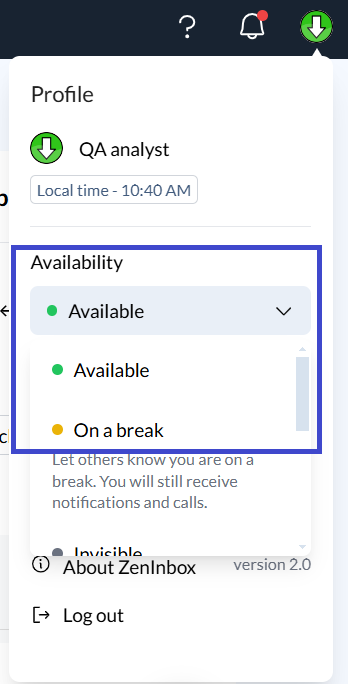
Availability:
Toggle your availability status between "Available" and other options as per your preference.
This status is useful for letting your team members know when you are online and available for collaboration.
Follow Us for Updates:
Stay connected with Zeninbox updates and news by following Zeninbox on social media platforms like LinkedIn, Twitter, Instagram, and YouTube.
Tip: Following these channels can help you stay informed about new features and best practices.
Quick Links:
Blog: Access the Zeninbox blog to read articles and updates about new features, productivity tips, and more.
About Zeninbox: View the current version of Zeninbox you are using and learn more about the product.
Log Out: Securely log out of your Zeninbox account when you are done working.
Additional Tips and Best Practices
Update Availability Status when you are taking a break or focusing on tasks, so your team knows when to reach out.
Use the Blog and Social Media Links to stay updated with the latest tips and tutorials from Zeninbox.
Regularly Check Version Information under "About Zeninbox" to ensure you are using the latest features.
Common Issues and Troubleshooting
Issue: Local time is incorrect.
Solution: Verify that your time zone settings are correct in the Profile section or under User General settings. Contact support if the issue persists.Issue: Availability status not updating.
Solution: Refresh the page or log out and log back in to see if the availability status updates correctly.
Conclusion and Next Steps
The Profile menu in Zeninbox offers a convenient way to manage your availability, stay connected with updates, and access account-related information. If you need more help, feel free to contact Zeninbox support.