Managing Teams in Zeninbox
Learn how to create, organize, and manage teams in Zeninbox to enhance collaboration and streamline communication.
Written By lucidgrowth
Last updated Over 1 year ago
Introduction
Manage Teams in Zeninbox allows administrators to organize and oversee team members, adjust access levels, and monitor member status. This feature ensures a well-structured team environment, enhancing collaboration and maintaining secure access to resources within the organization.
Prerequisites
Access Level: Admin permissions are required to access the Manage Teams section.
Important Note: Changes made in the Manage Teams section will impact the access and roles of users across the organization.
Step-by-Step Instructions
Accessing the Manage Teams Section
Log in to your Zeninbox account.
Click on the Settings icon in the lower-left corner of the sidebar.
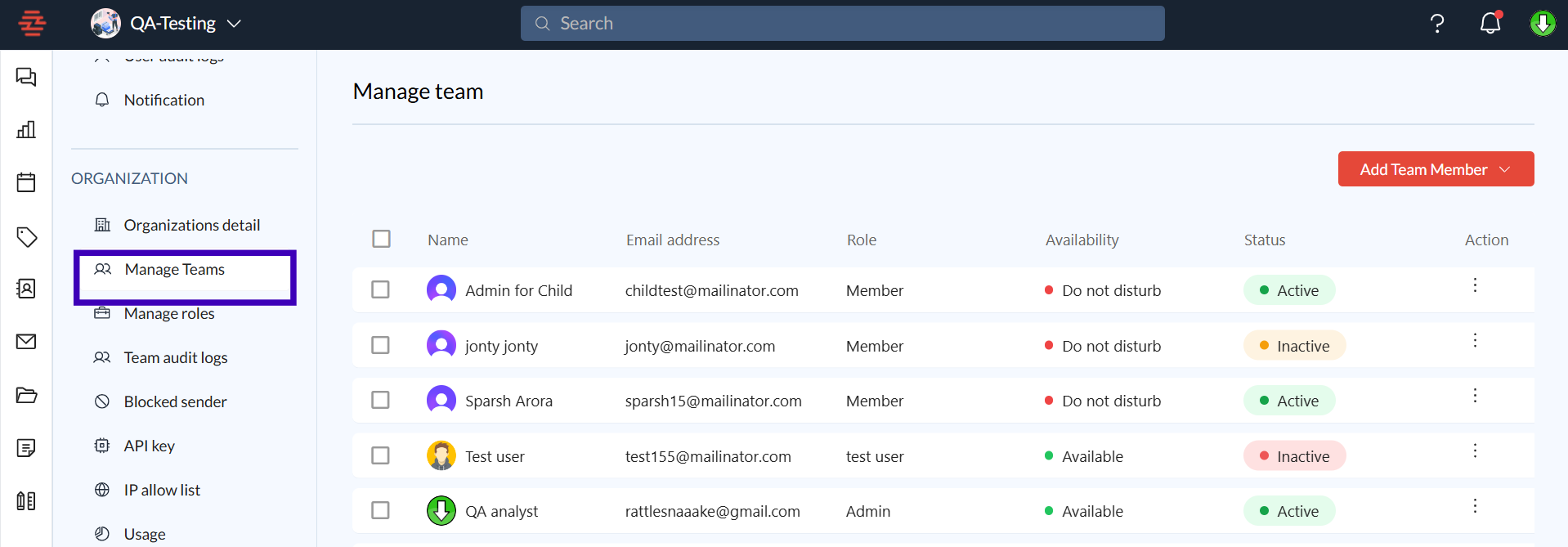
Select Manage Teams under the ORGANIZATION section from the sidebar.
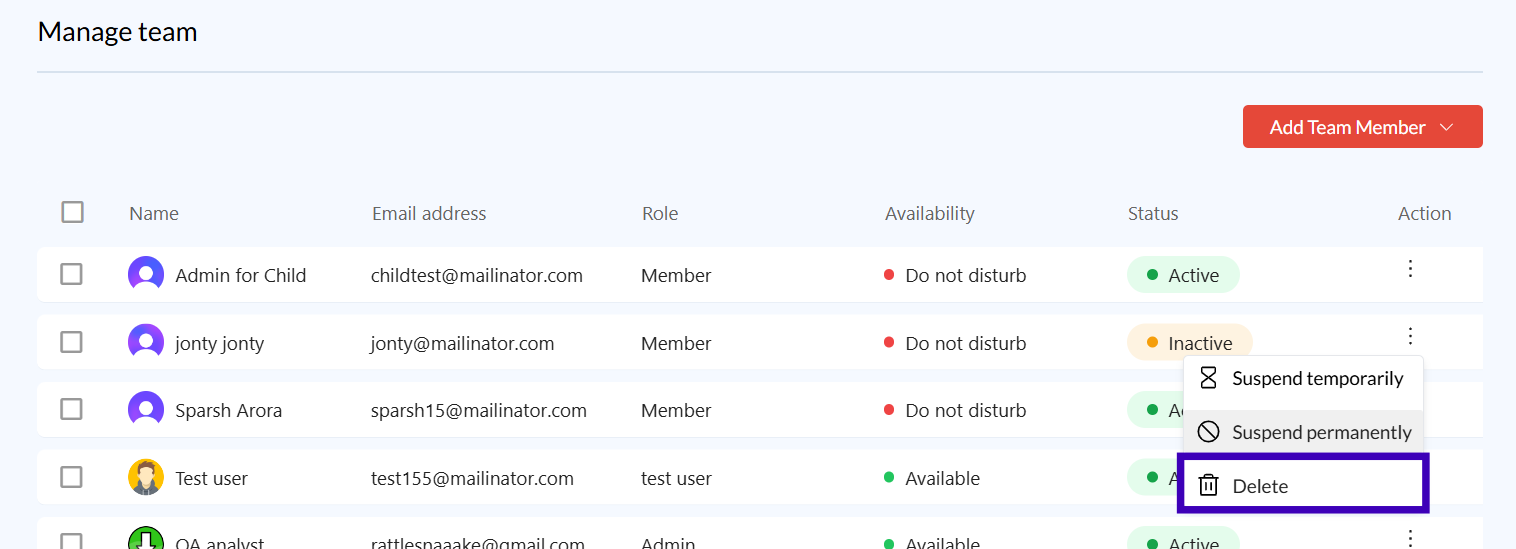
This will bring you to the Manage Teams dashboard, where you can see a list of all current team members, their roles, availability, and status.
Understanding the Manage Teams Dashboard
Name: Displays the name of each team member.
Email Address: Shows the registered email address of each member.
Role: Indicates the role assigned to each user, such as Admin, Member, or other custom roles.
Availability: Displays each user's current availability status (e.g., Available, Do not Disturb).
Status: Shows the current state of the user, such as Active, Invitation Pending, Temporarily Suspended, Permanently Suspended, or Inactive.
Action Menu: Clicking on the three dots next to a user's status opens options for managing their access (e.g., Edit, Suspend, Delete).
Managing Existing Team Members
Edit Member Details:
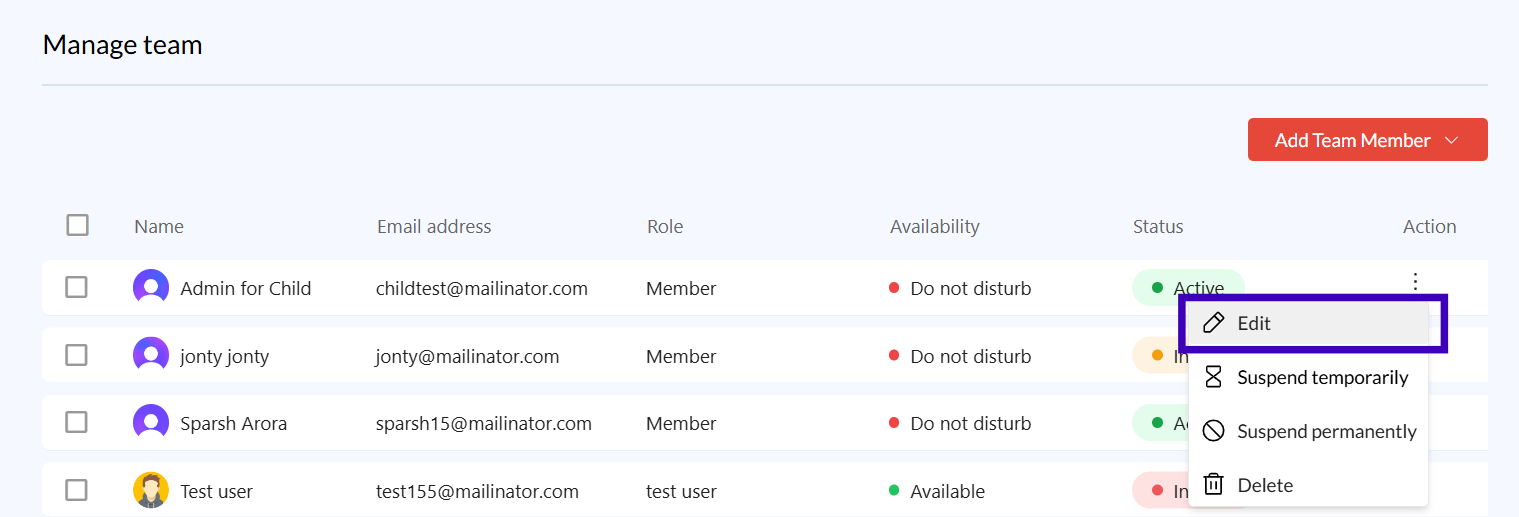
Click the three dots next to a team member's details.
Select Edit to update the member's role, email address, or availability.
Tip: Use this option to change roles if a user’s responsibilities change.
Managing Team Member Status
Suspend a Team Member:
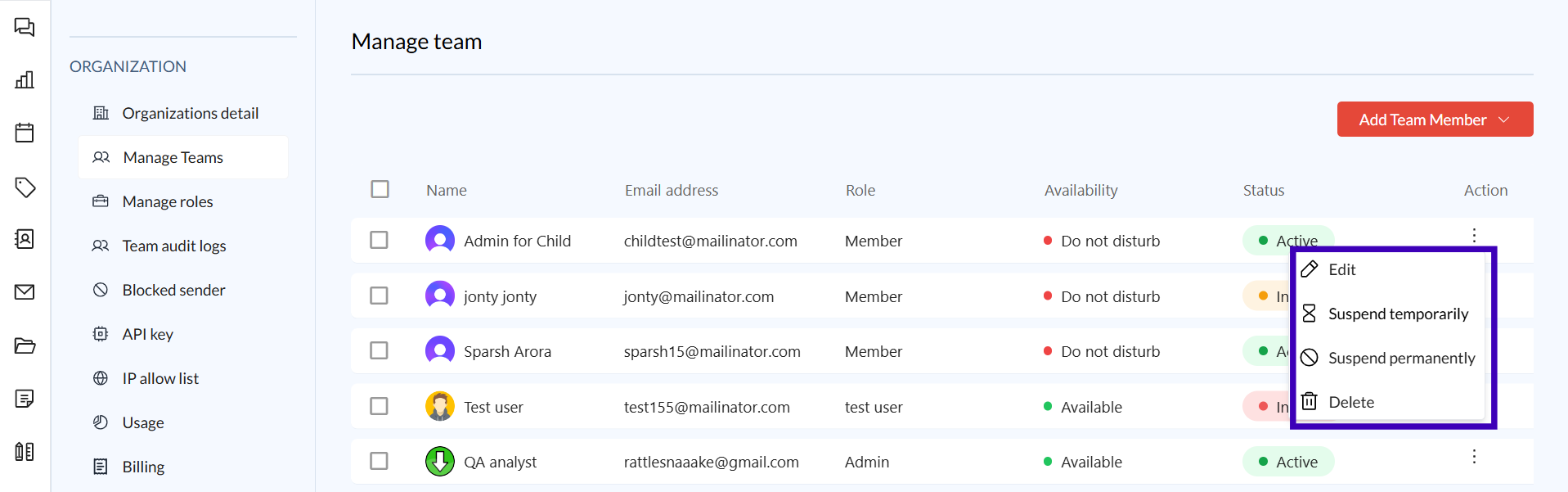
If a member needs to be temporarily removed from the organization, click the three dots next to their status.
Choose Suspend Temporarily or Suspend Permanently based on the situation.
Temporarily Suspended users can be restored if needed, while Permanently Suspended users cannot be recovered.
Recover a Temporarily Suspended Member:
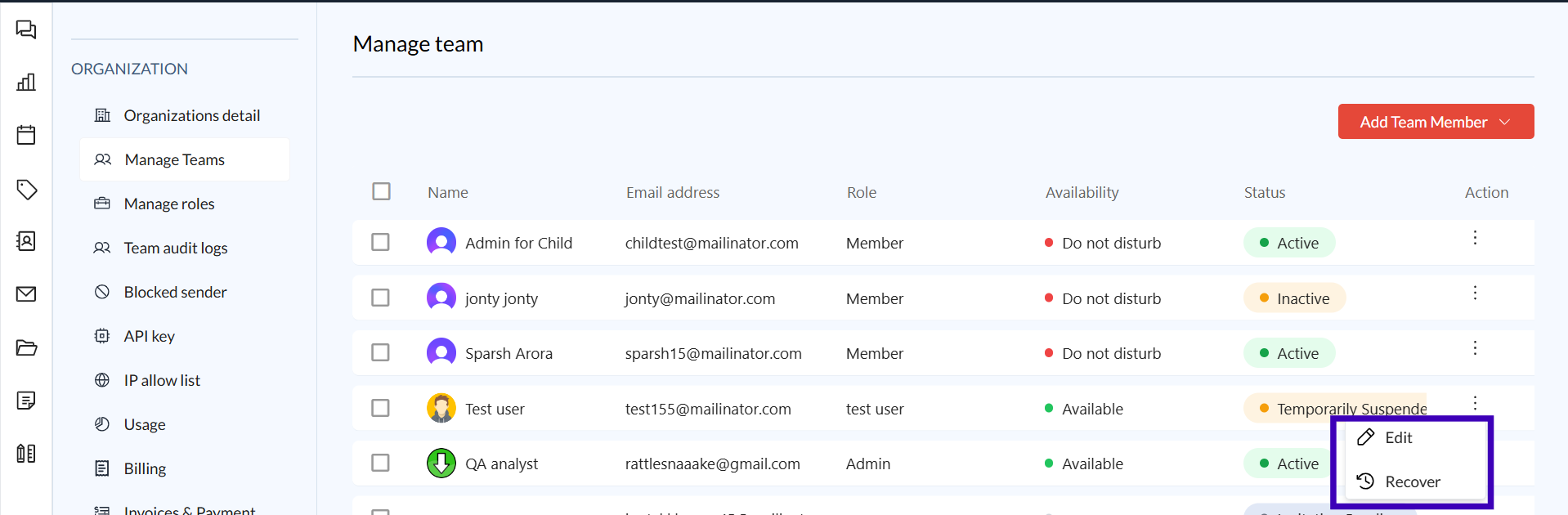
Locate the suspended member in the list.
Click the three dots next to their status and select Recover.
Note: Only users with a status of "Temporarily Suspended" are eligible for recovery.
Delete a Blocked Member:
Only members who are Temporarily Suspended or Permanently Suspended can be deleted.
Click the three dots next to the user’s status and select Delete.
This action permanently removes their access from Zeninbox.
Important: This is irreversible; proceed with caution.
Additional Tips and Best Practices
Regularly Review Team Roles: Ensure roles align with users’ current responsibilities. This helps prevent unauthorized access and ensures proper data handling.
Keep Track of Invitation Statuses: Follow up with members listed as Invitation Pending to complete the onboarding process quickly.
Use Availability Status: Encourage team members to set their availability status (e.g., Do not disturb, Available) for better communication within the team.
Common Issues and Troubleshooting
Issue: Role changes are not reflected.
Solution: Refresh the page or clear the browser cache. If the problem persists, contact Zeninbox support.Issue: Unable to recover a suspended member.
Solution: Ensure the user is Temporarily Suspended, as Permanently Suspended members cannot be recovered.Issue: Unable to delete a user.
Solution: Verify that the user is either Temporarily Suspended or Permanently Suspended. Only blocked members can be deleted.
Conclusion and Next Steps
The Manage Teams feature in Zeninbox allows you to maintain control over team structure, roles, and access levels, ensuring smooth operations and secure collaboration. If you encounter any issues, reach out to Zeninbox support for further assistance.