How to Reset or Fix Your Time Zone in Zeninbox
Learn how to adjust or correct your time zone settings in Zeninbox to ensure accurate timestamps and scheduling.
Written By lucidgrowth
Last updated Over 1 year ago
Introduction
If you're noticing that your email timestamps or calendar events are not reflecting the correct time, you may need to reset or fix your time zone within Zeninbox. This guide will walk you through the process to ensure that your time zone settings are accurate, helping you maintain consistency in your work schedule and communication.
Step-by-Step Instructions
Step 1: Access Your Account Settings
Log in to Zeninbox with your credentials.
Click on "Settings" from the dropdown menu.
Include a screenshot of the profile dropdown here.
Step 2: Open Time Zone Settings
In the Settings menu, find and click on “User General” >"Time Zone".
Select your desired time zone from the dropdown list. Ensure that it matches your current location or preferred working time zone.
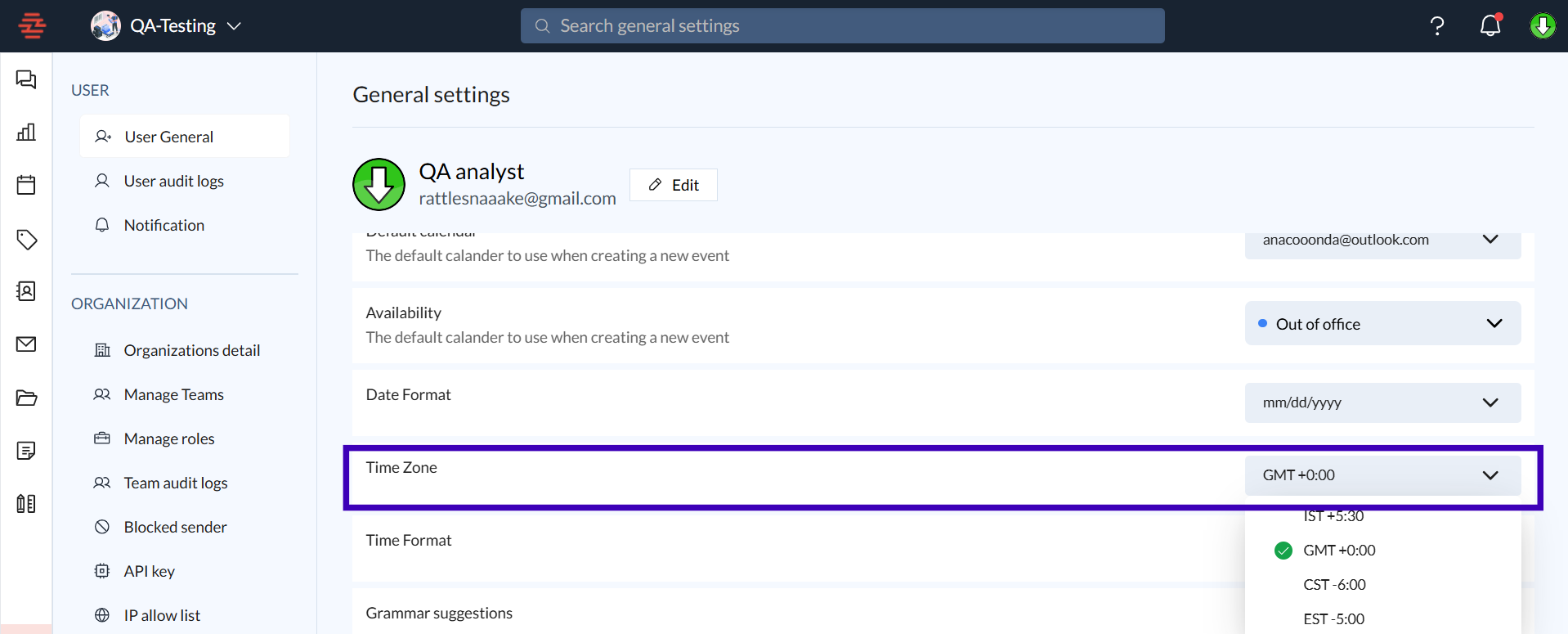
Step 3: Verify the Change
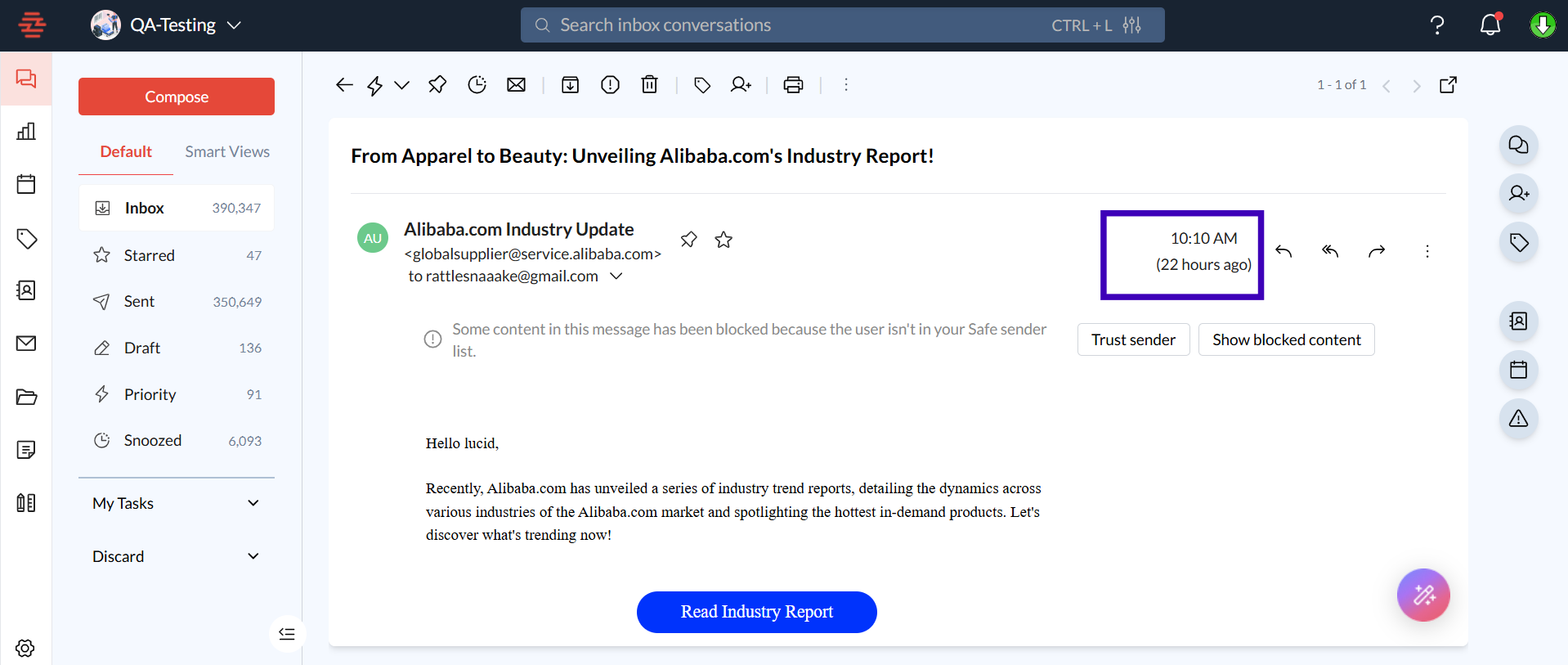
To confirm that your time zone is correctly set, check the timestamps on your recent emails or view a calendar event.
If the time is accurate, the update was successful. If not, refresh your browser and double-check the time zone setting.
Common Issues and Troubleshooting
Issue: Time zone is not updating after saving changes.
Solution: Clear your browser cache and cookies, then try adjusting the time zone again.
Issue: Time stamps are still showing in the previous time zone.
Solution: Refresh the page or log out and back into your Zeninbox account.
Issue: Time zone options are grayed out.
Solution: This may be due to restricted permissions. Contact your Zeninbox administrator for further assistance.
Conclusion and Next Steps
Resetting or fixing your time zone in Zeninbox ensures that your email communications and calendar events are aligned with your local time, helping you stay on top of your schedule. If you encounter any issues during the process, follow the troubleshooting tips above. For more detailed assistance.
If you need further support, please reach out to our Zeninbox support team.