How to invite a new teammate?
Learn how to easily invite new teammates to join your Zeninbox workspace and collaborate efficiently.
Written By lucidgrowth
Last updated Over 1 year ago
Introduction
Inviting a new teammate in Zeninbox allows you to expand your team and collaborate efficiently. This feature makes it easy to onboard new members by providing them with access to the platform, enabling seamless communication and task sharing.
Step-by-Step Instructions
Follow these instructions to invite a new teammate to your Zeninbox organization.
1. Access the Manage Team Section
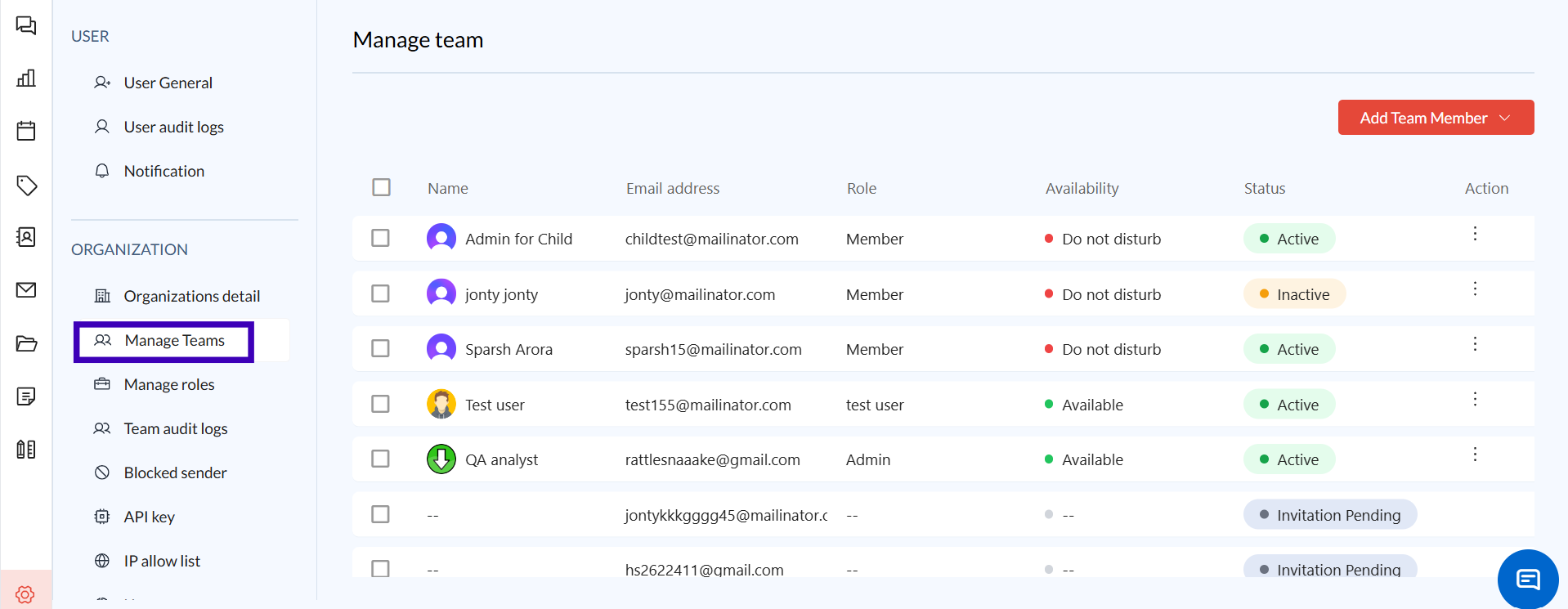
Log in to your Zeninbox account and navigate to the Settings page.
Click on Manage Team in the left-hand menu to view your current team members.
2. Click the Invite Teammate Button
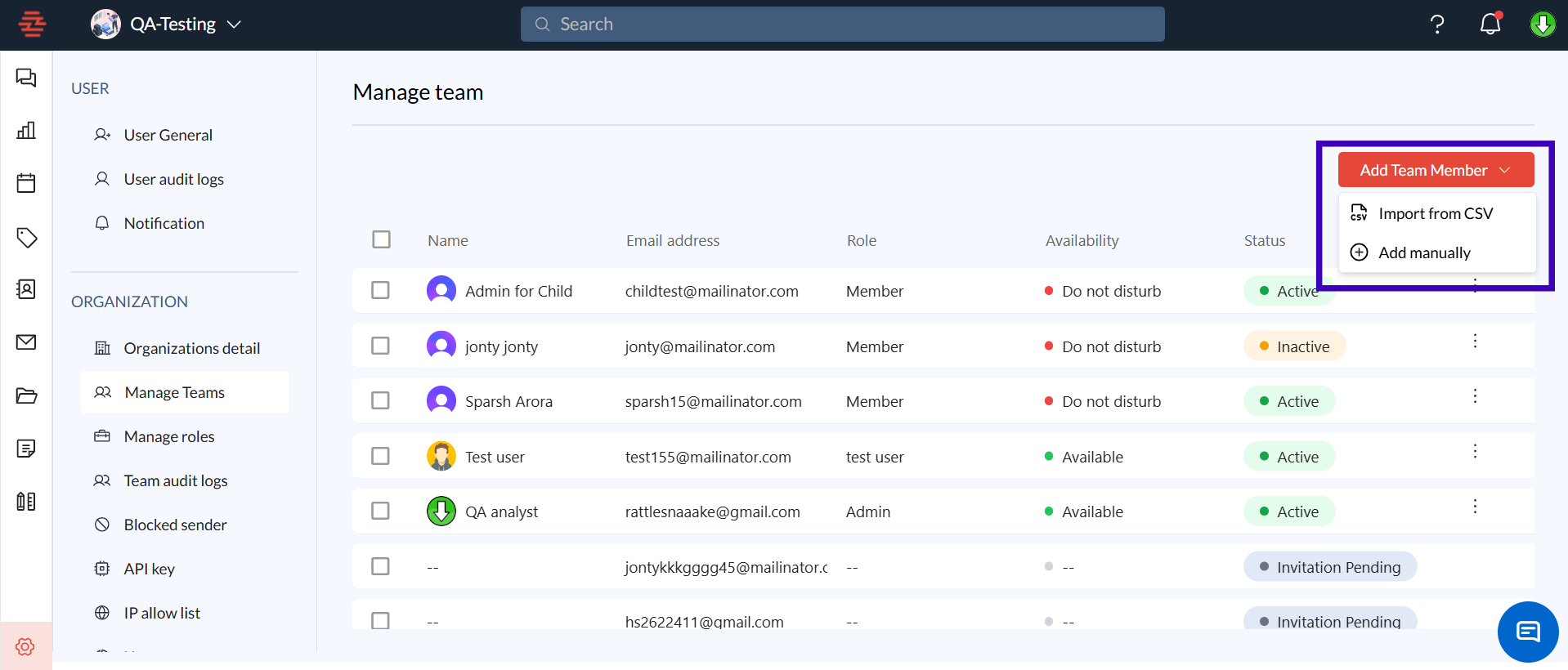
In the Manage Team section, click on the Invite Teammate button located at the top right of the screen.
This will open a new pop window where you can enter the details of the teammate you wish to invite by adding both manual and CSV files.
3. Enter the Teammate's Information
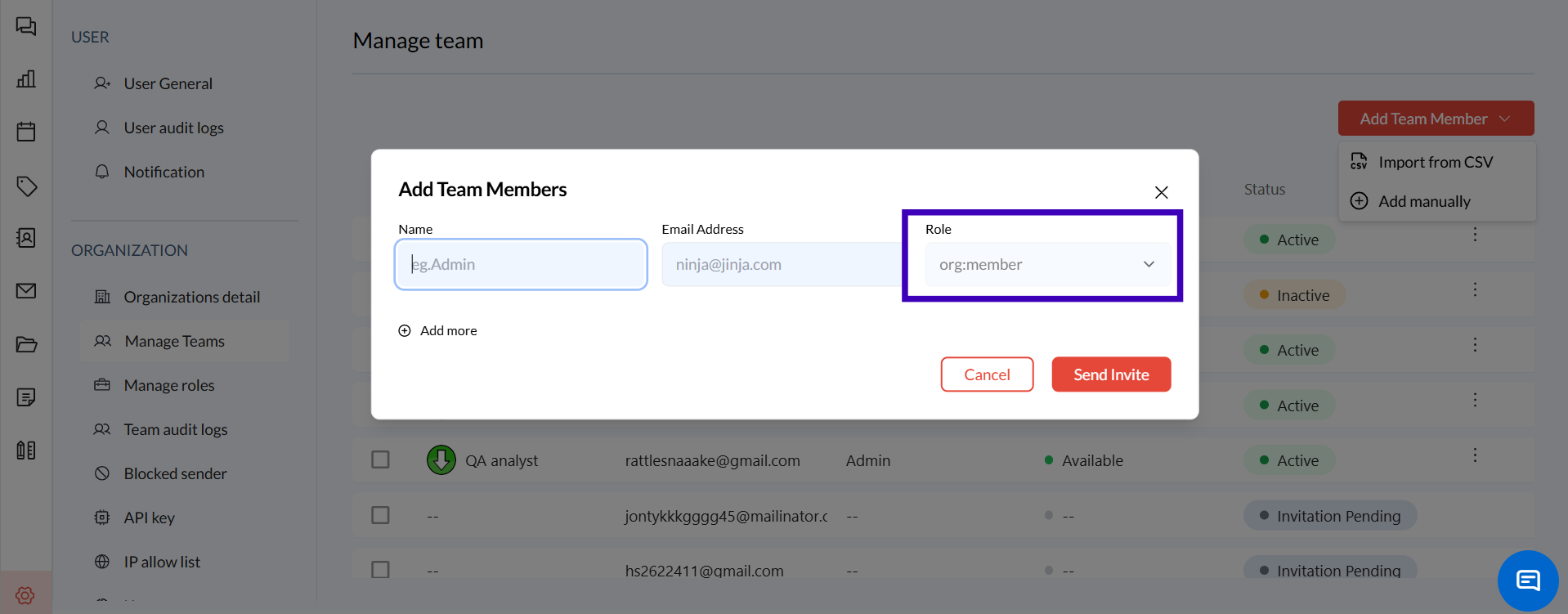
Enter the new teammate’s email address in the designated field.
Select the role you want to assign to the teammate (e.g., Admin). The role determines what features the new teammate can access.
4. Send the Invitation
Click Send Invitation to send an email invitation to the new teammate.
The invited user will receive an email with a link to join the Zeninbox organization. They will need to click the link and complete the registration process.
Additional Tips and Best Practices
Assign Roles Thoughtfully: When inviting a new teammate, consider their responsibilities and assign an appropriate role to ensure they have the right level of access.
Check Invitation Status: If a teammate hasn’t accepted the invitation, you can resend the invitation from the Manage Team page.
Communicate with New Members: Reach out to the invited teammate to ensure they received the email and assist them with the registration process if needed.
Common Issues and Troubleshooting
Invitation Email Not Received:
Ask the invited teammate to check their Spam or Junk folder.
Cannot See the Invite Teammate Option:
Confirm that you have Admin permissions.
Contact your Zeninbox administrator if you believe you should have access to this feature.
Conclusion and Next Steps
Inviting a new teammate to Zeninbox is a quick and easy way to grow your team and enhance collaboration. By following these steps, you can ensure that your new team members are set up and ready to contribute.
If you need additional help, please contact our support team at support@zeninbox.ai.