Notification settings in Zeninbox
Stay informed with real-time notifications for important updates, emails, and team activities in Zeninbox.
Written By lucidgrowth
Last updated Over 1 year ago
Introduction
Notifications in Zeninbox keep you updated on important events, tasks, and communications within your workspace. By customizing notification settings, you can ensure that you never miss critical updates, whether it's a new email, a calendar reminder, or changes within your team. Tailoring your notifications ensures that you stay informed without feeling overwhelmed.
Prerequisites
Access Level: Ensure you are logged into your Zeninbox account with access to the Settings section.
Step-by-Step Instructions
Accessing Notification Settings
Log in to your Zeninbox account.
Click on the Settings icon in the lower-left sidebar.
Select Notification under the USER section to access various notification options.
Customizing Notification Types
1. Conversation Notifications:
Mentioned:
Enable notifications for when you're mentioned in conversations or comments.Tip: This helps ensure you don’t miss discussions needing your input.
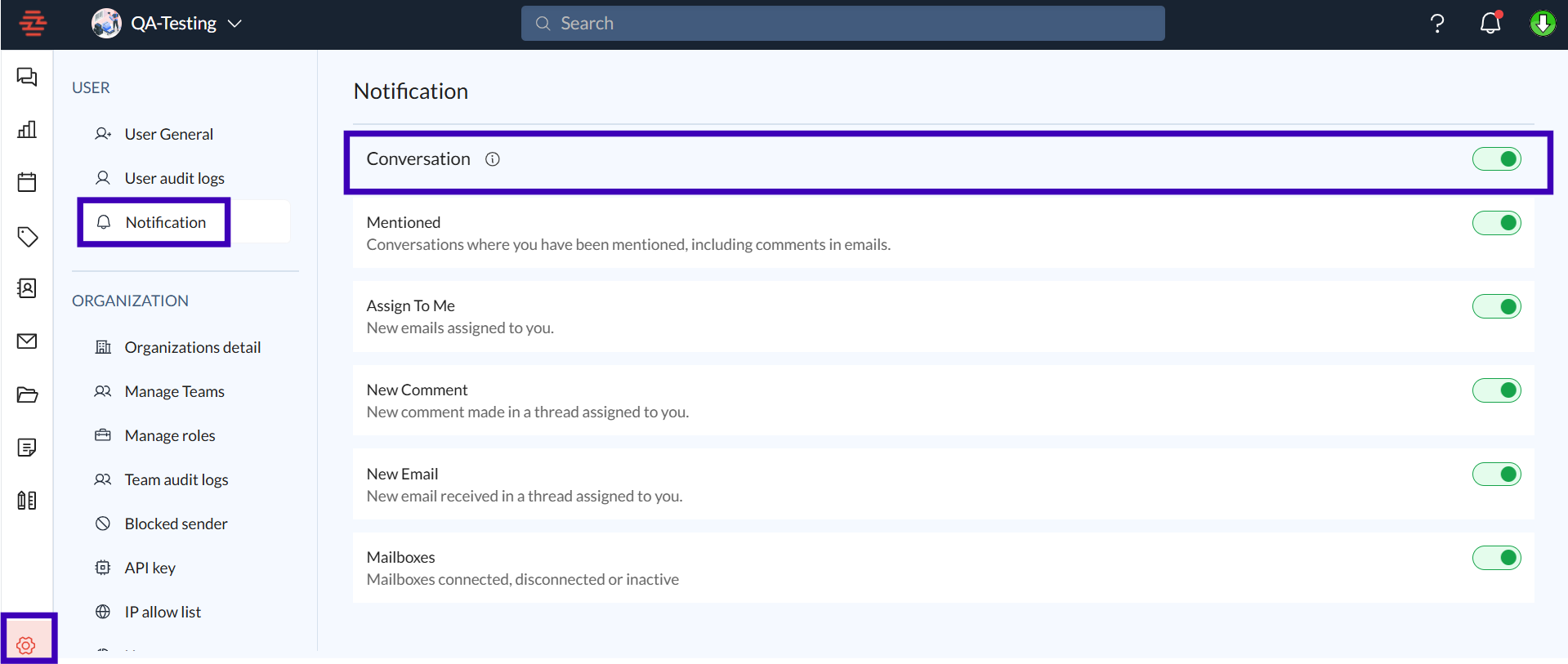
Assign To Me:
Receive alerts when new emails are assigned to you.Example: Never miss a new support request or client inquiry.
New Message & New Email:
Stay updated with new messages in internal messages or new email threads received on the emails assigned to you.Mailboxes:
Get notifications when mailboxes are connected, disconnected, or become inactive.
2. Team Management Notifications:
New Team Member:
Receive notifications when a new member is added to the team.New Role:
Be notified when new roles are created or assigned.Example: Track role assignments to maintain team structure.
Temporary or Permanent Suspension:
Get alerts for temporary or permanent suspensions of team members, helping you manage responsibilities.
3. Billing Notifications:
Invoice Generated:
Receive notifications when a new invoice is generated, helping you stay on top of payments.Example: Be notified of new invoices for subscription renewals.
Payment Failed:
Enable this to be informed if a payment attempt fails, so you can take prompt action.
4. Calendar Notifications:
Reminder for events:
Receive notifications for upcoming events to ensure you don’t miss important meetings or appointments.
Example: Get a reminder one hour before a scheduled meeting.
Reminder for tasks:
Set up notifications for task deadlines, keeping you on track with your to-do list and project timelines.
Example: Be reminded of task deadlines the day before they are due.
Out of office:
Mark dates in your calendar to show your out-of-office status, notifying others of your unavailability.
Example: Automatically inform colleagues of your out-of-office dates in the calendar.
Invitations:
Manage and respond to invitations for events and meetings, confirming or declining attendance with ease.
Example: Receive and respond to meeting invitations directly from your calendar.
5. LLM (Language Learning Model) Notifications:
New LLM:
Stay updated when a new LLM is added, allowing you to review its capabilities.Removed or Default LLM:
Get notifications when an LLM is removed or when the default model is changed.
Additional Tips and Best Practices
Enable Only Essential Notifications to avoid overload. Prioritize high-impact alerts like billing, new assignments, or mentions.
Set Calendar Reminders for critical events to maintain a smooth workflow, especially for recurring meetings or project deadlines.
Common Issues and Troubleshooting
Issue: Not receiving email assignment notifications.
Solution: Check if the "Assign To Me" notification is enabled in the Conversation section. Ensure that Zeninbox browser notifications are allowed.Issue: Unable to enable LLM notifications.
Solution: Ensure that the LLM notifications are enabled under your User Notification settings. If the problem persists, try refreshing your settings or contacting support for further assistance.
Conclusion and Next Steps
By customizing your Notifications in Zeninbox, you can maintain a balance between being informed and avoiding unnecessary distractions. If you encounter further issues or have specific questions, please contact Zeninbox support.