How to Add LLM (Large Language Model) in Zeninbox
Learn how to integrate an LLM into Zeninbox to enhance email automation, insights, and productivity through AI-powered capabilities.
Written By lucidgrowth
Last updated Over 1 year ago
Introduction
Integrating an LLM (Large Language Model) in Zeninbox allows you to leverage advanced AI capabilities for automating tasks like drafting emails, generating summaries, and providing smart replies. Adding LLM support to your Zeninbox setup enhances productivity by making email management smarter and more efficient. This guide explains how to add an LLM to your Zeninbox account, ensuring you can start benefiting from its powerful features.
Purpose and Benefits
Why Add an LLM to Zeninbox?
Automate Complex Tasks: Use LLMs to draft emails, summarize threads, and generate context-aware responses.
Improve Productivity: Spend less time on repetitive tasks and focus more on strategic work.
Enhanced User Experience: LLMs provide suggestions and automate actions, making your interactions with Zeninbox more intuitive.
Prerequisites
Before adding an LLM to Zeninbox, make sure of the following:
Zeninbox Account: You need an active Zeninbox account to add LLM capabilities.
API Key for LLM: If you are integrating a third-party LLM, have the API key or connection details ready.
Step-by-Step Instructions for Adding an LLM
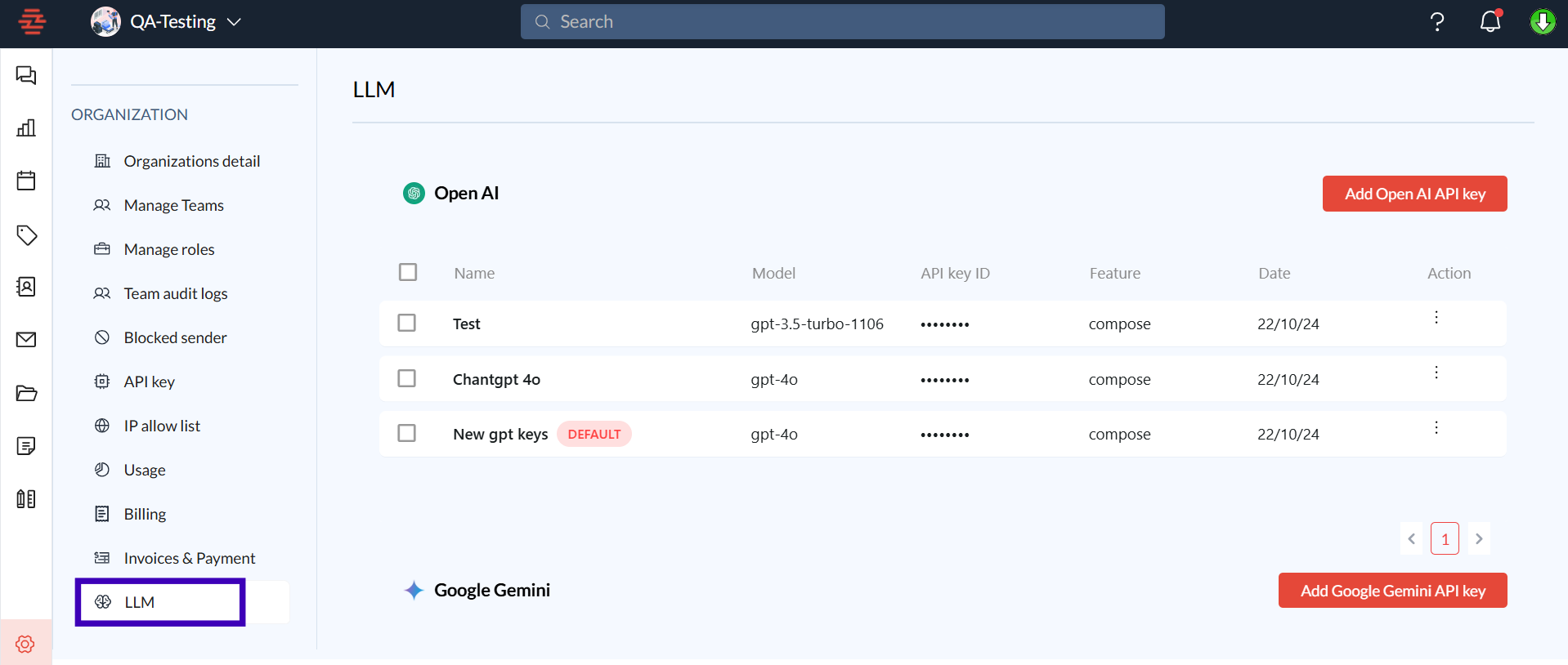
Step 1: Access the LLM Integration Settings
Log in to your Zeninbox account.
Click on the Settings from the sidebar.
Navigate to the LLM.
Step 2: Choose Your LLM Provider
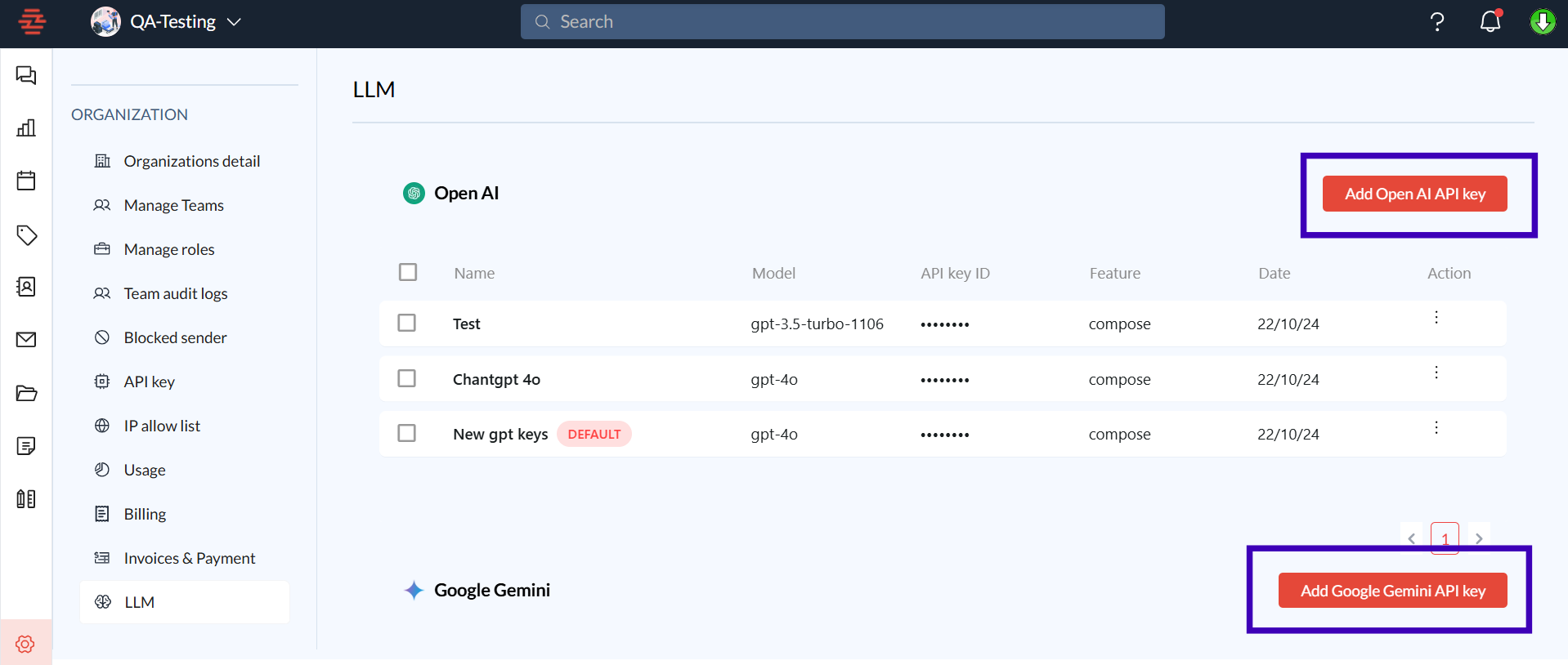
Select the LLM provider you wish to integrate with Zeninbox. Common options include OpenAI, Anthropic, or other compatible LLMs.
Click on "Add" next to your chosen LLM provider.
Step 3: Enter the API Key or Credentials
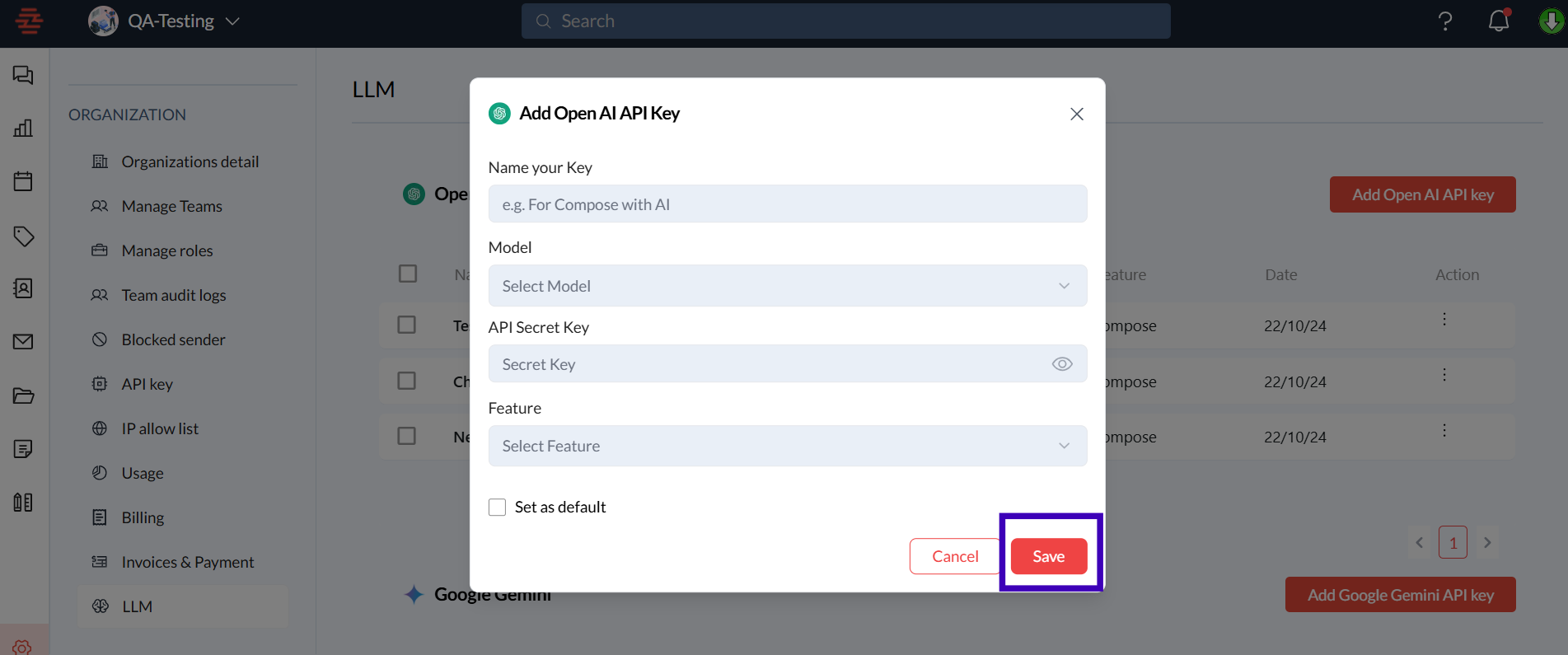
Enter your LLM API key or other required credentials in the provided fields.
Click "Save" to store your credentials securely.
Test the connection to ensure that the integration is set up correctly. A confirmation message will indicate if the connection is successful.
Conclusion and Next Steps
Adding an LLM to Zeninbox can significantly enhance your email management experience by automating tasks and improving the quality of your communications. By following these steps, you can integrate and customize your LLM to suit your needs, saving time and boosting productivity.
If you need further assistance, reach out to our support team through Email Support.