Integrations in Zeninbox
Learn how to connect Zeninbox with your favorite tools and platforms to streamline workflows and enhance productivity.
Written By lucidgrowth
Last updated Over 1 year ago
Introduction
Zeninbox's Integrations feature allows you to seamlessly connect external applications like Email, WhatsApp, MS Teams, and Slack for notifications, streamlining communication across platforms. Integrating these tools within Zeninbox helps you stay informed on important updates, enhancing productivity and enabling you to manage all notifications in one place.
With Integrations, you can manage notifications for different communication channels, connect or disconnect integrations as needed, and control how notifications are received.
Prerequisites
Account Permissions: Ensure you have the necessary permissions to configure integrations.
Application Requirements: For specific integrations, you might need active accounts with external applications (e.g., Slack or MS Teams).
Step-by-Step Instructions for Using Integrations
Accessing the Integrations Page
Navigate to Integrations: From the Zeninbox dashboard, go to the left sidebar.
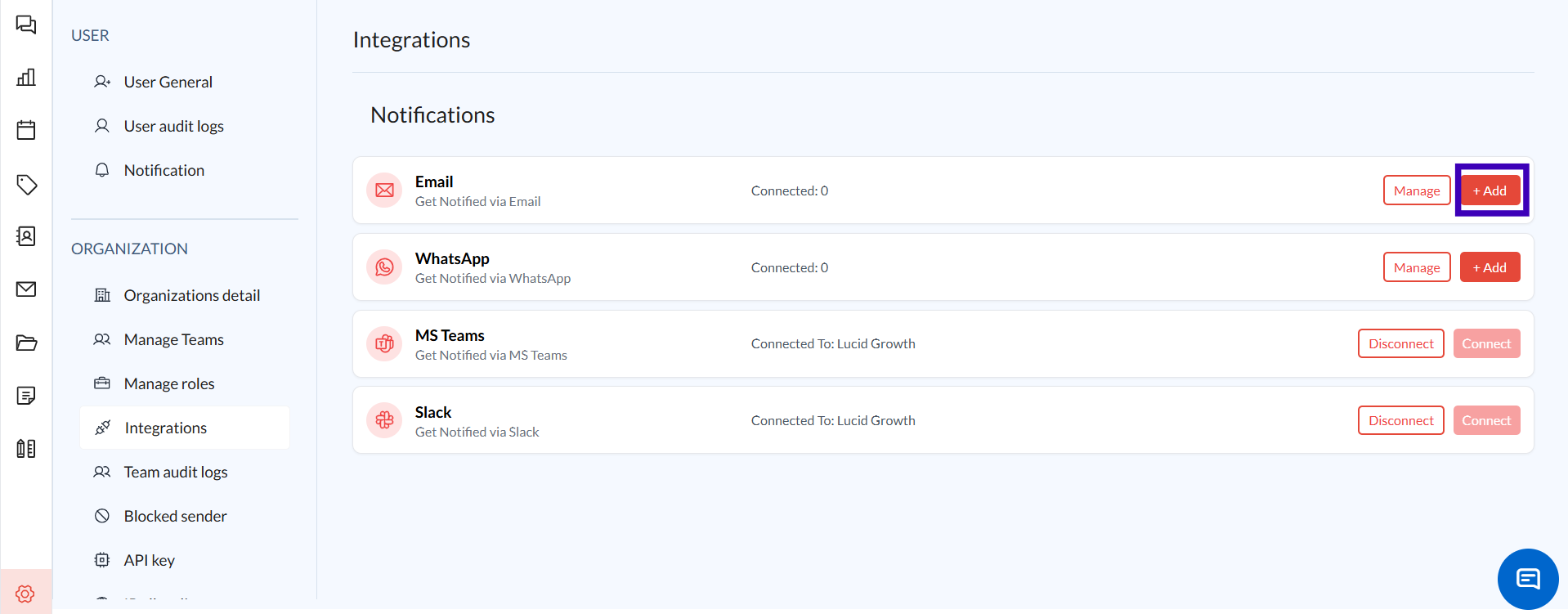
Select Integrations under the Organization section to view available notification channels, including Email, WhatsApp, MS Teams, and Slack.
Managing Integrations
Adding an Integration
Click on the + Add button next to the desired integration (e.g., Email, WhatsApp, etc.).
Enter Required Information:
For Email: Input your email address and click Get OTP to authenticate (see the “Add Email” popup).
For WhatsApp, MS Teams, or Slack: Follow the on-screen prompts to authenticate.
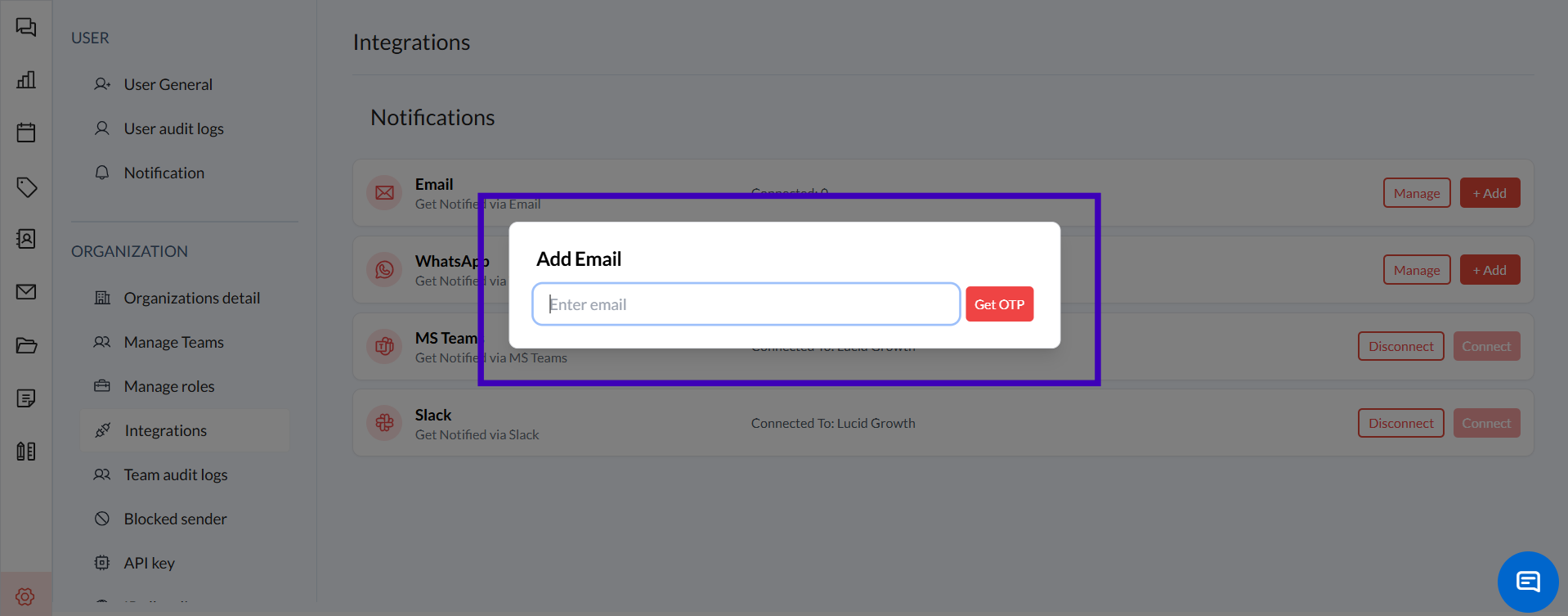
Complete any additional authentication steps as prompted, and your integration will be active.
Disconnecting an Integration
Locate the integration you want to disconnect (e.g., MS Teams or Slack).
Click on the Disconnect button.
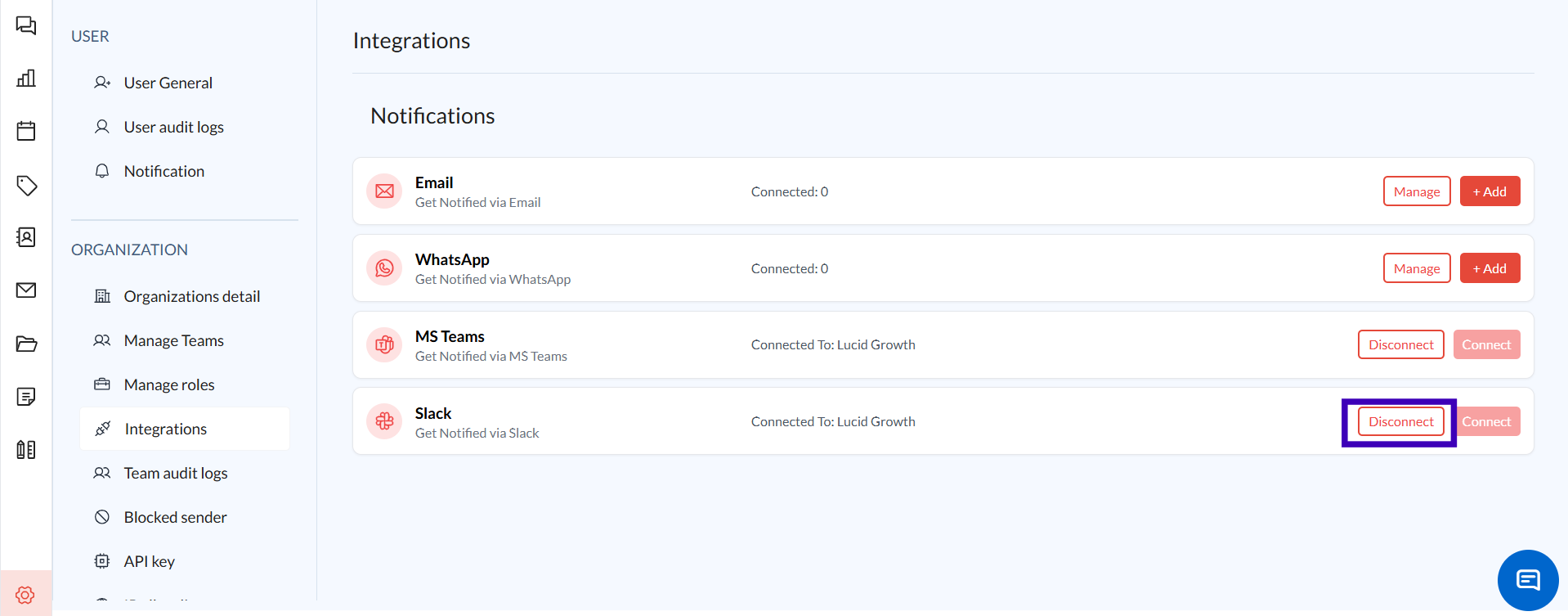
Confirm the disconnection if prompted.
Managing Active Integrations
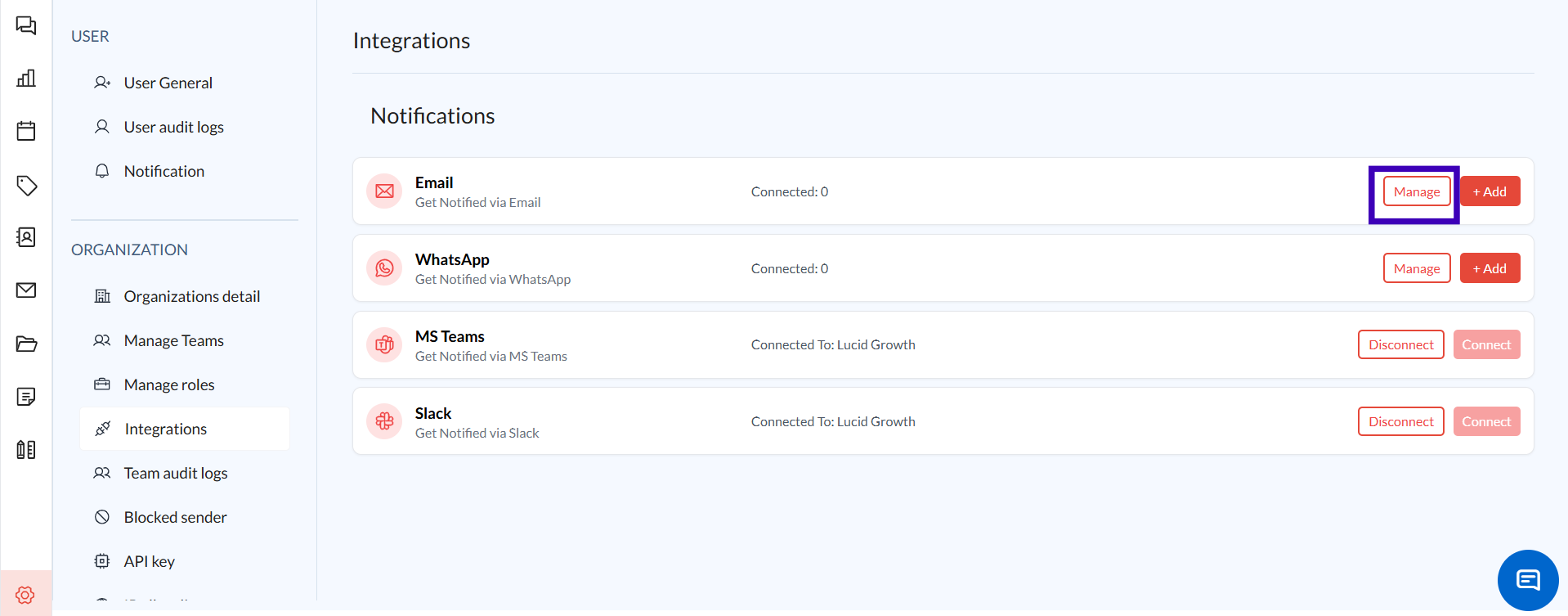
Click Manage next to an active integration to access options or adjust settings for notifications.
You may see connected channels or the current status for each platform.
Common Issues and Troubleshooting
Q: I’m not receiving notifications on my connected channel.
Solution: Ensure the channel is connected (check if it displays Connected status). If disconnected, re-authenticate by clicking Connect.
Q: I cannot add my Email for notifications.
Solution: Ensure you’re entering a valid email address. Check your inbox for the OTP, or click Resend if you don’t receive it within a few minutes.
Q: My integration with MS Teams or Slack keeps disconnecting.
Solution: Reconnect by clicking Connect. Ensure that the external app permissions are correctly set to allow Zeninbox access.
Conclusion and Next Steps
Zeninbox’s integration feature enables efficient multi-channel notifications, making it easy to stay informed and responsive. Explore different integration options and customize them to suit your workflow.
For additional support, visit our help center or contact our Support Team for assistance.