Enabling Two-Factor Authentication (2FA) in Zeninbox
Secure your Zeninbox account by enabling Two-Factor Authentication (2FA) for an extra layer of protection.
Written By lucidgrowth
Last updated Over 1 year ago
Introduction
Two-factor authentication (2FA) in Zeninbox provides an extra layer of security for your account by requiring a second form of verification in addition to your password. This helps protect your account from unauthorized access, ensuring that only you can log in, even if your password is compromised.
Prerequisites
Access Level: To enable 2FA, you must have access to your Zeninbox account and your current password.
Authenticator App: A smartphone with an authenticator app (e.g., Google Authenticator, Authy) is required to complete the setup.
Step-by-Step Instructions
Enabling Two-Factor Authentication (2FA)
Log in to your Zeninbox account.
Navigate to the Settings icon in the lower-left corner of the sidebar.
Select User General under the USER section.
Find the Two-factor authentication option and click Enable.

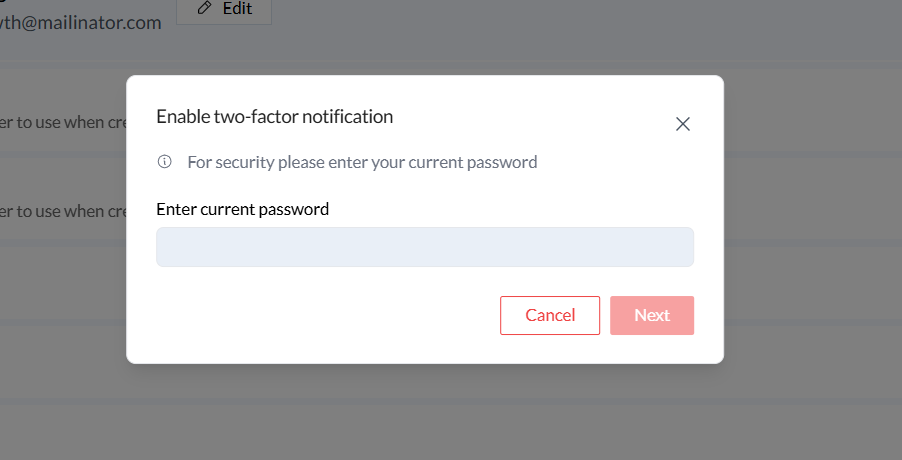
A pop-up window will appear asking you to Enter your current password for security purposes.
Type your password in the provided field and click Next.
Follow the on-screen steps:
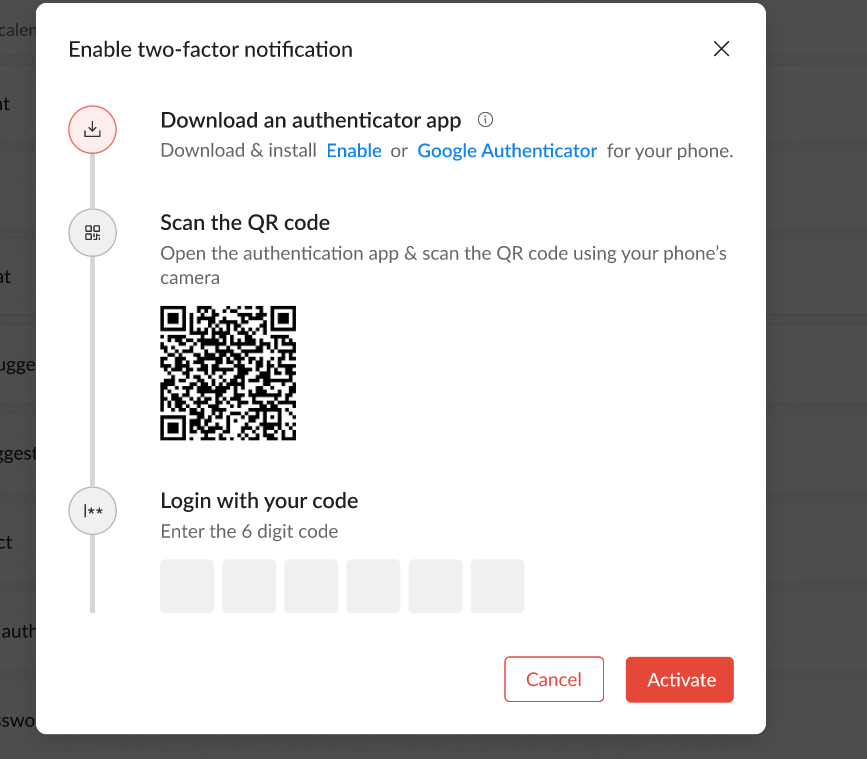
Download an Authenticator App if you haven't already. Popular options include Google Authenticator and Authy.
Scan the QR Code using your authenticator app. Open the app, select "Add a new account," and scan the code displayed on your screen.
After scanning the QR code, the authenticator app will generate a 6-digit code.
Enter the code in the provided field in Zeninbox and click Activate.
Once successfully verified, 2FA will be enabled for your account.
Additional Tips and Best Practices
Keep Backup Codes: Some authenticator apps provide backup codes in case you lose access to your phone. Store these codes in a safe place.
Update Your Authenticator App: Always use the latest version of your authenticator app to ensure compatibility and security.
Use 2FA on All Critical Accounts: Enable 2FA for other services where possible to enhance overall security.
Common Issues and Troubleshooting
Issue: I did not receive a 6-digit code.
Solution: Ensure that the QR code is scanned correctly using the authenticator app and that the app is generating the code. Restart the app if necessary.Issue: Authenticator app shows "Invalid Code".
Solution: Make sure the time on your phone is set to automatic. An incorrect time setting can cause code generation issues.Issue: Lost access to the authenticator app.
Solution: Contact Zeninbox support for assistance in disabling 2FA so you can regain access to your account.
Conclusion and Next Steps
Enabling Two-Factor Authentication (2FA) adds an essential layer of security to your Zeninbox account, protecting your data and communications. If you encounter any issues, reach out to Zeninbox support for help.