Manage User Roles
Written By lucidgrowth
Last updated Over 1 year ago
Introduction
Manage Roles in Zeninbox allows administrators to define user roles and control access levels for team members, ensuring each user has the appropriate permissions based on their responsibilities. This feature helps maintain security, streamline workflow, and adapt Zeninbox to the unique needs of your organization. With role-based permissions, users can access specific functionalities that align with their role, while administrators can oversee and adjust these permissions as necessary.
Prerequisites
Access Level: Users must have Admin or Super Admin permissions to access and modify role settings. Additionally, roles with specific permissions that require admin approval will need to seek approval before making changes.
Important Note: Changes to roles can significantly impact access to features and data, so ensure proper review before applying any modifications.
Step-by-Step Instructions
Understanding the Role Management Interface
Log in to your Zeninbox account with appropriate admin credentials.
Navigate to the Settings icon in the lower-left corner of the sidebar.
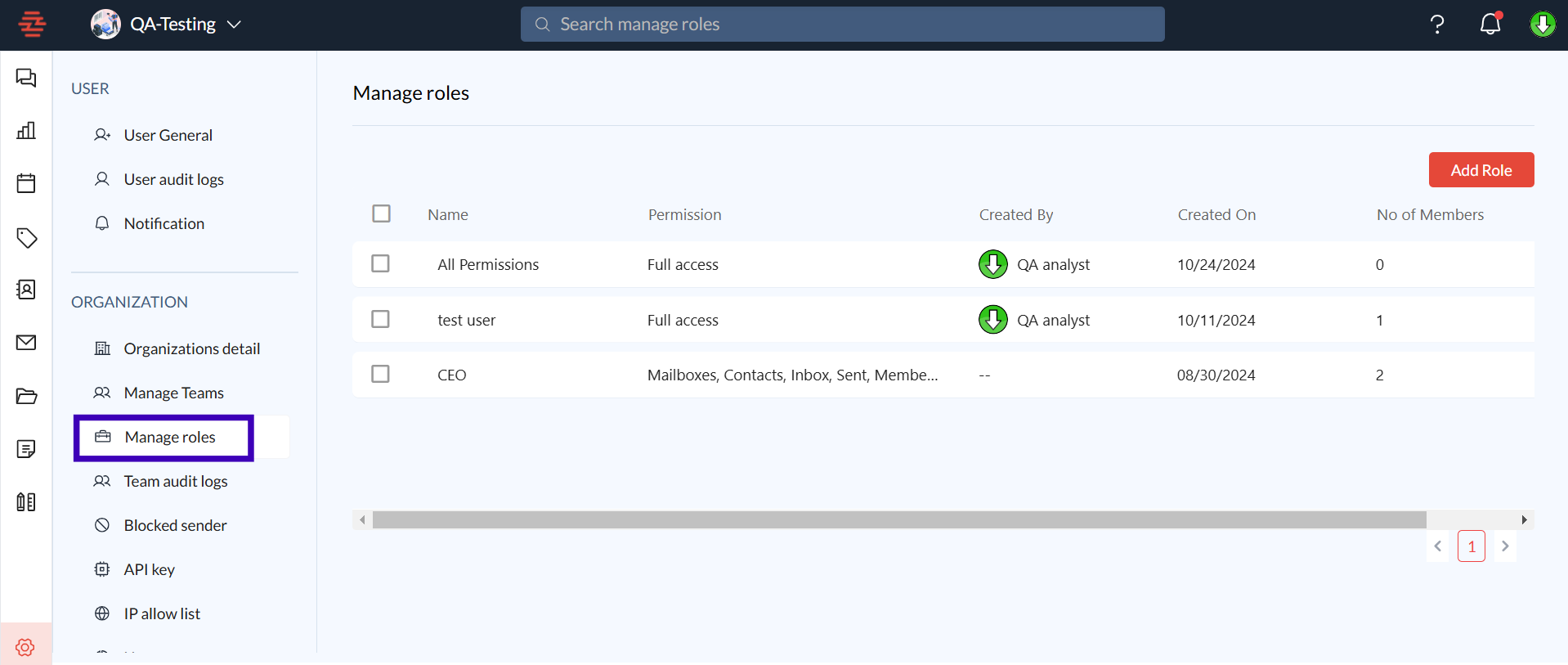
Select Manage Roles under the ORGANIZATION section.
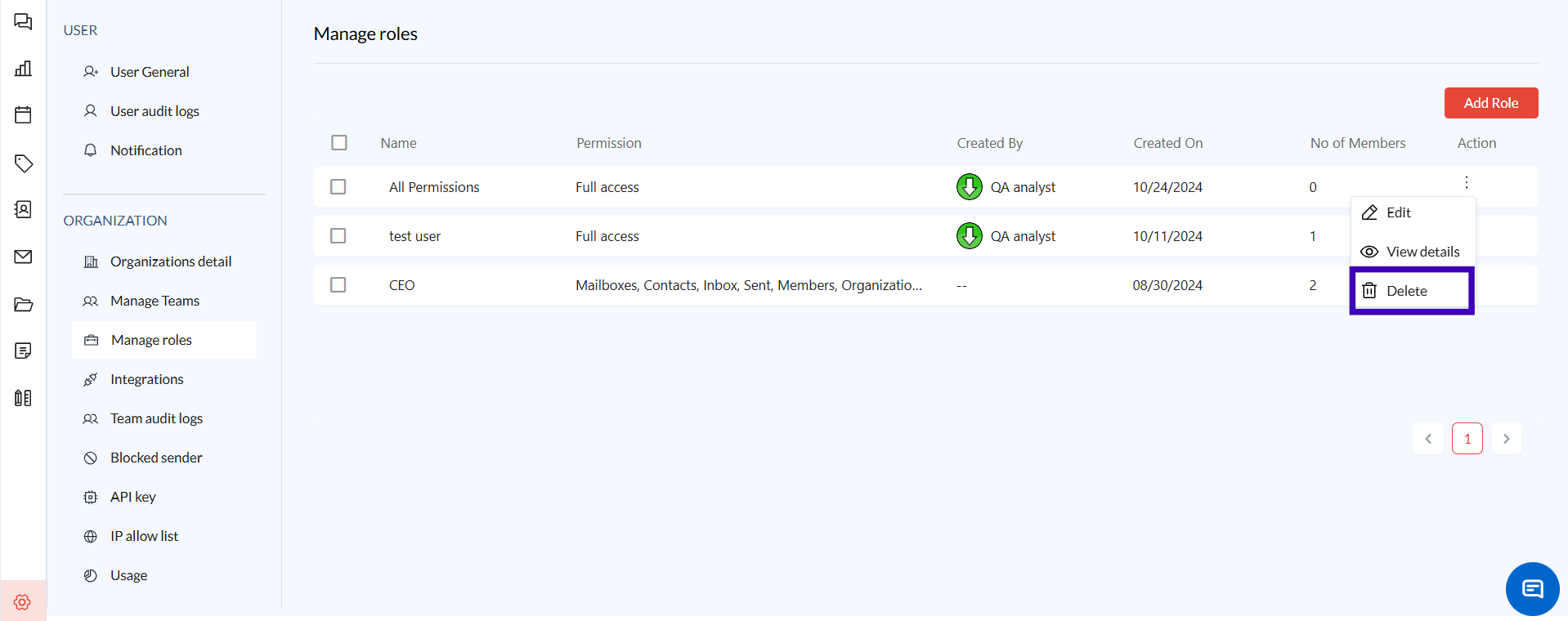
This will take you to the Role Management Dashboard, where you can view all existing roles, their permissions, creators, creation dates, and the number of users assigned to each role.
Overview of Role Management Options
Role List: View a list of all roles, including their names, permissions, creation date, and number of members assigned.
Add Role: Click the Add Role button to create a new role.
Edit Role: Adjust existing roles to update permissions or role names.
View Role Details: Access detailed information about the permissions granted to each role.
Remove or Delete Role: Remove users from a role or delete roles that are no longer needed.
Viewing Role Details and Permissions
To view and understand the permissions assigned to each role:
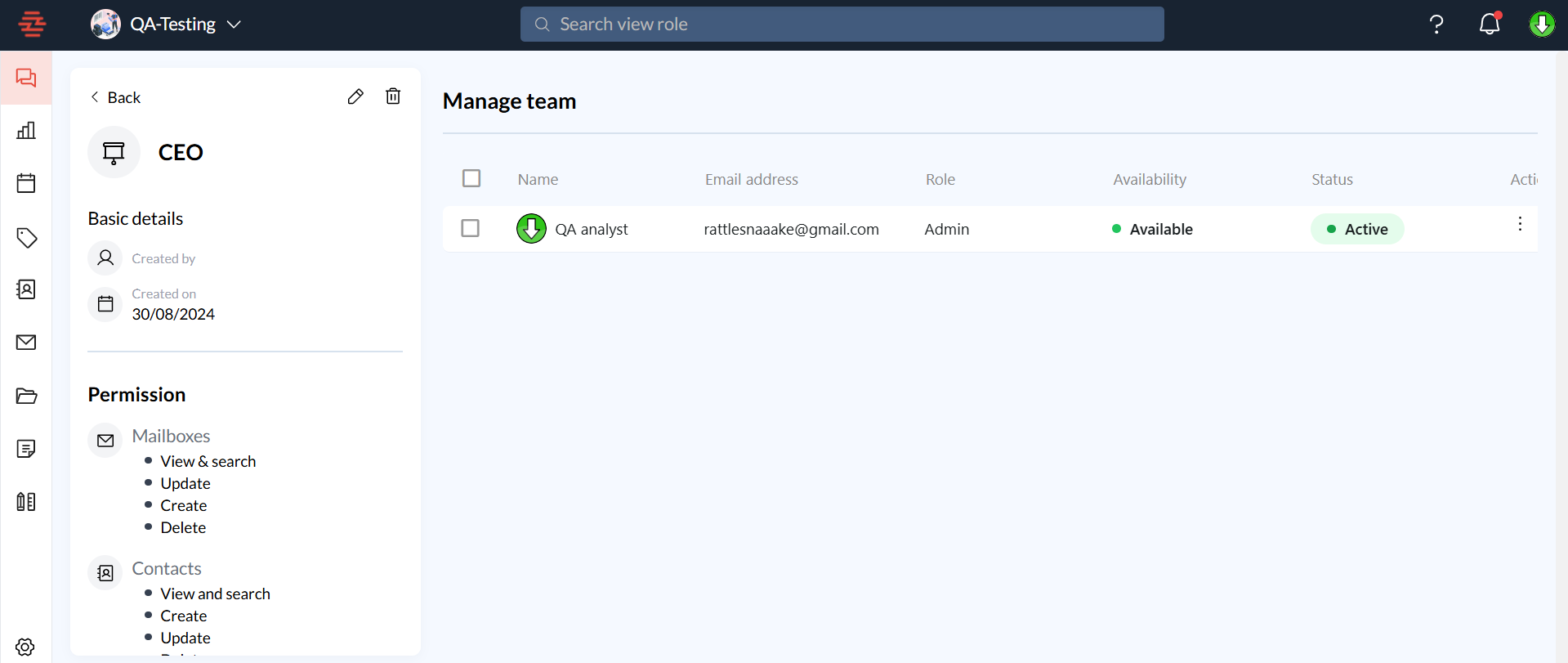
Select a role from the list to open its Details panel on the left.
This panel displays Basic Details, including:
Created By: The user who created the role.
Created On: The date the role was created.
Permissions: A detailed list of actions this role can perform, such as viewing, creating, updating, or deleting items in the mailbox, contacts, or team members.
Editing a Role
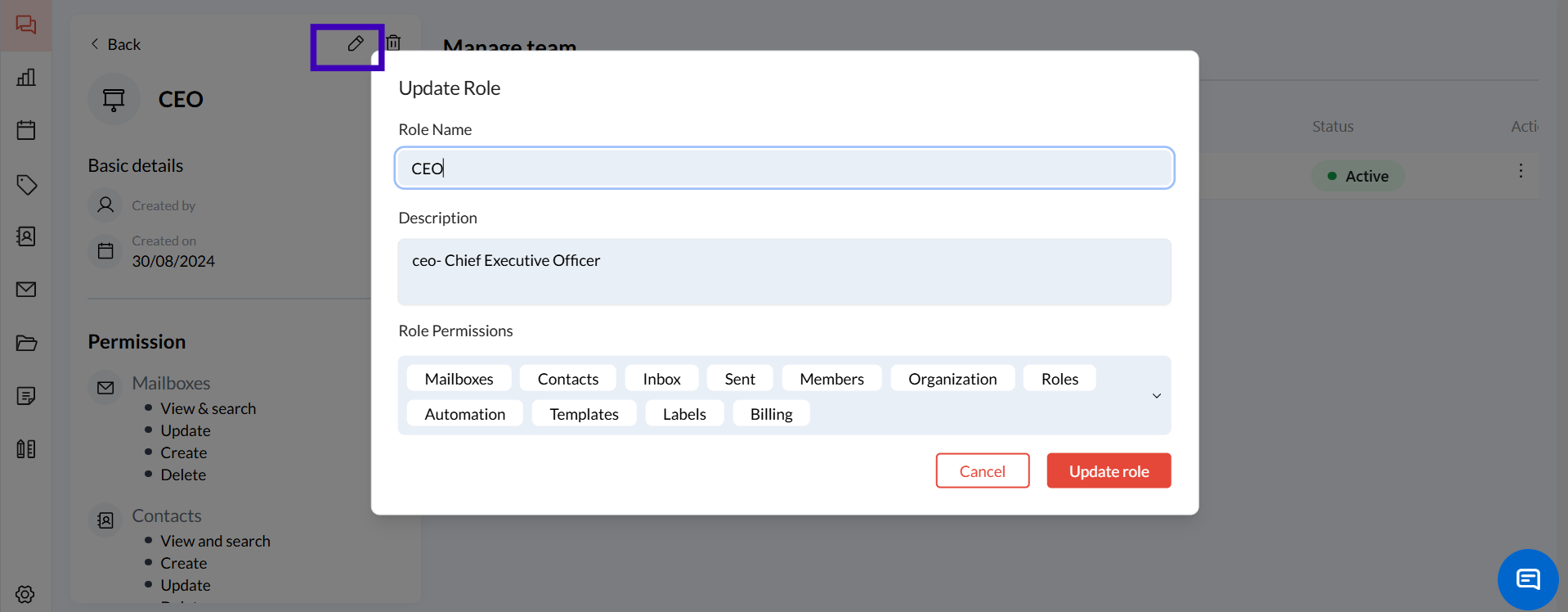
From the Role Management Dashboard, click on the role you wish to edit.
Adjust the Role Name or Permissions as needed. For example:
Mailbox: Modify permissions to allow viewing or updating emails.
Contacts: Grant or revoke access to contact management.
Team Members: Adjust permissions to control which users can manage team members.
Click Update role to apply the changes. Changes may require admin approval, depending on your organization's settings.
Assigning and Managing Users in a Role
Select a role from the Role Management Dashboard.
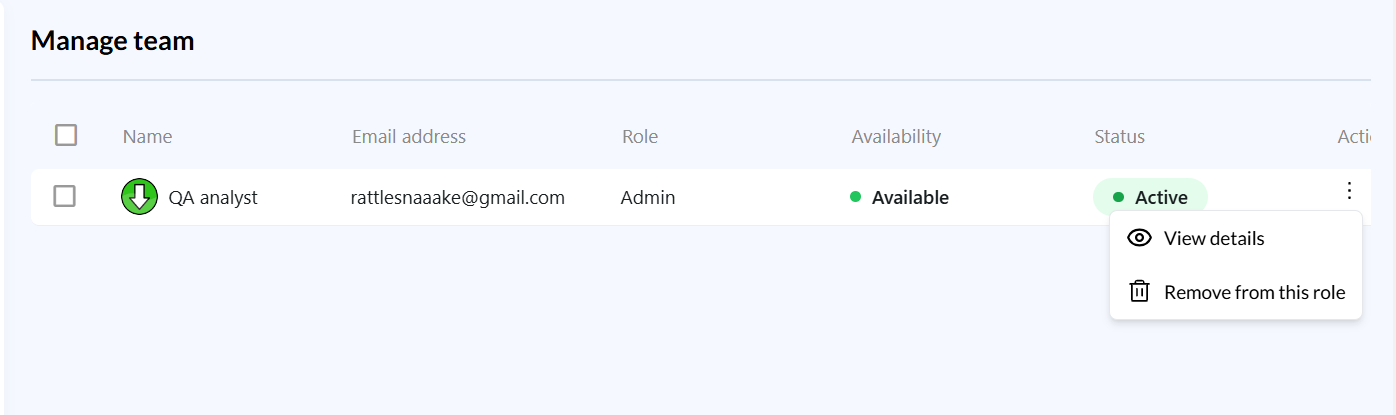
In the Team Members section, you can:
View Members: See all users assigned to the selected role, along with their status.
Remove from Role: To remove a user, click on the three dots next to their name and select Remove from this role.
Click Save to confirm any changes.
Deleting a Role
In the Manage role find the role you wish to delete.
Click on the three dots next to the role name and select Delete.
Confirm the deletion. Note: Ensure no users are assigned to the role before attempting to delete it.
Common Issues and Troubleshooting
Issue: The user cannot access certain features despite being assigned a role.
Solution: Verify that the role's permissions include the required actions for those features. Adjust the permissions or seek admin approval if changes are needed.Issue: Changes to a role are not taking effect immediately.
Solution: Ensure users log out and log back in to refresh their permissions.Issue: Unable to delete a role.
Solution: Make sure that no users are currently assigned to the role. Remove users before attempting to delete it.
Conclusion and Next Steps
Managing roles in Zeninbox helps ensure that users have the right level of access, promoting both security and productivity within your organization. Start customizing roles to fit your team's needs and streamline access control. If you need further assistance, contact Zeninbox support.