Blocked Sender List in Zeninbox
Manage unwanted emails by adding addresses to your Blocked Sender List in Zeninbox, ensuring a clutter-free inbox.
Written By lucidgrowth
Last updated Over 1 year ago
Introduction
The Blocked Sender List feature in Zeninbox allows users to manage and block email addresses from which they no longer want to receive emails. This feature helps keep unwanted or spammy messages out of your inbox, ensuring a cleaner and more focused workspace.
Step-by-Step Instructions
Accessing the Blocked Sender List
Log in to your Zeninbox account.
Click on the Settings icon in the lower-left corner of the sidebar.
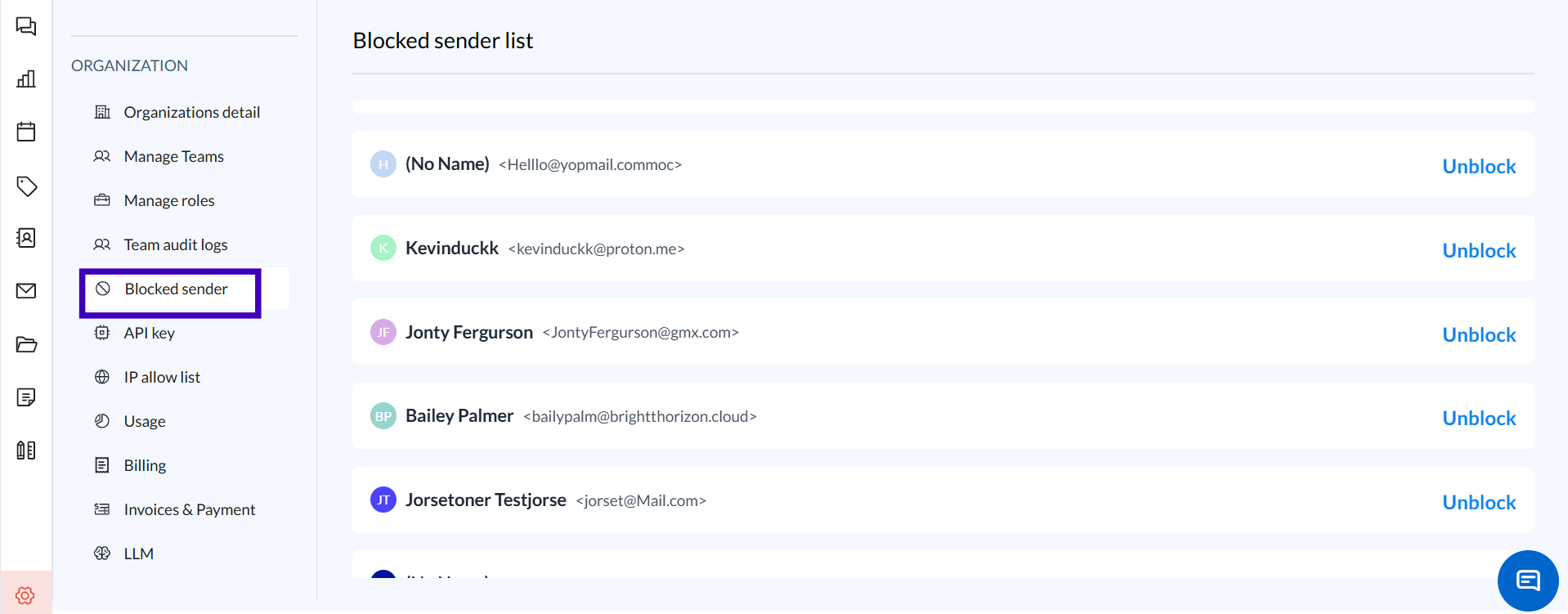
Navigate to the Blocked Sender section under ORGANIZATION in the sidebar.
Blocking a Sender Directly from an Email
Open the email from the sender you want to block.
Click the More options (three dots) icon next to the email actions.
Select Block [Sender name] from the dropdown menu.
A confirmation message may appear to confirm the action.
Click Yes to add the sender to your blocked list.
Adding a Sender to the Blocked List from Settings
Click the Add blocked sender button in the Blocked Sender List view.
Use the search bar in the pop-up to find and select the email address you wish to block.
Click Block accounts to confirm.
Removing a Sender from the Blocked List
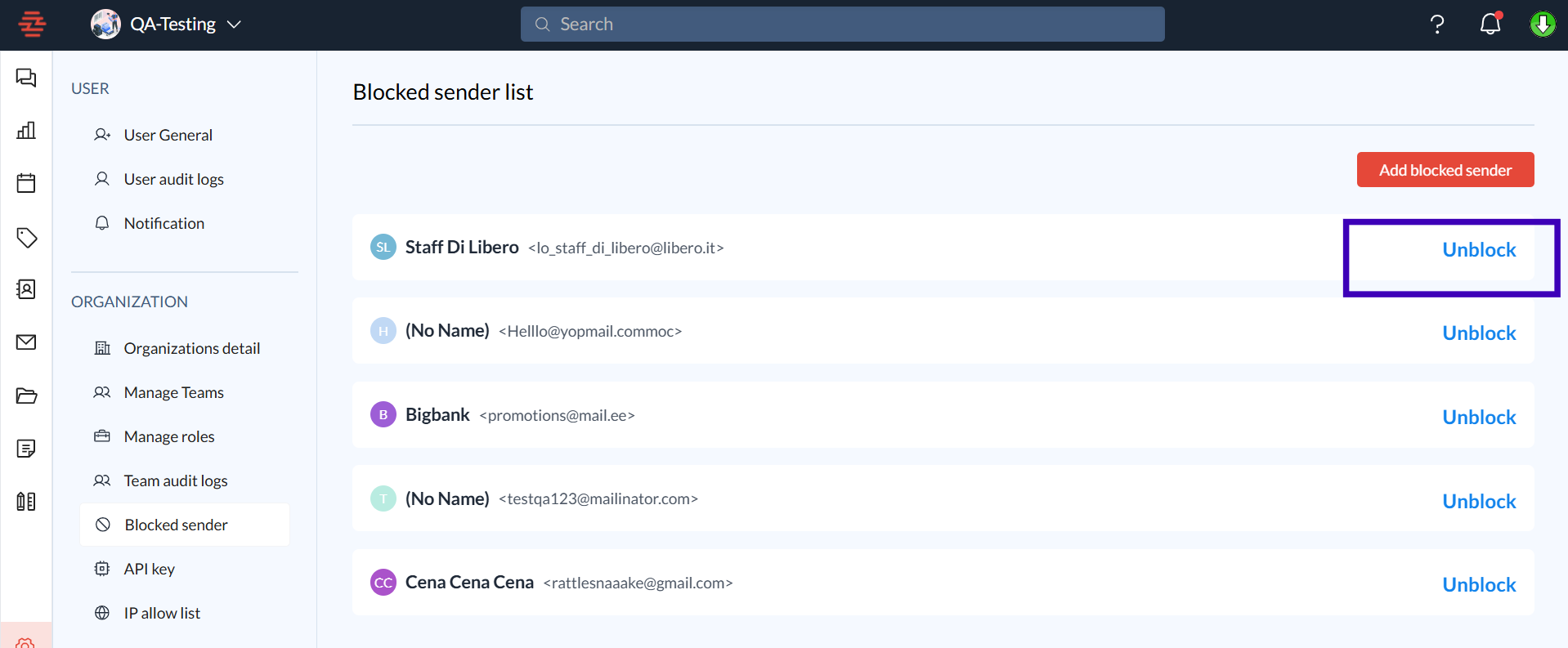
Locate the sender you wish to unblock in the Blocked Sender List.
Click the Unblock button next to the sender’s name.
A confirmation pop-up will appear, asking, "Are you sure you want to unblock [Sender Name]?"
Click Yes to confirm or No to cancel the action.
Viewing Blocked Senders
The list displays all blocked email addresses.
Use the search bar to find a specific blocked sender quickly.
Scroll through the list to view all blocked accounts.
Additional Tips and Best Practices
Use the Block Feature from Emails for faster blocking when you identify unwanted senders in your inbox.
Regularly Review the blocked list to ensure important contacts haven’t been blocked by mistake.
Coordinate with Admins for organization-wide spam control, ensuring consistency in blocking policies.
Common Issues and Troubleshooting
Issue: Emails from a blocked sender still appear in my inbox.
Solution: Ensure that the sender is correctly listed in the blocked sender list. Check for any overriding admin policies if the issue persists.
Conclusion and Next Steps
The Blocked Sender List feature in Zeninbox provides a straightforward way to manage and filter out unwanted communication, ensuring a cleaner and more secure inbox. Whether you add senders directly from an email or through the settings, this tool makes it easy to control who can reach you. For further assistance, reach out to Zeninbox support.