Addressing "Access Denied" Errors
Written By lucidgrowth
Last updated Over 1 year ago
Introduction
Are you seeing an "Access Denied" error when trying to access Zeninbox? This error can occur due to various reasons, such as incorrect permissions or network restrictions. It’s a common issue that many users face, especially when there are recent changes in account settings or network configurations. This article will guide you through the possible causes of the "Access Denied" error and provide step-by-step solutions to resolve the issue.
Step-by-Step Solution
Step 1: Verify Your Account Permissions
Go to your Zeninbox Dashboard and check if you have the required permissions to access the feature or section that shows the "Access Denied" error.
For Admins: Verify that the user’s role includes access to the specific areas or functionalities of Zeninbox.
Step 2: Check for IP Restrictions
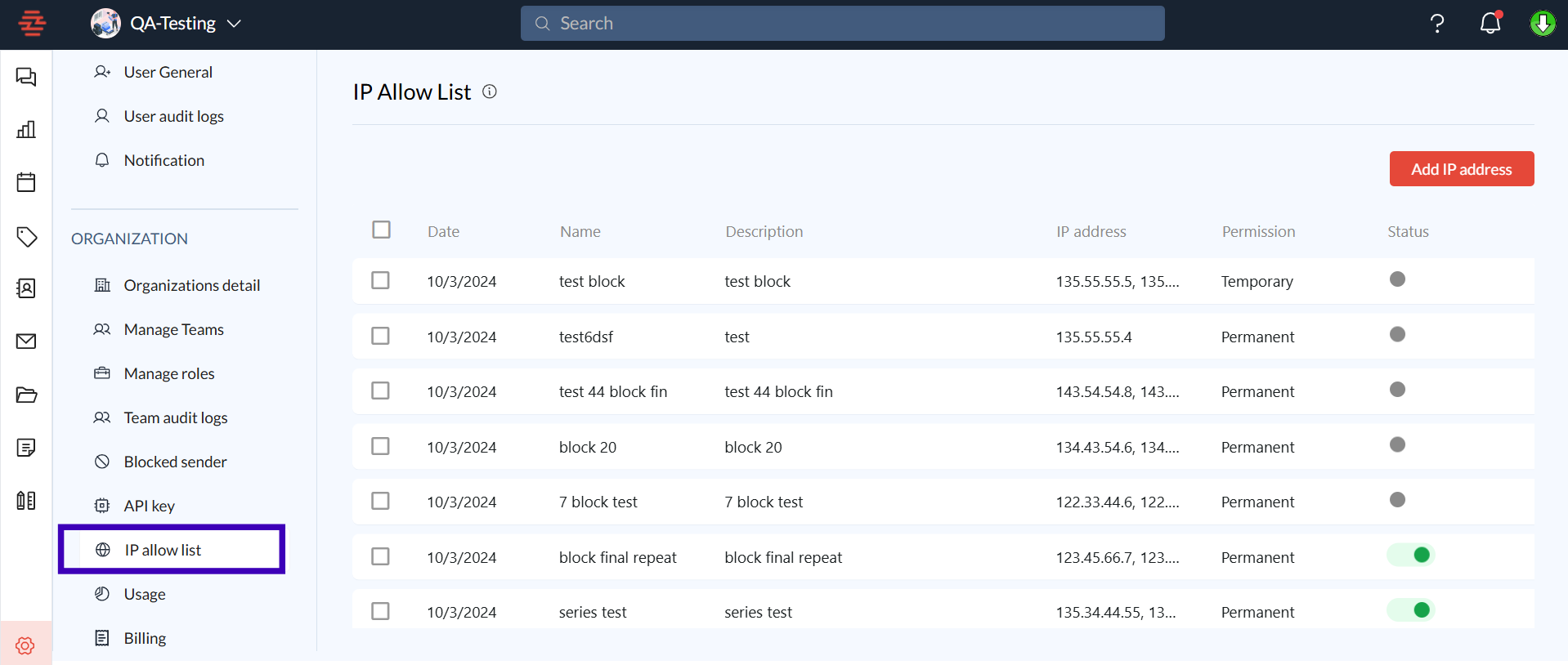
For Admins: Ensure that the IP address from which you're attempting to log in is included in the allowed IP list.
Go to Settings > IP Allowlist and verify if your current IP is listed.
If not, add the IP address or range to the allowlist.
Step 3: Clear Browser Cache and Cookies
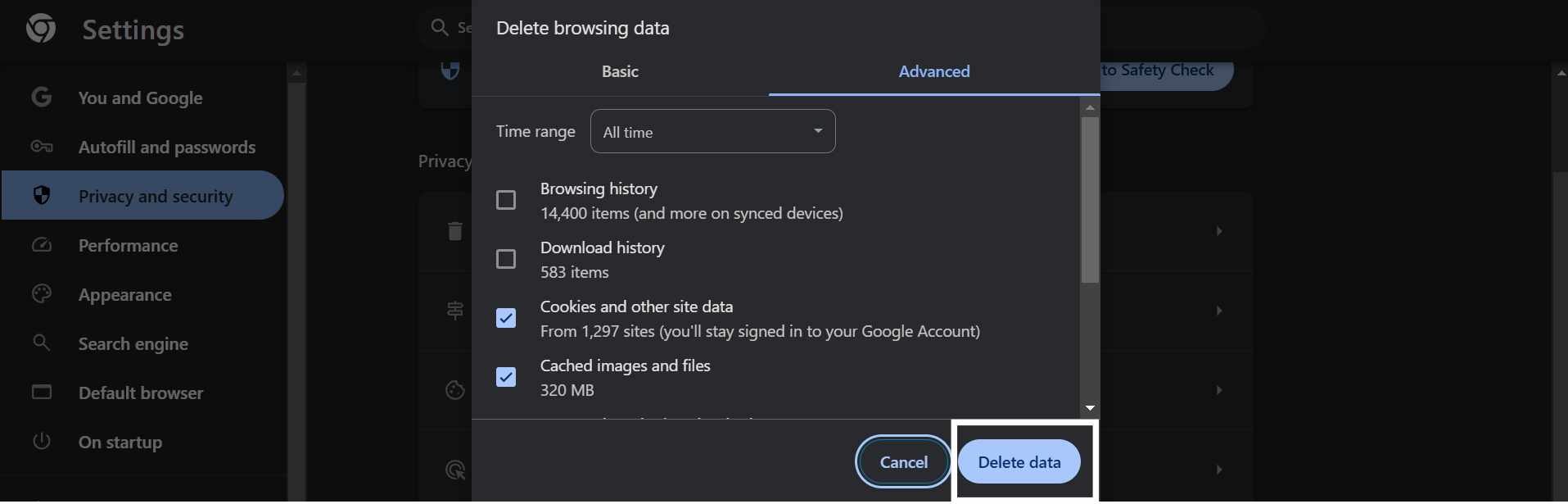
Cached data can sometimes cause access-related issues. Clear your browser’s cache and cookies:
Google Chrome: Go to Settings > Privacy and Security > Clear browsing data.
Firefox: Go to Settings > Privacy & Security > Cookies and Site Data.
Step 4: Verify Two-Factor Authentication (2FA) Settings
Ensure that any required Two-Factor Authentication (2FA) settings are correctly configured.
If 2FA is enabled for your account, check that you have access to the 2FA device or app.
If you’re unable to complete 2FA due to device issues, reach out to your admin for a temporary bypass.
Step 5: Check for Network and VPN Restrictions
If you’re using a VPN, try disconnecting and accessing Zeninbox directly.
Ensure that your network firewall settings are not blocking Zeninbox domains.
If you suspect a firewall issue, consult with your network administrator to whitelist Zeninbox's domains.
Additional Tips and Best Practices
Keep Permissions Up to Date: Regularly review user roles and permissions to ensure that users have the correct level of access.
Use IP Allowlists Wisely: Limit IP allowlists to only trusted IP ranges to maintain security without disrupting access.
Common Issues and Troubleshooting
Issue: Access Denied after Recent Role Change
Sometimes, role updates may take a few minutes to propagate. Log out and back in to refresh your session.
If the issue persists, an admin should reassign the role and save the changes again.
Problem: "Access Denied" When Using a New Device
Make sure that the new device’s IP address is included in the IP allowlist.
Check that the device's time and date settings are accurate, as mismatched times can sometimes cause access issues.
Conclusion and Next Steps
Addressing "Access Denied" errors in Zeninbox is straightforward when you follow the right steps. By checking user permissions, verifying network settings, and clearing browser data, you can resolve most access-related issues.
If you need additional help, reach out to our support team through the Help section on the Zeninbox website.