Issues with LLM Key Authentication
Written By lucidgrowth
Last updated Over 1 year ago
If you encounter issues with the authentication of your LLM (Large Language Model) API key in Zeninbox, follow this guide to troubleshoot and resolve the problem. Whether you face challenges during setup or when using features like AI Compose, this guide will help ensure that your API key is correctly configured.
Prerequisites
Before proceeding, ensure you have the following:
Valid LLM API Key: A working API key for the AI model you want to use (e.g., Open AI, Google Gemini).
Permissions: Confirm that you have the required permissions to access and modify API settings in Zeninbox.
Stable Internet Connection: A consistent internet connection is crucial for API connectivity.
Important: If you do not have access to the API settings, contact your Zeninbox administrator.
Step-by-Step Solution
Step 1: Verify API Key Configuration
Navigate to Settings in the Zeninbox interface.
Select LLM Settings from the left-side menu and click on API Key Configuration.
To add a new key, click Add Open AI API Key or Add Google Gemini API Key.
Fill in the fields, including:
Name your Key (e.g., For Compose with AI)
Model (select from the available models)
Version (choose the appropriate version)
API Secret Key (enter the key provided by your AI service)
Feature (select the feature you want the key to support)
Check Set as default if you want this key to be the primary key for all requests.
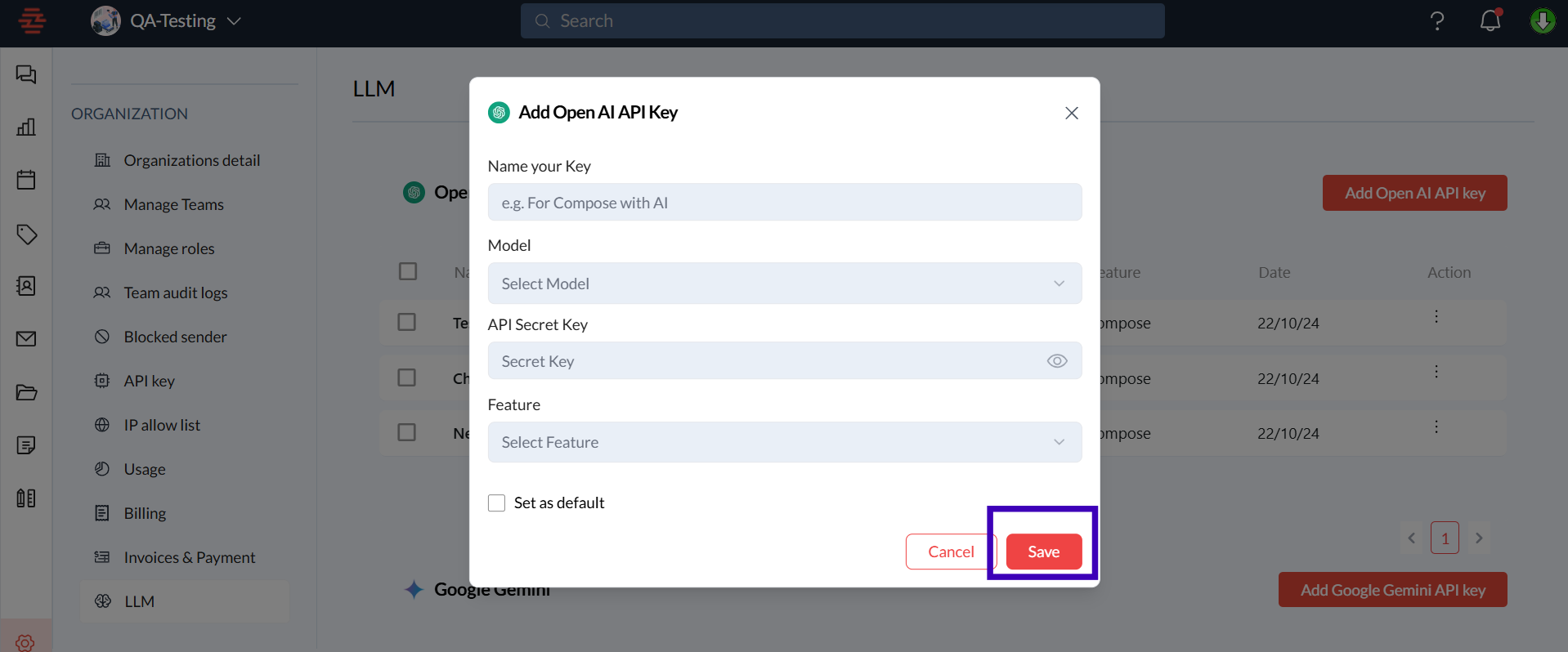
Click Save to store the API key configuration.
After saving, click Test Connection to ensure the key is valid and properly integrated.
Tip: Double-check for any typographical errors in the API key to avoid authentication issues.
Step 2: Verify API Key Status
In the LLM Settings panel, confirm that the API key is active and not expired.
Look for the Date column to ensure the key's validity.
Include a screenshot showing active API keys and their status here.
If the key has expired, generate a new one from your AI provider and update it in Zeninbox.
Note: Keeping your API keys up to date is essential for maintaining uninterrupted access to AI services.
Step 3: Test API Key Connectivity
Ensure a stable internet connection during the API key configuration and testing process.
Disable any VPNs or firewalls temporarily, as they might block communication with the AI service.
Refresh the Zeninbox page after making changes using
Ctrl+Shift+R(Windows) orCmd+Shift+R(Mac).
Step 4: Review API Usage Limits
In the LLM Settings > Model Name section, check your API key's usage under the Usage tab.
If you have reached the daily or monthly usage limit, you might need to upgrade your plan with the AI service or wait until the usage resets.
Include a screenshot of the API usage page here.
Example: Exceeding the API call limit can cause temporary disruptions in authentication, so plan usage accordingly.
Additional Tips and Best Practices
Secure Key Management: Store your API keys securely to prevent unauthorized access.
Monitor Key Usage: Regularly check the usage metrics to avoid hitting usage caps.
Use Descriptive Key Names: Naming keys based on their function (e.g., "For Compose with AI") helps in managing multiple API keys effectively.
Include a screenshot of the key management interface to illustrate how to organize and track keys.
Troubleshooting Other Issues
If the problem persists after following the steps above, consider these additional tips:
Check Network Restrictions: Ensure that no firewall or security software is blocking Zeninbox from connecting to the AI service provider.
Try a Different Browser: Zeninbox is best supported on Google Chrome, Firefox, and Edge.
Contact Support: For complex issues, reach out to Zeninbox support or the support team of your AI model provider.
Conclusion and Next Steps
By following these steps, you should be able to resolve LLM key authentication issues in Zeninbox. For further assistance, check out the following resources:
If you need additional help, please contact Zeninbox Support through the Help Center or email us at [Support Contact Info].
Reminder: Regularly updating your API keys and checking their status can prevent most authentication-related issues.