How to Clear Cache and Cookies for Zeninbox
Learn how to clear your browser's cache and cookies to resolve issues and improve Zeninbox's performance.
Written By lucidgrowth
Last updated Over 1 year ago
Are you experiencing issues with Zeninbox that might be resolved by clearing your browser's cache and cookies? Clearing your cache and cookies can help fix problems like loading issues or outdated data being displayed. This guide will walk you through the steps for different browsers to ensure Zeninbox functions smoothly.
Prerequisites
Before you begin, keep the following in mind:
Logged-In Status: Clearing cookies will log you out of Zeninbox. Make sure you have your login credentials handy.
Important Note: Clearing cookies and cache is safe, but it will remove stored website data, so you may need to re-enter login details.
Step-by-Step Solution
Follow these steps to clear cache and cookies for the most popular browsers:
Step 1: Clear Cache and Cookies in Google Chrome
Open Google Chrome and click on the three dots in the upper-right corner.
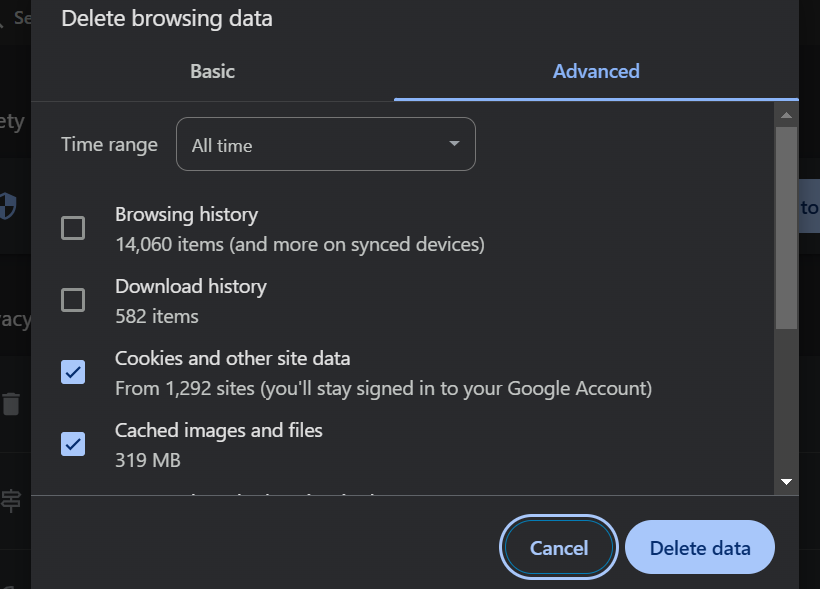
Go to Settings > Privacy and Security > Clear Browsing Data.
In the Clear browsing data window:
Select All time for the time range.
Check cookies and other site data, as well as cached images and files.
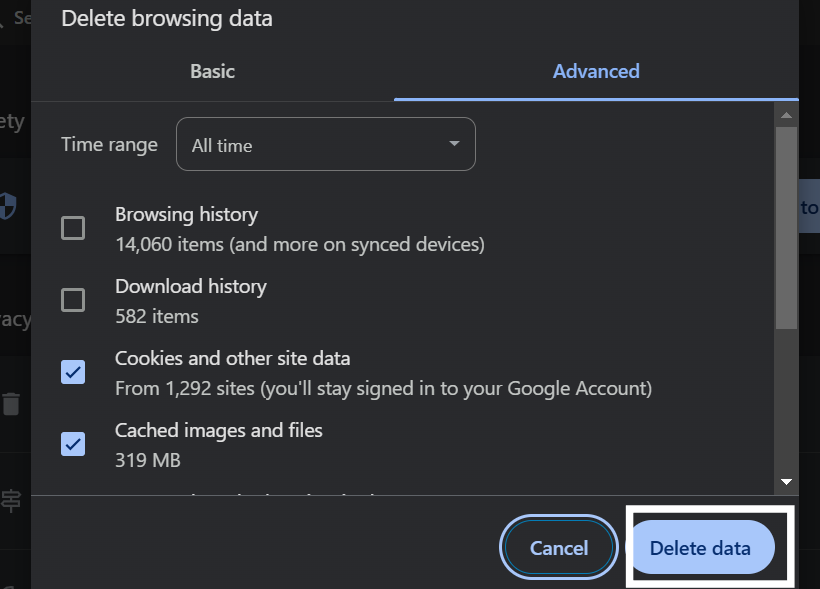
Click Clear data.
Tip: Use the shortcut
Ctrl+Shift+Delete(Windows) orCmd+Shift+Delete(Mac) to directly open the "Clear Browsing Data" window.
Step 2: Clear Cache and Cookies in Mozilla Firefox
Open Mozilla Firefox and click on the menu button (three lines) in the top-right corner.
Select Settings > Privacy & Security.
Scroll down to Cookies and Site Data and click Clear Data.
Check Cookies and Site Data and Cached Web Content, then click Clear.
Note: You can also press
Ctrl+Shift+Delete(Windows) orCmd+Shift+Delete(Mac) to access the "Clear Data" menu quickly.
Step 3: Clear Cache and Cookies in Microsoft Edge
Open Microsoft Edge and click on the three dots in the top-right corner.
Go to Settings > Privacy, Search, and Services.
Under Clear browsing data, click Choose what to clear.
Select cookies, other site data, and cached images and files.
Click Clear now.
Pro Tip: Use the shortcut
Ctrl+Shift+Delete(Windows) orCmd+Shift+Delete(Mac) to directly access the clearing options.
Additional Tips and Best Practices
Restart Browser: After clearing the cache and cookies, restart your browser for the changes to take full effect.
Clear Cache Regularly: Doing this every few weeks can help improve browser performance and reduce potential conflicts with Zeninbox.
Use Incognito Mode: For quick tests, try using Zeninbox in Incognito Mode to bypass cache issues temporarily.
Common Issues and Troubleshooting
If clearing your cache and cookies did not resolve the issue, consider these additional steps:
Disable Browser Extensions: Extensions like ad blockers or privacy plugins might interfere with Zeninbox.
Try a Different Browser: Testing Zeninbox on another browser can help identify if the issue is browser-specific.
Check Network Connection: A stable internet connection is essential for Zeninbox to load correctly.
Conclusion and Next Steps
Clearing your cache and cookies is a simple yet effective solution for resolving many browser-related issues with Zeninbox. For more help, explore these resources:
If you need further assistance, contact our support team through the Help Center.