How to Connect Gmail
Written By lucidgrowth
Last updated Over 1 year ago
Introduction
Are you trying to connect your Gmail account to Zeninbox but encountering issues or needing guidance on the steps? This article will walk you through the simple, step-by-step process to integrate Gmail, enabling you to access all your emails in one place. Gmail integration is one of the most common setups in Zeninbox, and with this guide, you'll quickly have it connected.
Prerequisites
Before connecting Gmail to Zeninbox, please ensure:
You have a Zeninbox account with the necessary permissions to add email integrations.
You are logged into the Gmail account you wish to connect.
You have enabled Two-Factor Authentication (2FA) for additional security, as some steps might require authentication.
Important Note: Ensure your Gmail account allows third-party access if you encounter any permission errors.
Step-by-Step Solution or Explanation
Step 1: Navigate to the Mailbox Section
In your Zeninbox dashboard, locate and select the Mailboxes icon from the sidebar.
Click the Add Mailboxes button and select Import from CSV or Add Manually.
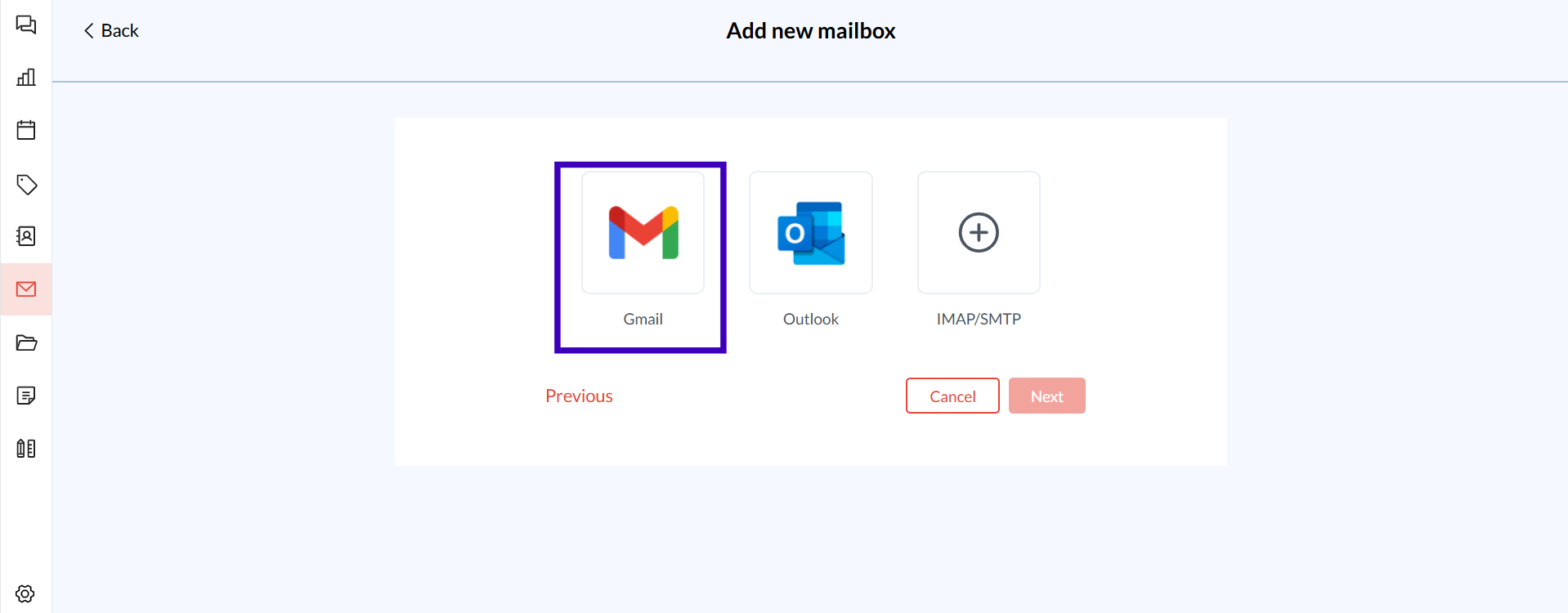
Step 2: Select Gmail as the Email Provider
You will see several provider options. Choose Gmail.
Click Next to proceed.
Step 3: Authorize Gmail Account
A Google login window will appear. Select the Gmail account to which you wish to connect.
Review the permissions requested by Zeninbox that are necessary for integration.
Click Allow to grant Zeninbox access to your Gmail.
Step 4: Confirm the Connection
Once permissions are granted, return to the Zeninbox dashboard.
Zeninbox will validate the connection. You should see your Gmail account in the Mailbox section with an "Active" status.
Note: It may take a few moments for Gmail to fully sync with Zeninbox.
Common Issues and Troubleshooting
Permission Denied Error:
Ensure you’re logged into the correct Gmail account.
Double-check Google account security settings for third-party access permissions.
Account Not Syncing Properly:
Manually refresh the integration or check if Zeninbox requires reauthorization.
Authentication Error:
This can happen if your 2FA settings change. Reconnect the Gmail account with updated 2FA settings.
Conclusion and Next Steps
Following this guide should help you seamlessly integrate Gmail with Zeninbox. If you encounter any issues, please revisit the troubleshooting section and ensure all security settings are properly configured.
For further assistance or additional support, please reach out to our support team here or check out related articles on integration with other ESPs.