How to Connect Outlook
Written By lucidgrowth
Last updated Over 1 year ago
Introduction
Are you looking to integrate your Outlook account with Zeninbox to streamline email management? This guide provides step-by-step instructions on connecting Outlook to Zeninbox. Outlook is one of the most popular email service providers, and setting it up with Zeninbox allows you to manage your emails, tasks, and calendars in one unified platform.
Prerequisites
Before you begin the integration process, ensure that:
You have a Zeninbox account with permission to add integrations.
You are logged into your Outlook account in your browser or have access to the credentials.
You have enabled Two-Factor Authentication (2FA) for added security if required by your organization.
Note: If your Outlook account is managed by your organization, you might need admin permissions to authorize third-party applications like Zeninbox.
Step-by-Step Solution or Explanation
Step 1: Go to the Mailbox Section
In Zeninbox, navigate to the Mailboxes icon in the sidebar.
Click on Add Mailboxes and select Import from CSV or Add Manually.
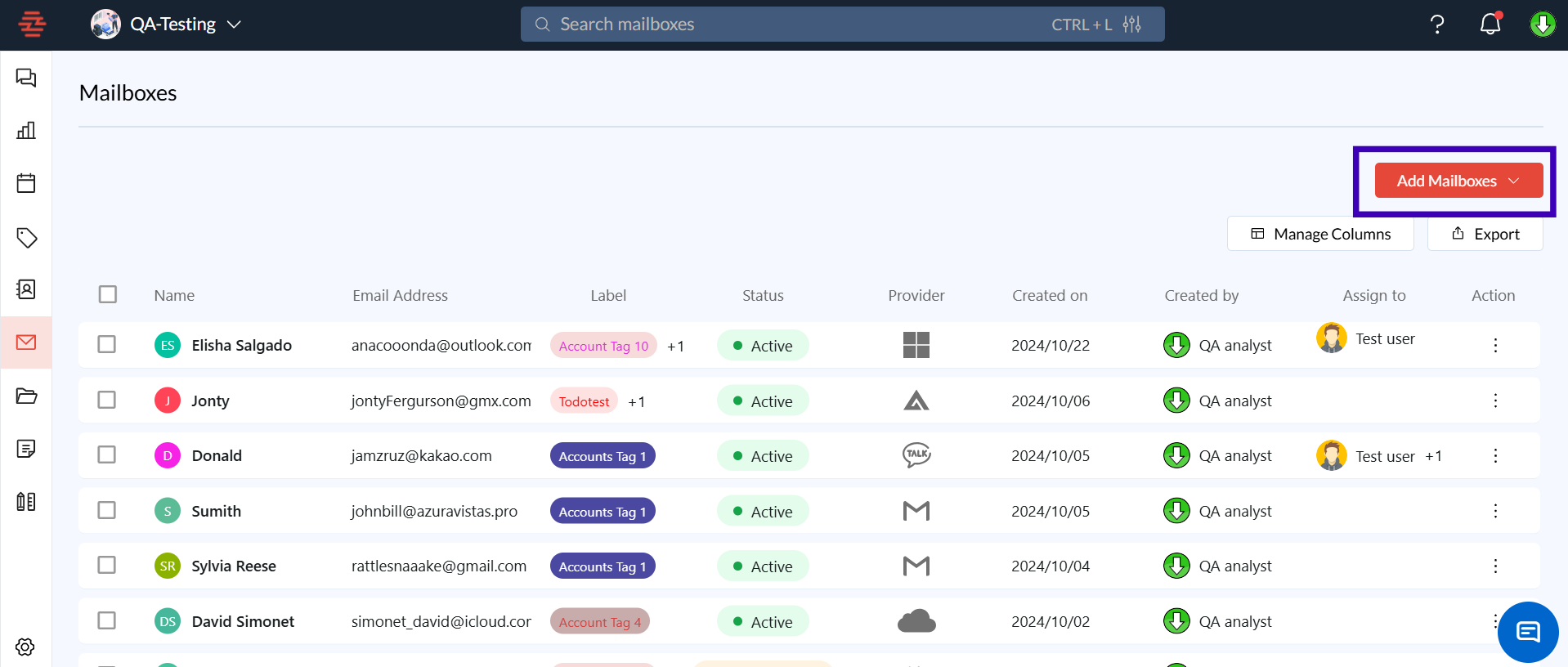
Step 2: Select Outlook as the Email Provider
From the list of email providers, choose Outlook.
Click Next to proceed with the setup.
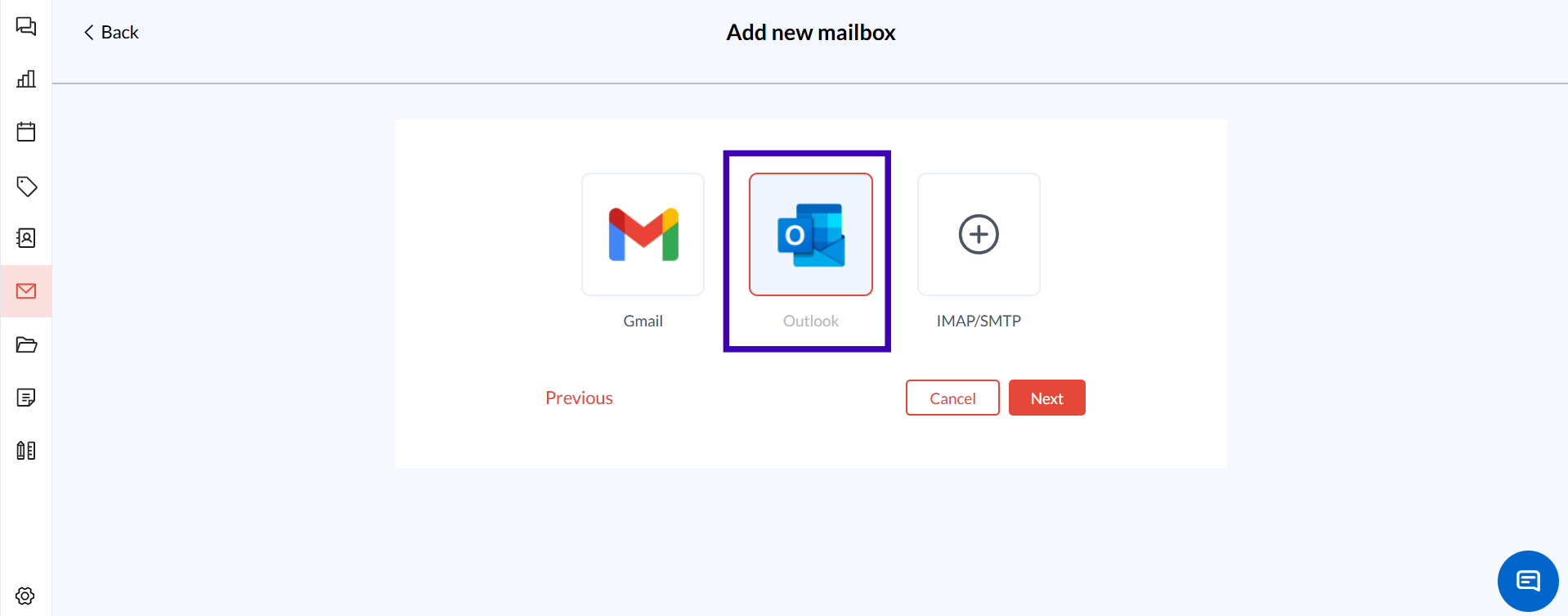
Step 3: Log in to Your Outlook Account
A new window will appear, prompting you to log in to your Outlook account.
Enter your Outlook credentials and follow the on-screen instructions to sign in.
Step 4: Grant Permissions to Zeninbox
After logging in, you’ll be asked to grant Zeninbox access to your Outlook account.
Review the requested permissions, which enable Zeninbox to sync emails and manage them within the platform.
Click Accept to proceed.
Step 5: Confirm the Connection
Once permissions are granted, you’ll be redirected to Zeninbox.
Your Outlook account will now appear in the Mailbox list with an "Active" status.
Important: If you encounter delays, try refreshing your Zeninbox Mailbox page, as syncing can take a few moments.
Additional Tips and Best Practices
Stay Signed In: Remain signed in to Outlook in your browser to avoid reauthentication requests.
Check Permissions Regularly: If you change any security settings in Outlook, reauthorize the Zeninbox connection.
Label Your Mailboxes: Use labels and tags within Zeninbox to organize Outlook emails more effectively.
Common Issues and Troubleshooting
Authorization Error
Ensure you have entered the correct Outlook credentials and that permissions are granted.
If using a work account, confirm that your organization allows third-party connections.
Syncing Delay
Sometimes it may take a few minutes for Outlook emails to sync fully. Try refreshing the Mailbox section in Zeninbox.
2FA-Related Issues
If you have 2FA enabled, ensure that your authenticator app is accessible when connecting to Zeninbox.
Conclusion and Next Steps
Integrating Outlook with Zeninbox allows you to manage all your email needs efficiently in one place. If you experience any issues, refer to the troubleshooting section or consult our support team.
For more detailed assistance, reach out to our Support Team or check out additional resources on integrating other ESPs in Zeninbox.