How to Connect kakao with Zeninbox
Written By lucidgrowth
Last updated About 1 year ago
Introduction
Connecting your Kakao email account to Zeninbox allows you to access your Kakao emails within a unified inbox alongside other email accounts, making it easier to manage your messages without switching between apps. Follow this step-by-step guide to set up your Kakao account with Zeninbox.
Prerequisites
Before you start, make sure you have:
An active Kakao Mail account.
IMAP access is enabled on your Kakao account.
App-Specific Password: If two-factor authentication (2FA) is enabled, you may need to generate an app-specific password for third-party clients like Zeninbox.
Step-by-Step Instructions
Step 1: Enable IMAP Access in Kakao
Log in to your Kakao Mail account via a web browser.
Go to Settings > IMAP/POP3 Access.
Ensure that IMAP access is enabled. This allows Zeninbox to connect to your Kakao account.
Step 2: Generate an App-Specific Password (If 2FA is Enabled)
In your Kakao account settings, navigate to the Security section.
Under App Passwords, select Generate Password for external apps.
Copy this app-specific password, as it will be required to connect to Zeninbox.
Step 3: Open Mailbox Management in Zeninbox
Log in to Zeninbox.
Click on the Mailboxes icon in the left sidebar to access the Mailbox Management page.
Step 4: Start Adding a New Mailbox
On the Mailbox Management page, click the Add Mailbox button in the top right corner.
Choose Add manually from the dropdown options.
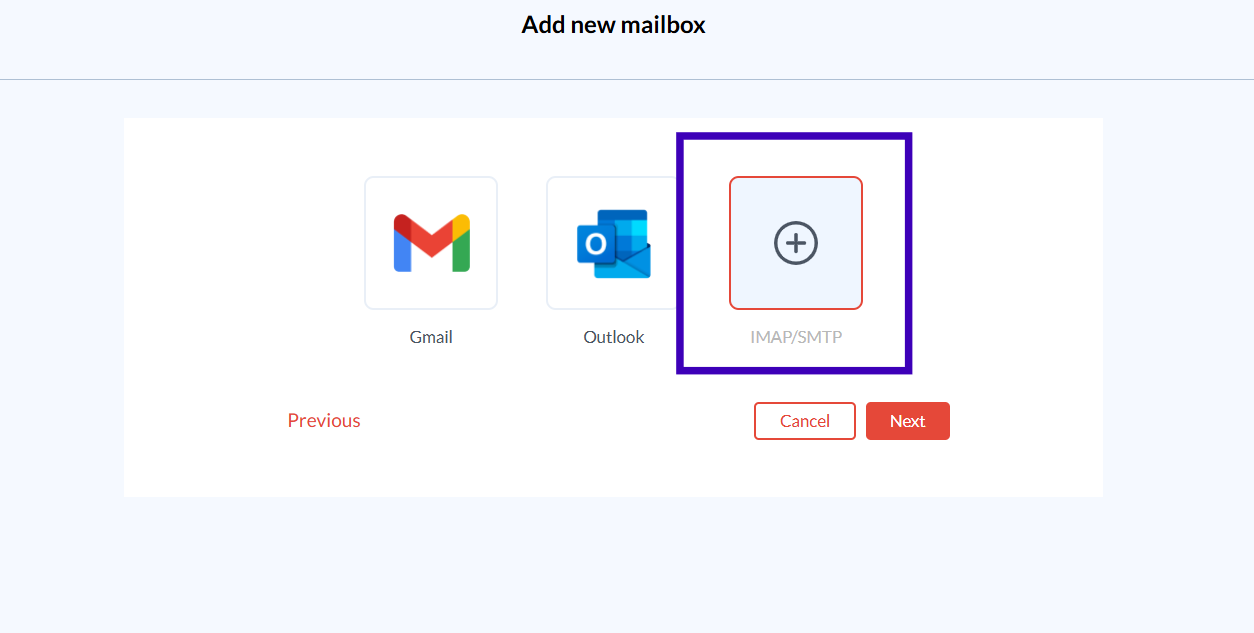
Step 5: Choose IMAP/SMTP for Kakao
On the Add New Mailbox screen, select the IMAP/SMTP option to manually configure your Kakao email settings.
Step 6: Enter Kakao Mailbox Details
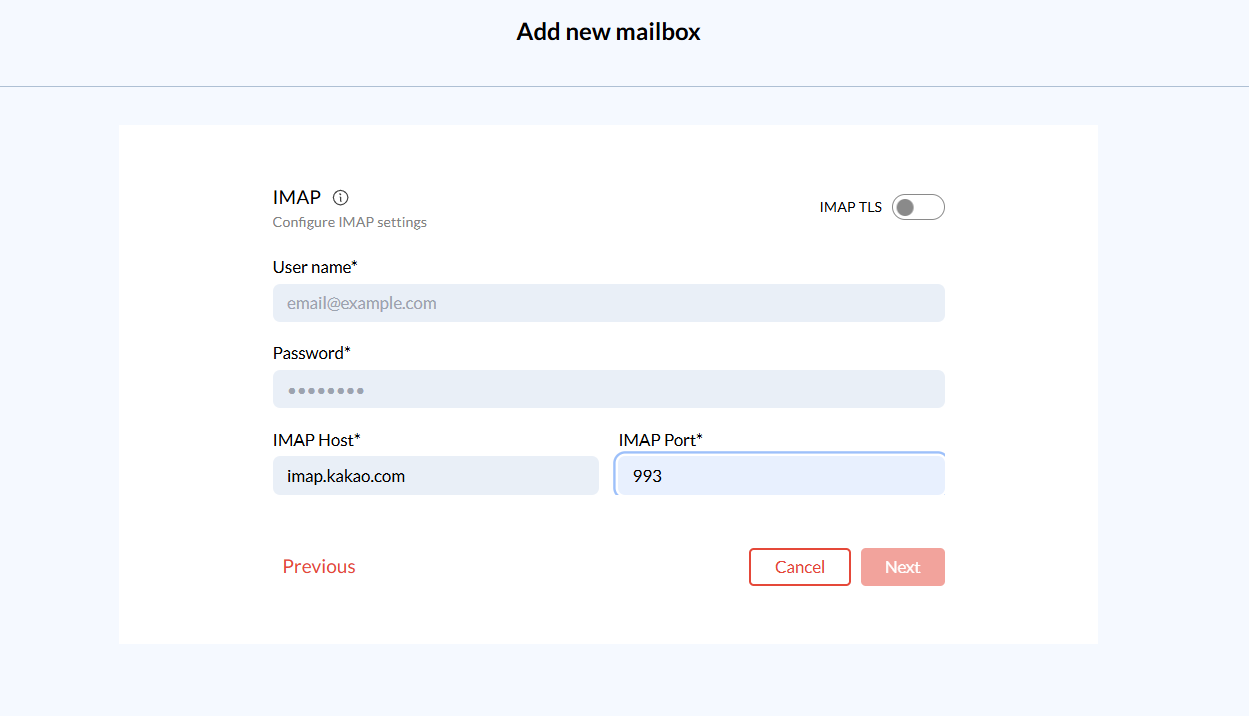
Fill in the following details for your Kakao Mail account:
User Name: Enter your full Kakao email address (e.g.,
yourname@kakao.com).Password: Use the app-specific password if 2FA is enabled or your regular Kakao password.
IMAP Host: Enter `
imap.kakao.com`.IMAP Port: Use port 993 for IMAP.
Step 7: Configure SMTP for Kakao
To send emails through Kakao from Zeninbox, configure the SMTP settings:
SMTP Host: Enter `
smtp.kakao.com`.SMTP Port: Use port 465 (for SSL) or 587 (for TLS).
Click Next to continue.
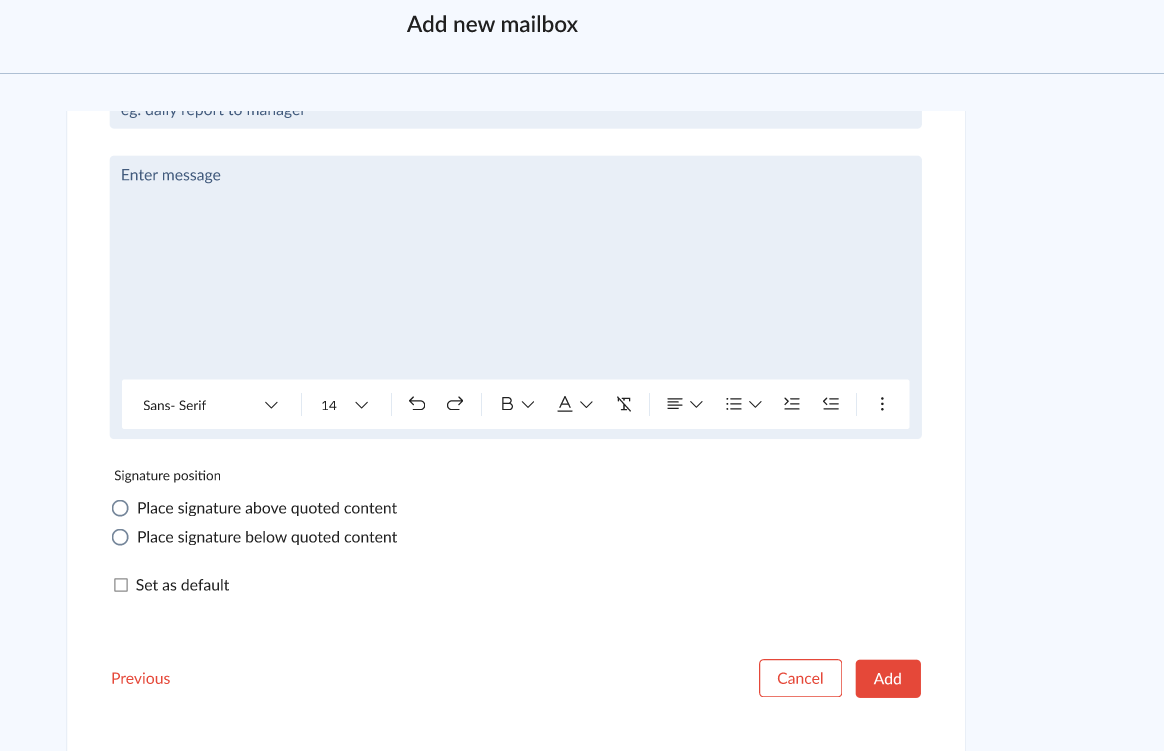
Step 8: Add a Signature
Zeninbox lets you add a custom signature for each mailbox.
If desired, enter a signature name and message here.
Step 9: Complete the Setup
Click Add to finalize the configuration.
Return to the Mailboxes overview to verify that your Kakao account is connected and shows as Active with a green status indicator.
Common Issues and Troubleshooting
Invalid Credentials: Make sure you are using the app-specific password if 2FA is enabled on your Kakao account.
Connection Errors: Verify the IMAP and SMTP host and port information for accuracy. If problems persist, try disabling and re-enabling IMAP access in Kakao settings.
Conclusion
After completing these steps, your Kakao Mail account should be successfully connected to Zeninbox, allowing you to manage it alongside your other accounts in a unified interface. For additional assistance, check out the Zeninbox Help Center or contact support.