How to Connect AOL with Zeninbox
Written By lucidgrowth
Last updated About 1 year ago
Introduction
Connecting your AOL account to Zeninbox lets you manage your emails from AOL directly within the Zeninbox platform, providing a streamlined experience for handling multiple email accounts in one place. This article provides step-by-step instructions on how to connect your AOL mailbox to Zeninbox.
Prerequisites
Before proceeding, please ensure you have:
An active AOL account with valid login credentials.
IMAP access is enabled for your AOL account (this is necessary to connect it to Zeninbox).
Administrator permissions in Zeninbox if required by your organization.
Step-by-Step Instructions
Step 1: Open Mailbox Management in Zeninbox
Log in to Zeninbox.
Click on the Mailboxes icon in the left-hand panel to access the Mailbox Management page.
Step 2: Start Adding a New Mailbox
On the Mailbox Management page, click the Add Mailbox button in the top right corner.
From the dropdown, choose Add manually.
Step 3: Choose IMAP/SMTP for AOL
On the Add New Mailbox screen, select the IMAP/SMTP option.
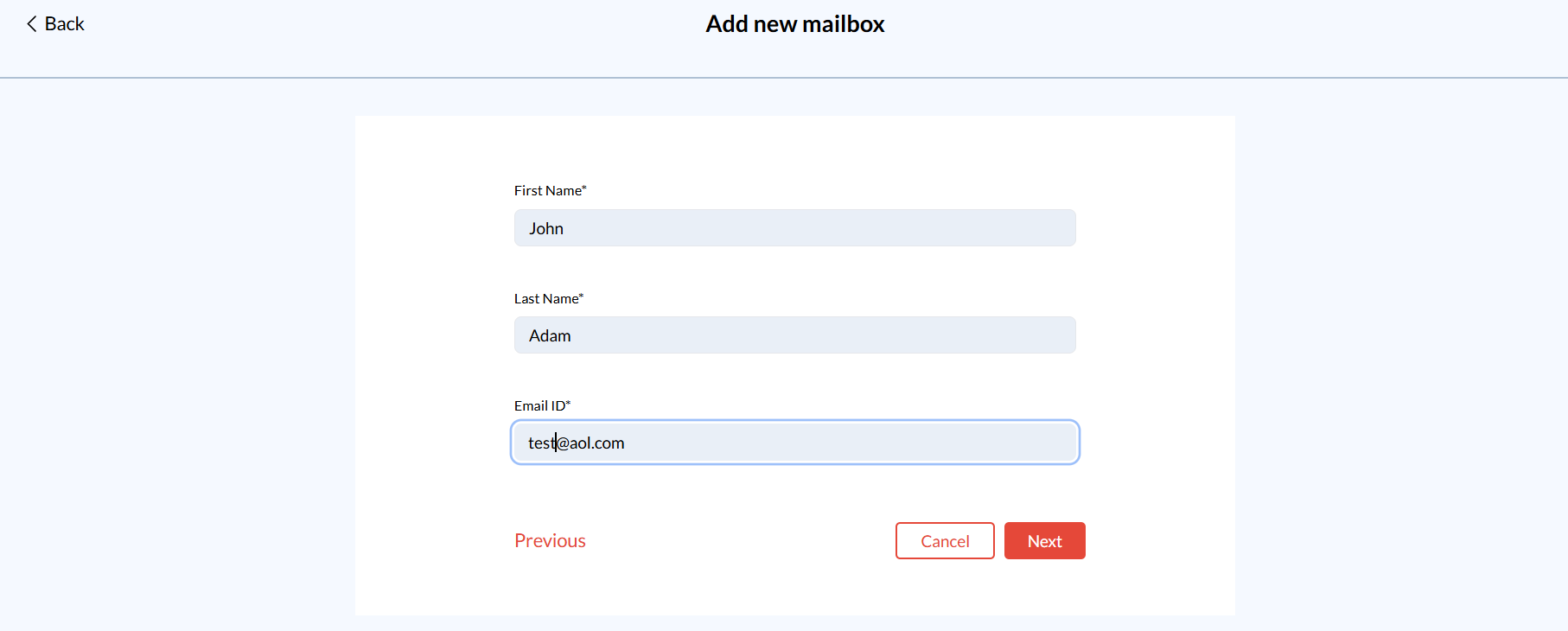
Step 4: Enter AOL Mailbox Details
You’ll be prompted to enter your AOL email details:
User Name: Enter your AOL email address.
Password: Enter the password associated with your AOL account.
IMAP Host: Use `
imap.aol.com`.IMAP Port: Set this to 993.
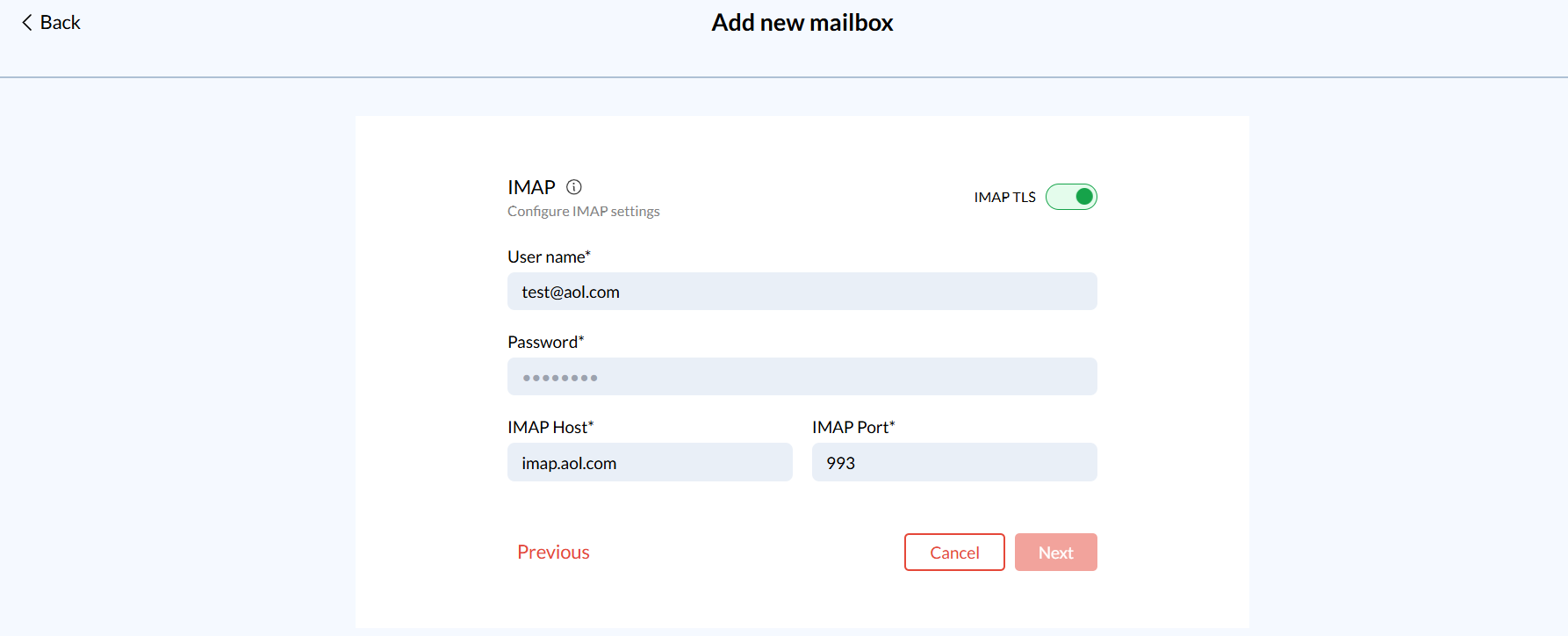
Step 5: Configure SMTP
If you plan to send emails through AOL from Zeninbox, configure the SMTP settings:
SMTP Host: Enter `
smtp.aol.com`.SMTP Port: Use port 587.
Click Next to proceed.
Step 6: Add a Signature
Zeninbox allows you to add a custom signature for each mailbox.
Enter the signature details if desired, or skip this step if not needed.
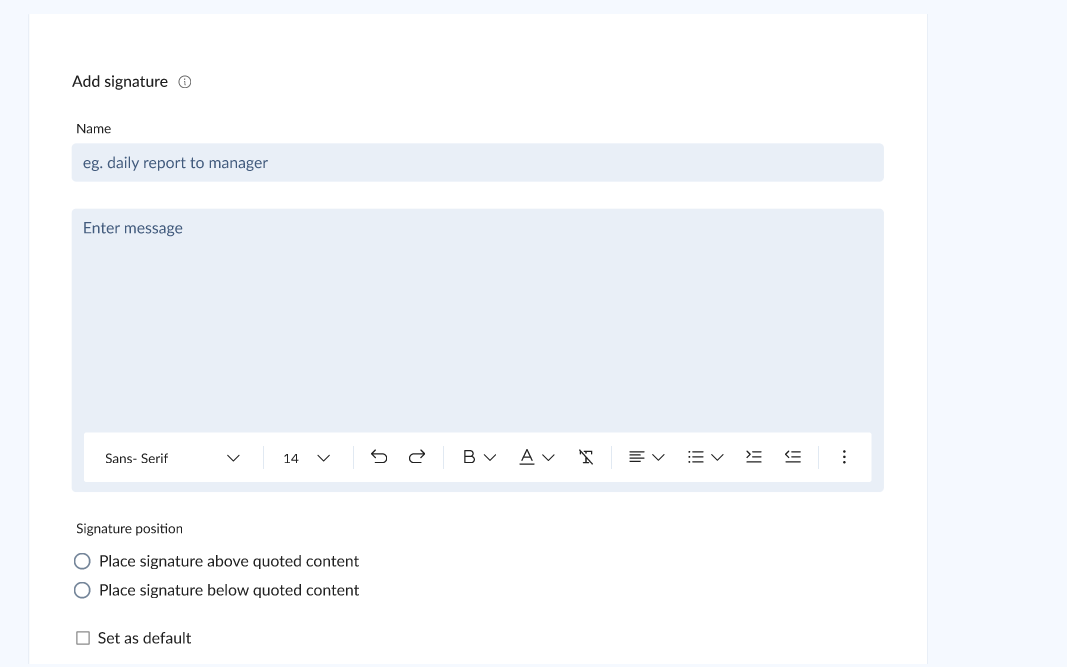
Step 7: Complete the Setup
After entering all the details, click Add to finish the connection setup.
Return to the Mailboxes overview to verify that your AOL account is connected and shows as Active with a green status indicator.
Additional Tips and Best Practices
Use Labels: Tag your AOL mailbox with a label to easily distinguish it from other connected accounts.
Manage Notifications: Customize notifications in Zeninbox to avoid being overwhelmed by alerts from multiple accounts.
Common Issues and Troubleshooting
Invalid Credentials: Double-check your AOL login details and ensure IMAP access is enabled.
Connection Errors: If you experience issues with connection timeout or failure, ensure that the IMAP and SMTP host and port settings are correctly entered.
Conclusion
By following these steps, you should now have successfully connected your AOL account to Zeninbox. This allows you to manage your AOL emails efficiently from within Zeninbox’s unified interface. For more assistance or advanced configurations, consult the Zeninbox Help Center or reach out to our support team.