Zeninbox AI features
Utilize Zeninbox's AI tools to automate tasks, analyze email performance, and gain insights into team activity, helping you optimize workflows and improve productivity.
Written By lucidgrowth
Last updated Over 1 year ago
Introduction
Zeninbox includes a suite of AI features designed to enhance your email management experience and boost productivity. These features leverage advanced artificial intelligence to help you organize, prioritize, and interact with your emails more efficiently. This article explains the purpose of Zeninbox's AI features, how they work, and how to make the most of them to simplify your workflow.
Step-by-Step Instructions for Using Zeninbox AI Features
Step 1: AI-Powered Summarization
Log in to your Zeninbox account and navigate to your inbox.
Select an email thread that you want to summarize.
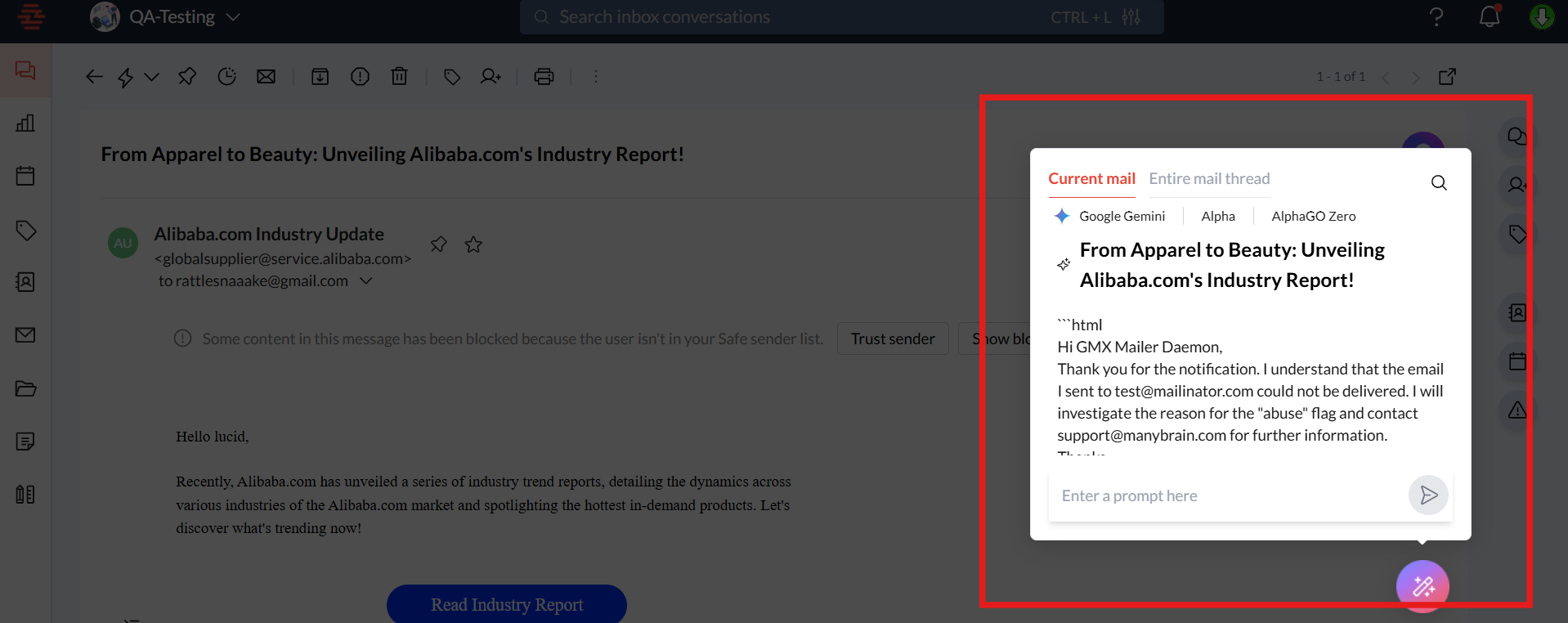
Click on the "Summarize with AI" button located at the bottom of the email thread.
Review the AI-generated summary displayed at the top of the thread. This summary captures the key points and important information, making it easier to understand lengthy email chains quickly.
Step 2: Draft with AI
Compose a new email or reply to an existing one.
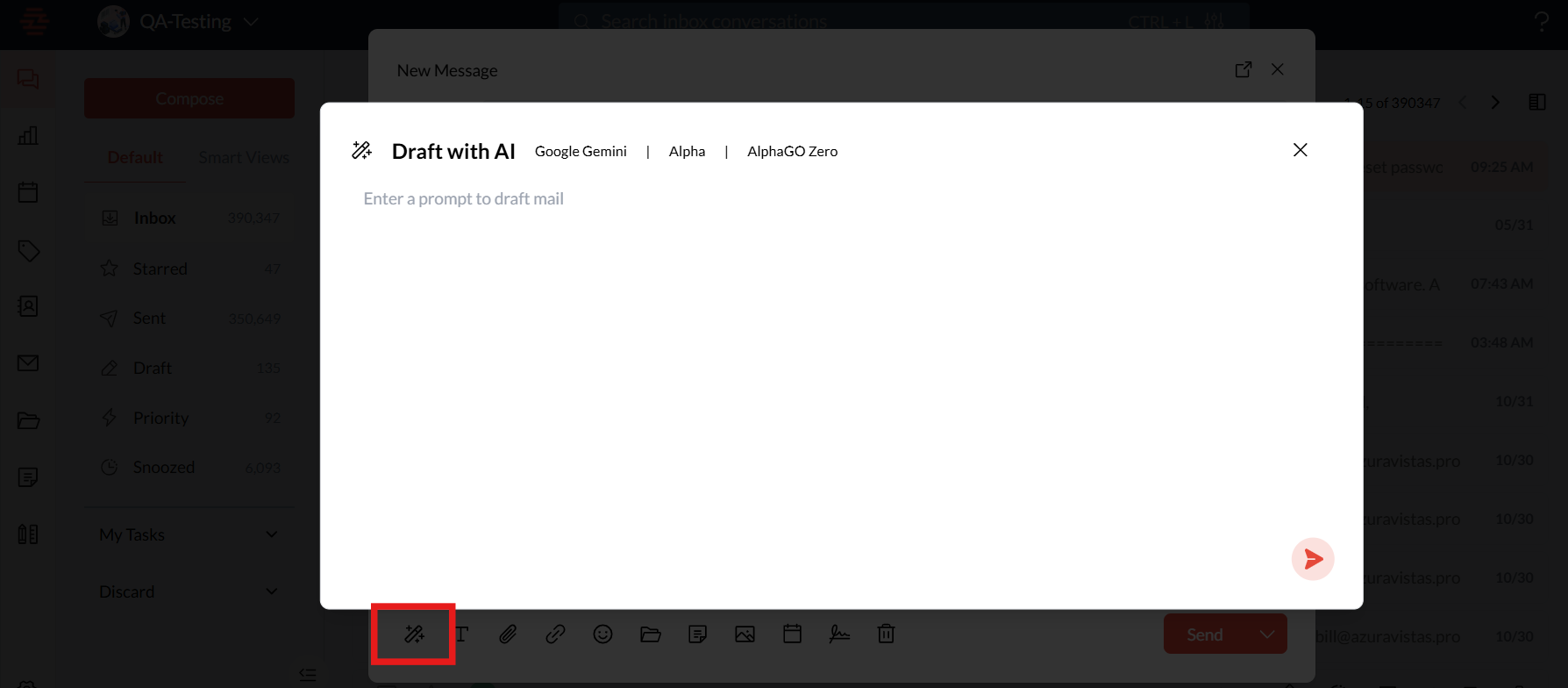
Click on the "Draft with AI" button next to the compose area.
Provide a brief prompt describing the content or tone you want in the draft (e.g., "Request for a meeting" or "Follow-up on last week's discussion").
Review the AI-generated draft and make any necessary adjustments.
Additional Tips and Best Practices
Customize AI Suggestions: In the settings, you can adjust how often smart replies or draft suggestions appear, tailoring the AI's behavior to your preferences.
Be Specific in Prompts: When using "Draft with AI," providing clear and concise prompts helps generate more accurate drafts.
Use Drafts for Repetitive Messages: Save time by using AI-generated drafts for common messages like follow-ups or meeting requests.
Common Issues and Troubleshooting
Issue: "The AI-generated draft doesn't match the tone I want."
Solution: Provide a more detailed prompt describing the tone or key points you want the draft to include. Adjust the draft manually as needed.
Issue: "The draft content is too long."
Solution: Adjust your prompt to request a shorter message, or manually edit the draft to suit your needs.
Conclusion and Next Steps
Zeninbox's AI features are designed to simplify your email workflow, making it easier to manage your inbox, save time, and focus on what truly matters. Try out the AI tools like summarization, smart replies, and "Draft with AI" to see how they can enhance your productivity.
If you need further assistance, please contact our support team via Email Support.