AI Compose for Email
Use Zeninbox's AI-powered email composer to draft, edit, and personalize emails quickly, saving time and improving communication efficiency.
Written By lucidgrowth
Last updated Over 1 year ago
AI Compose for Email
Introduction
Zeninbox's AI Compose for Email feature helps you quickly generate email drafts based on a simple prompt. Users often ask how to use AI Compose to streamline email drafting. This article provides a step-by-step guide on using AI Compose effectively, enabling you to generate and copy a draft email with ease.
Prerequisites
Access Level: Ensure you have access to the AI Compose feature in your Zeninbox account, as it may require a specific subscription.
Prepared Prompt: Have a clear prompt ready that describes the content or purpose of your email. This will help the AI generate a suitable draft.
Step-by-Step Solution
Open a New Email:
Click on the Compose button to open a new email window.
Activate AI Compose:
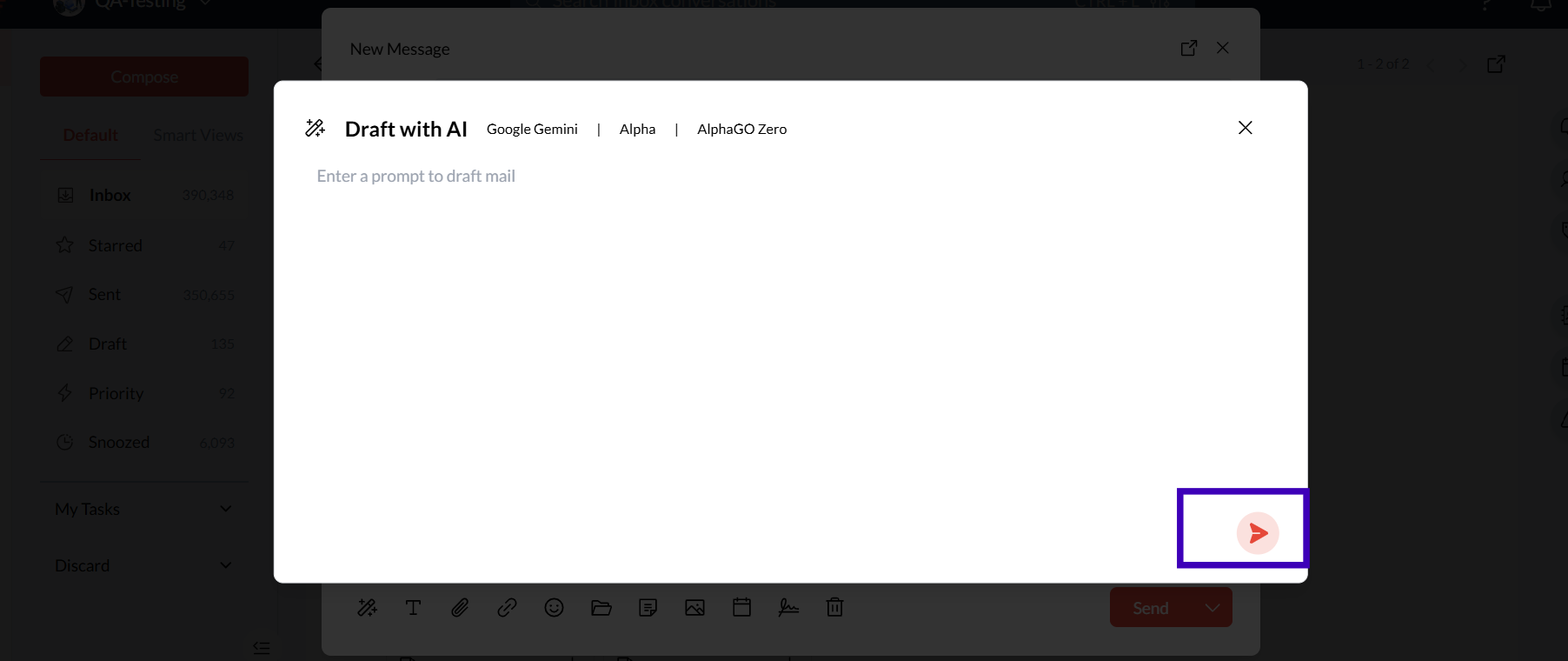
In the new message window, select Draft with AI. This will open the AI Compose interface, where you can enter a prompt to guide the email draft generation.
Enter Your Prompt:
In the AI Compose box, type a prompt that briefly describes what you want to communicate, such as "Draft an email requesting a project update" or "Send a thank-you email for the recent meeting."
Generate the Email:
Click the Generate button (red arrow icon) to create a draft based on your prompt. The AI will process your input and produce a draft email.
Copy the Draft:
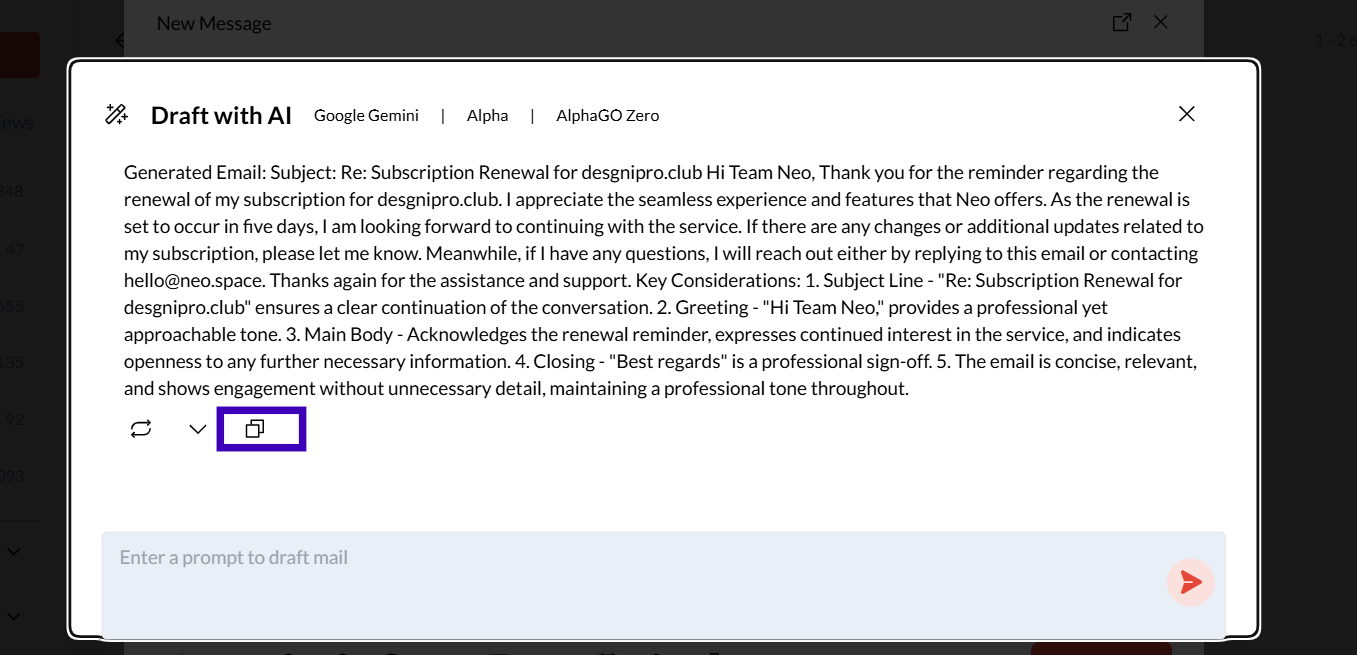
Once the AI-generated draft appears, click the Copy icon to copy the draft text.
Paste and Edit the Draft:
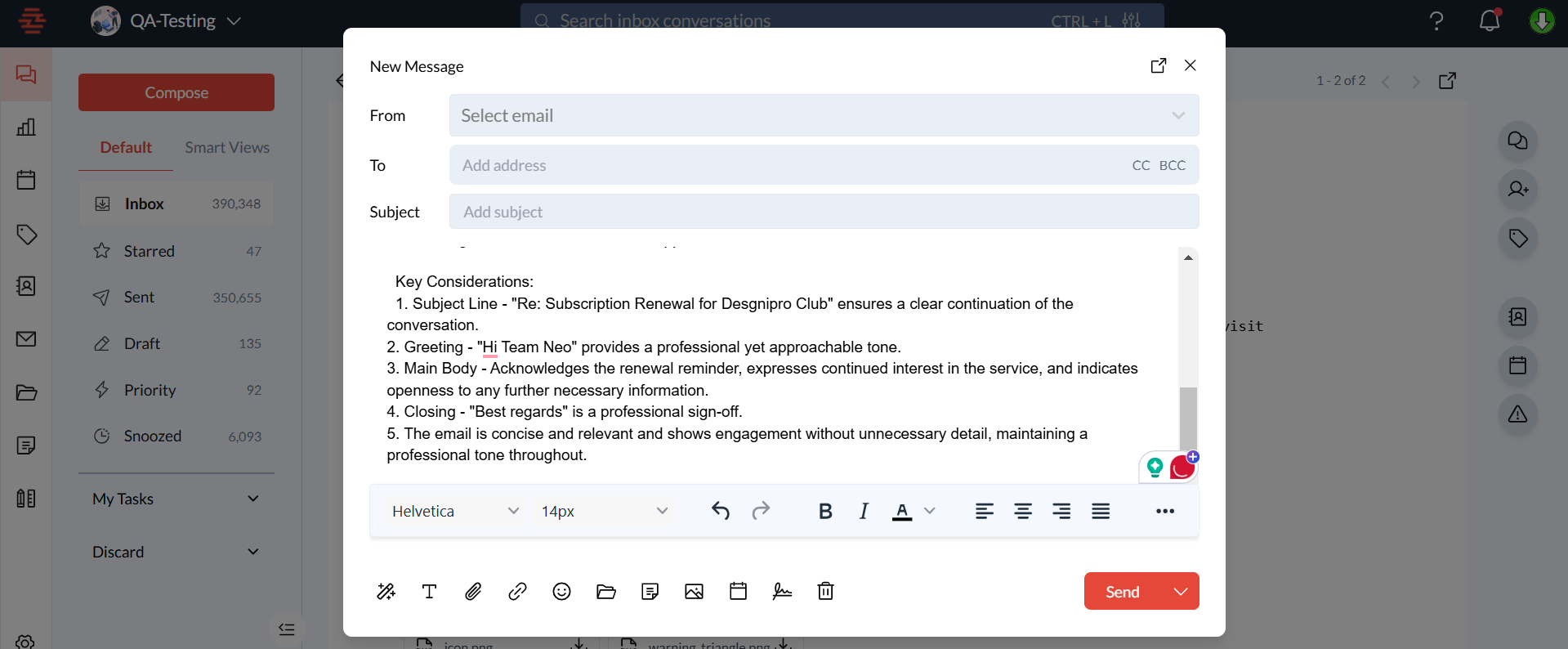
Go back to the email compose window, paste the copied draft into the email body, and make any necessary edits to personalize it.
Send or Save the Email:
After reviewing and editing, you can either send the email directly or save it as a draft for later use.
Additional Tips and Best Practices
Be Specific with Prompts: The more specific your prompt, the more tailored the draft will be. For example, instead of "Write an email," try "Draft a formal email to request project status."
Add a Personal Touch: While the AI draft provides a strong foundation, personalizing it can enhance the effectiveness of your communication.
Experiment with Different Prompts: If the initial draft isn’t what you expected, try rephrasing your prompt or adding more context.
Common Issues and Troubleshooting
Draft Doesn’t Match the Desired Tone:
Use descriptive words in your prompt to guide the tone, like "formal," "casual," or "friendly."
Draft Feels Too Generic:
Add more detail to your prompt, such as specific topics or names, to improve the relevance of the draft.
Conclusion and Next Steps
Zeninbox’s AI Compose for Email feature is a powerful tool for quickly creating professional email drafts. Just copy the AI-generated draft, paste it into your email, and make any final adjustments.
If you need additional assistance, please contact our support team.