Understanding CRM Beta in Zeninbox
Get insights into Zeninbox's CRM Beta feature, designed to help you manage customer relationships, track interactions, and boost team collaboration.
Written By lucidgrowth
Last updated Over 1 year ago
Introduction
CRM Beta in Zeninbox is designed to centralize customer relationship management directly within your email platform. It automates the addition of contacts from incoming emails, provides an overview of both individual and organization data, and tracks all interactions seamlessly. This enables businesses to store, manage, and analyze client relationships without the need for external tools.
Prerequisites
Access Level: CRM Beta is available for users who have been granted access by their organization’s admin.
Important Note: Ensure that your Zeninbox role includes permissions to view and manage CRM data, as some actions may be restricted.
Step-by-Step Instructions
Accessing CRM Beta
Log in to your Zeninbox account.
Click on the CRM icon in the left sidebar.
Select CRM Beta to access the dashboard with contact lists and interaction tools.
Features Overview
1. Managing Contacts:
Individual and Organization Tabs:
Switch between Individual and Organization tabs to manage personal and company contacts separately.
Use the search bar to quickly locate contacts using names, email addresses, or labels.
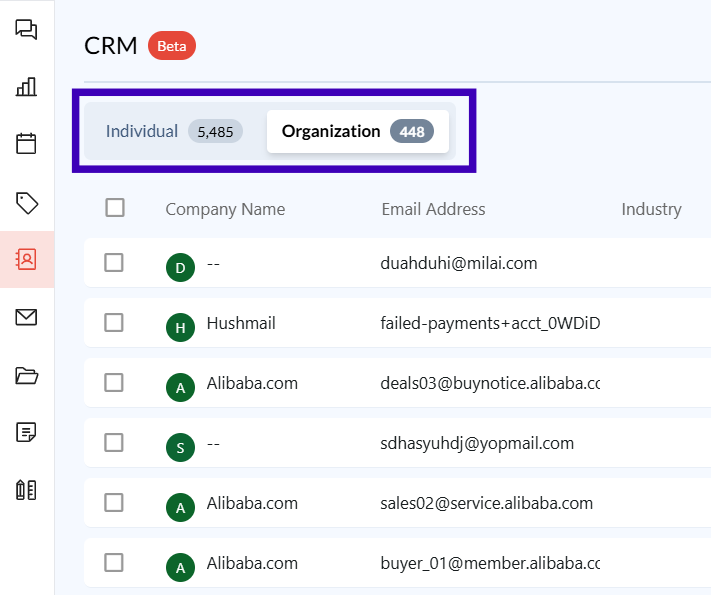
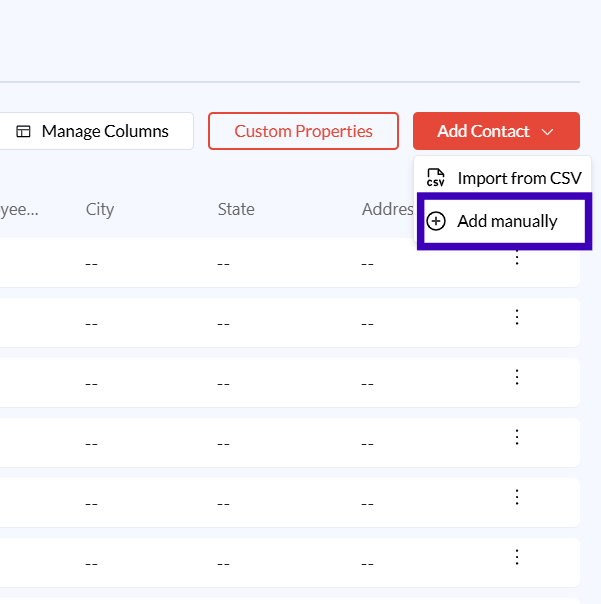
Add Contact:
Click Add Contact to create a new entry. You can select between adding an Individual or Organization.
Fill in details like name, email, phone number, company name, and additional fields.
Use Tags to categorize contacts based on their interaction type (e.g., "Promotion," "Feedback").
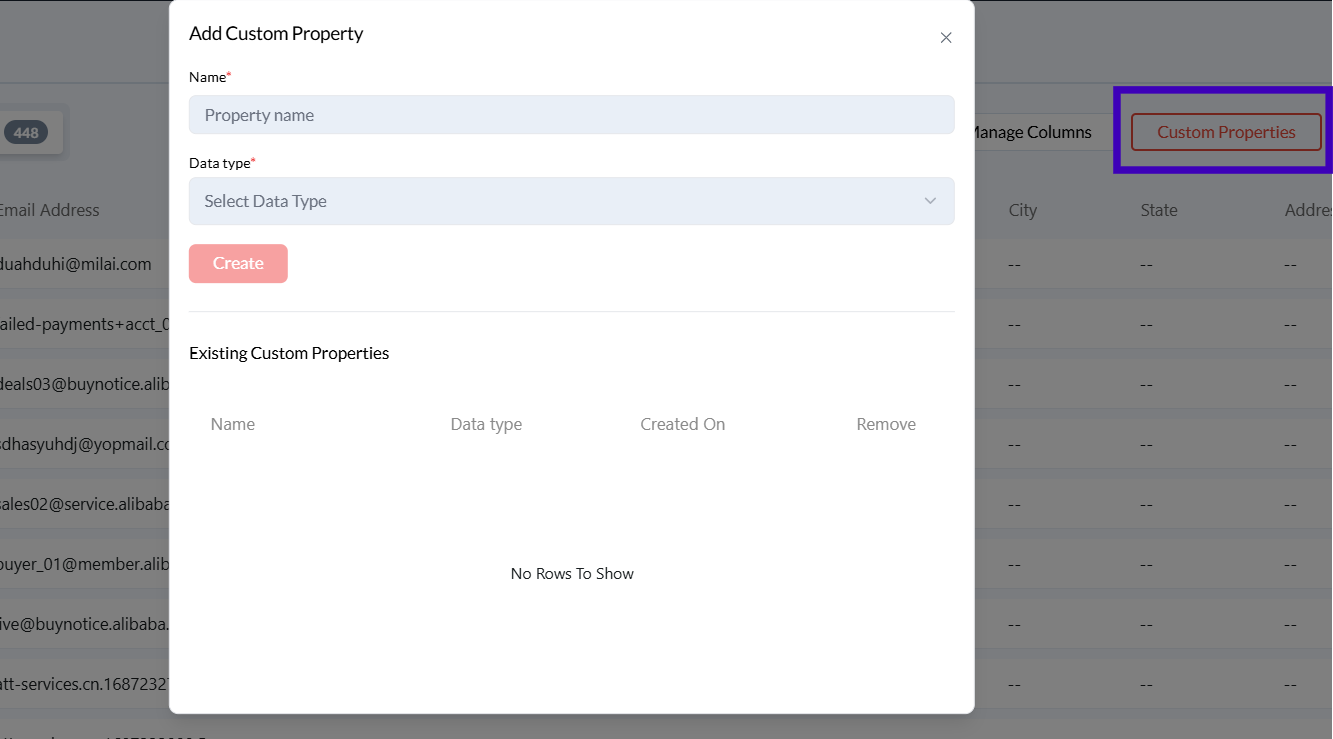
Custom Properties:
Define custom fields that suit your business needs (e.g., custom labels, account type).
Click on Custom Properties to add fields like "Account Manager," "Preferred Contact Time," or "Customer Tier."
2. Centralized Client Interaction History:
Interaction Overview:
Access a complete history of emails, calls, meetings, and notes with a specific contact.
Use the Inbox and Sent tabs to filter communication.
Example: Before a follow-up call, review past email exchanges to ensure continuity.
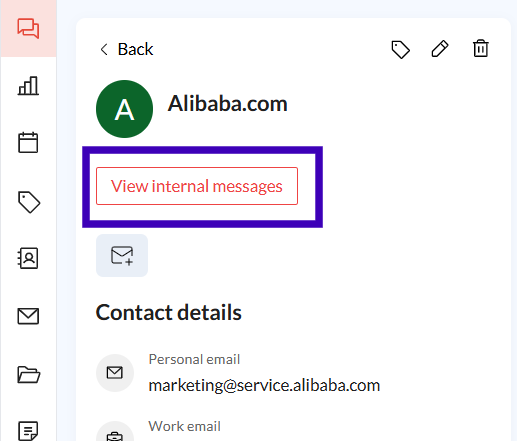
View Internal Messages:
Click View Internal Messages for team discussions about a specific contact.
This feature allows internal notes and strategy discussions without involving the client.
3. Activity Logging and Notes:
Adding Notes to Contact Profiles:
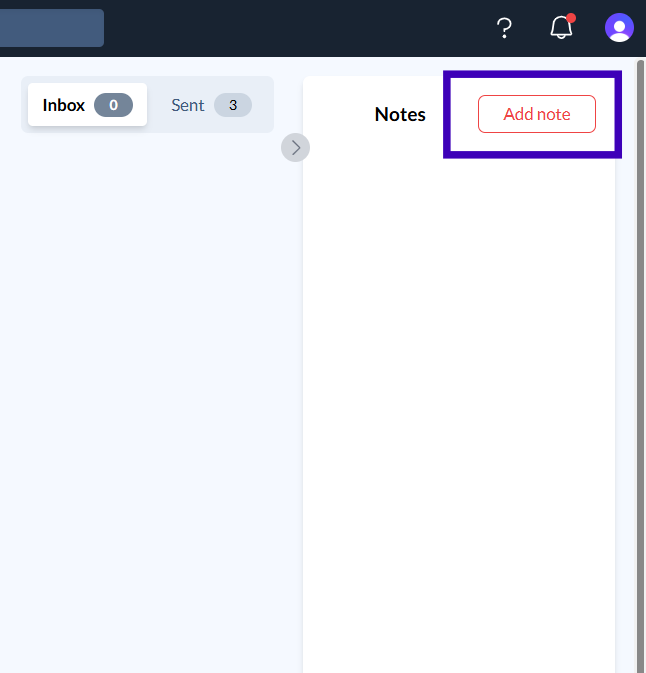
Use the Add Note button to record important information or reminders for a contact.
Notes are visible in the Notes section of the contact’s profile.
Tip: Record key client preferences or notes about ongoing deals.
4. Exporting and Managing Data:
Export Contact Lists:
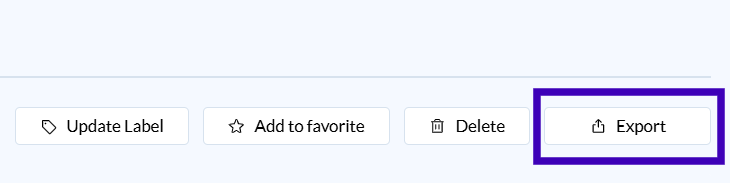
Use the Export button to download lists of contacts or specific interaction histories.
Choose formats like CSV for integration with other tools.
Manage Columns:
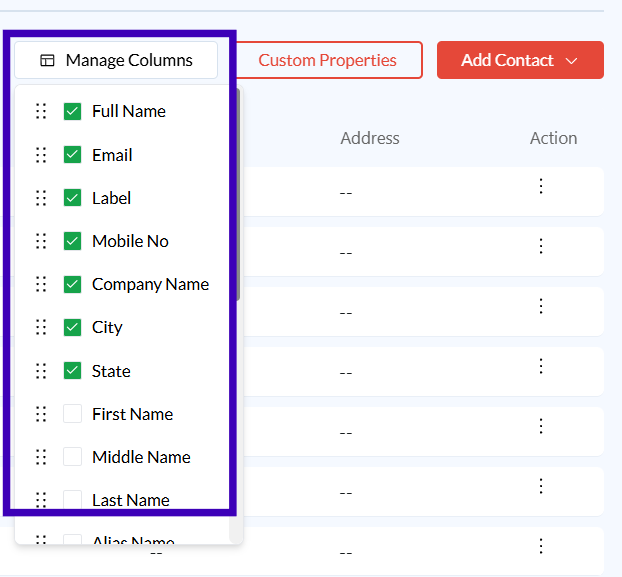
Customize the columns displayed in your CRM list (e.g., add or remove fields like "City" or "Industry").
This feature helps you focus on the most relevant data for your workflow.
Common Issues and Troubleshooting
Issue: Unable to export contact data.
Solution: Verify that you have the necessary permissions to export data. Contact your admin for access if needed.Issue: Custom fields not appearing in contact profiles.
Solution: Check if the custom properties were saved properly. Revisit the Custom Properties section to confirm the settings.
Conclusion and Next Steps
The CRM Beta feature in Zeninbox provides an all-in-one solution for managing client data, tracking interactions, and keeping your sales and service processes organized. To explore specific features further, check out our articles on the Help Center. For more help, contact Zeninbox support.