Zeninbox's Automation Library
Explore Zeninbox's Automation Library to discover pre-built workflows that streamline email management and enhance productivity.
Written By lucidgrowth
Last updated Over 1 year ago
Introduction
The Automation Library in Zeninbox is a powerful feature that provides a collection of pre-built automation templates to streamline your email workflows. It allows you to set up automation quickly without having to create each workflow from scratch. By using these templates, you can automate repetitive tasks like email sorting, tagging, and responses, helping you manage your inbox more efficiently.
Purpose and Benefits
Why Use Zeninbox's Automation Library?
Save Time with Pre-Built Templates: Quickly set up common automations without needing to design each one from scratch.
Simplify Workflow Management: Find templates for various use cases, such as auto-tagging emails, creating task reminders, and sending automated responses.
Easily Customize Templates: Tailor each template to suit your specific needs, ensuring the automation aligns with your workflow.
Step-by-Step Instructions for Using the Automation Library
Step 1: Access the Automation Library
Log in to your Zeninbox account.
Navigate to the Automation tab and select Browse templates.
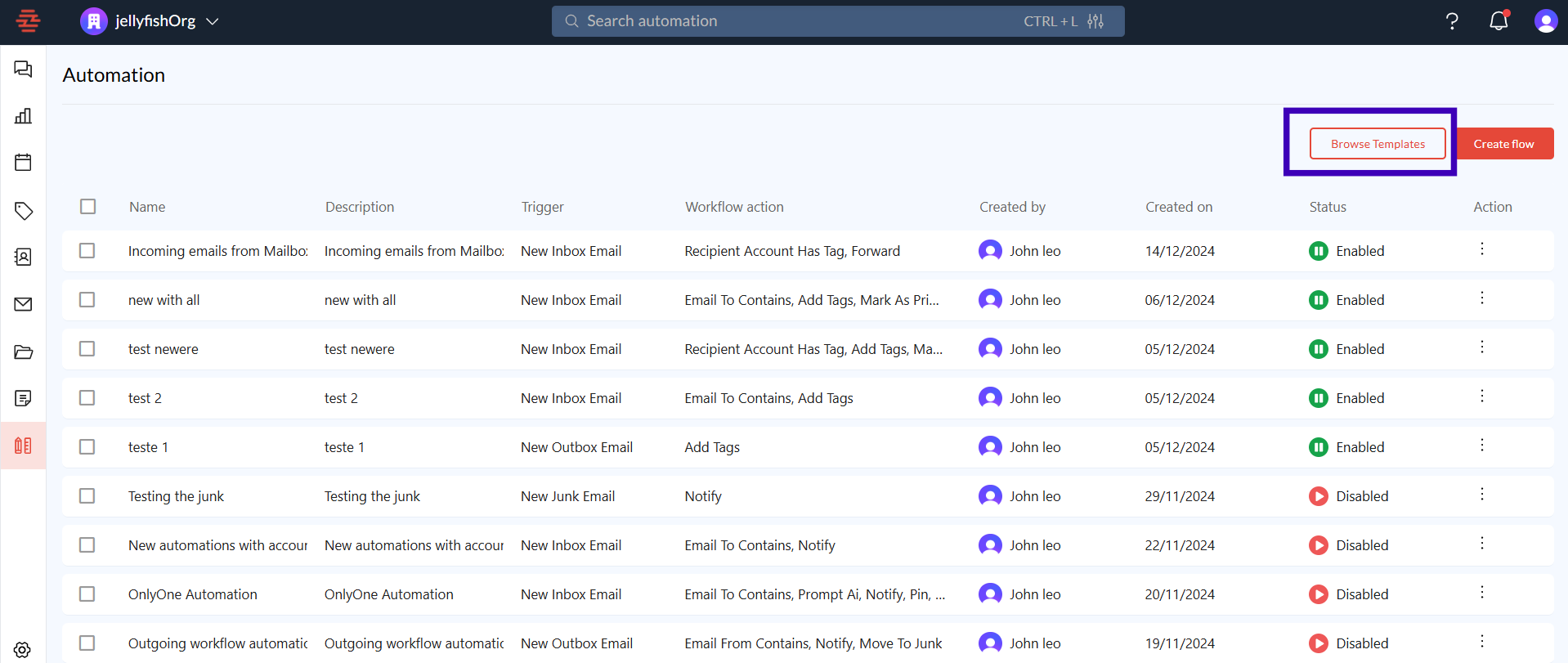
Step 2: Browse Available Templates
Browse through the list of available templates. Templates are organized into categories such as:
Email Management: Auto-tagging, archiving, and sorting.
Auto-Responses: Send automatic replies based on certain keywords.
Reminders and Alerts: Create notifications or follow-up reminders.
Click on a template to view a brief description of what it does.
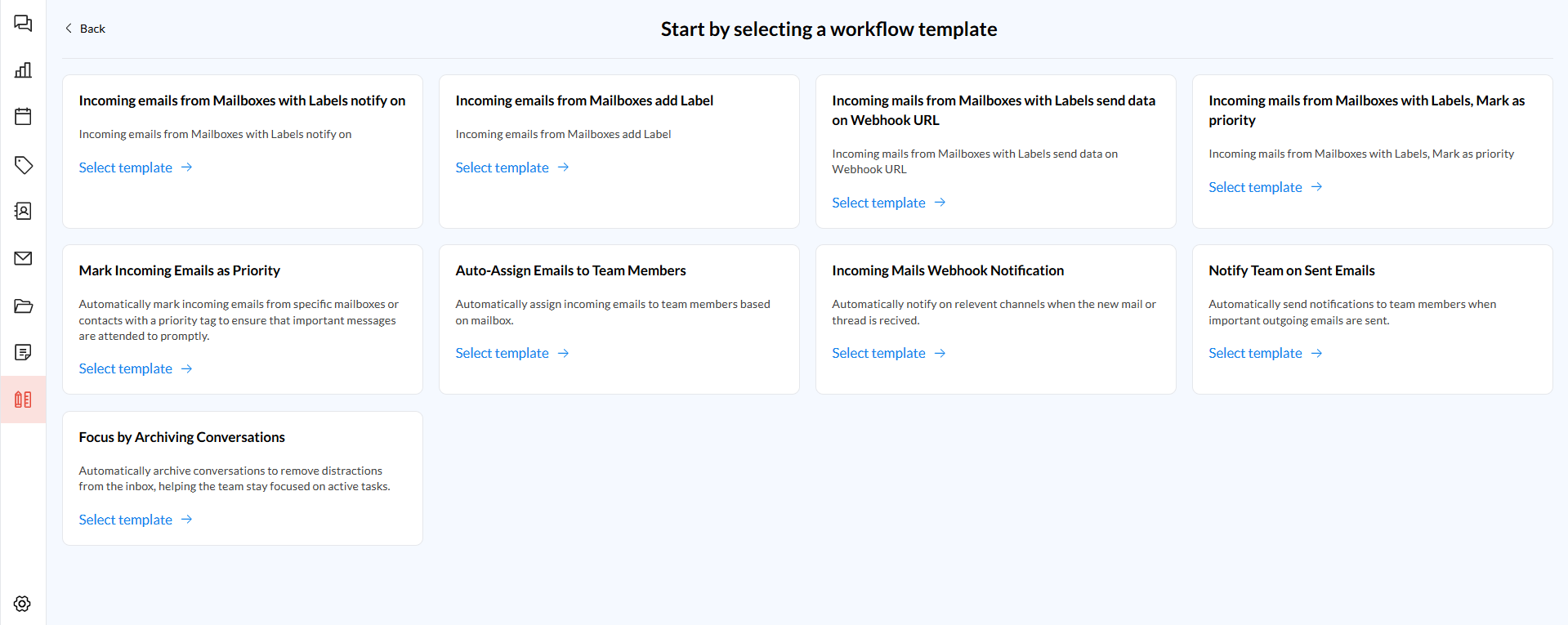
Step 3: Customize a Template
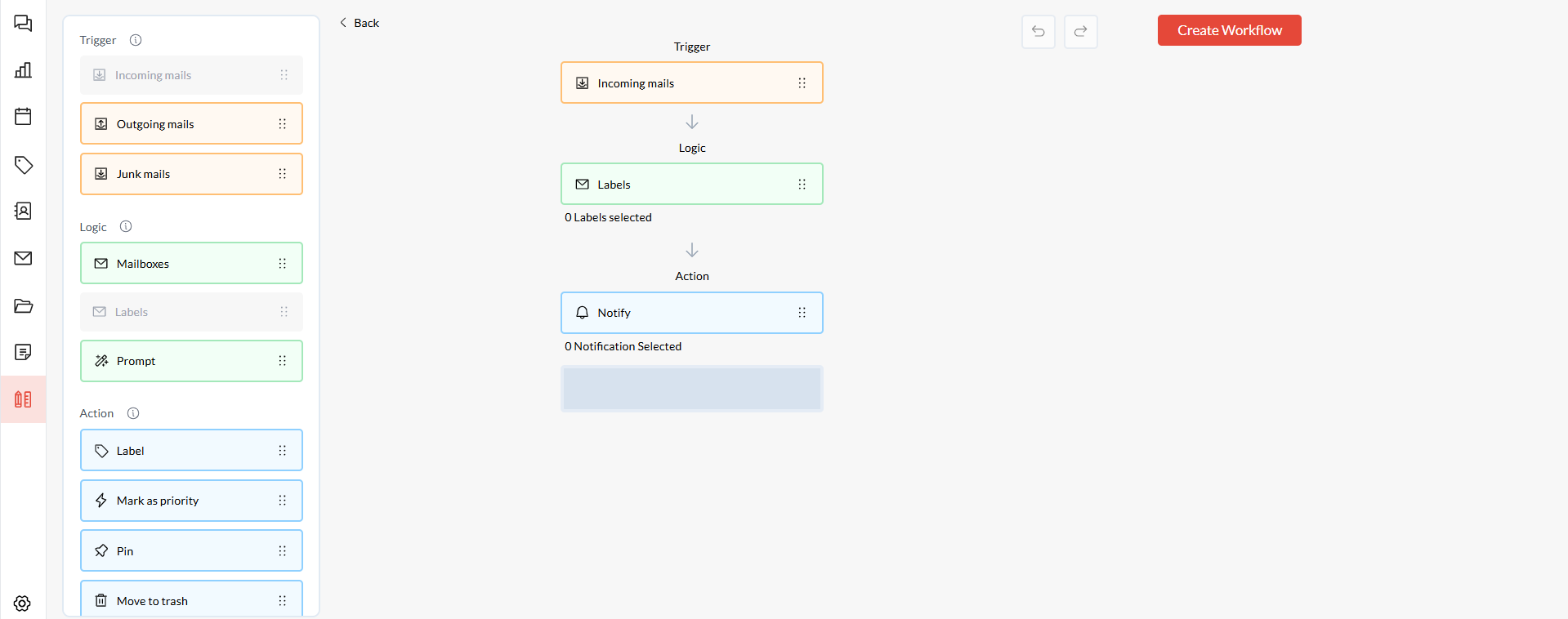
Once you select a template, click on "Select template" to adjust the settings.
Modify the trigger conditions if necessary, such as selecting specific keywords or sender addresses.
Adjust actions to fit your needs, like choosing different tags or changing the content of auto-replies.
Click "Save" to store your customized template.
Step 4: Activate the Automation
After customizing your template, click "Create workflow" to enable the automation.
Your workflow will begin to operate based on the triggers and actions you’ve set up.
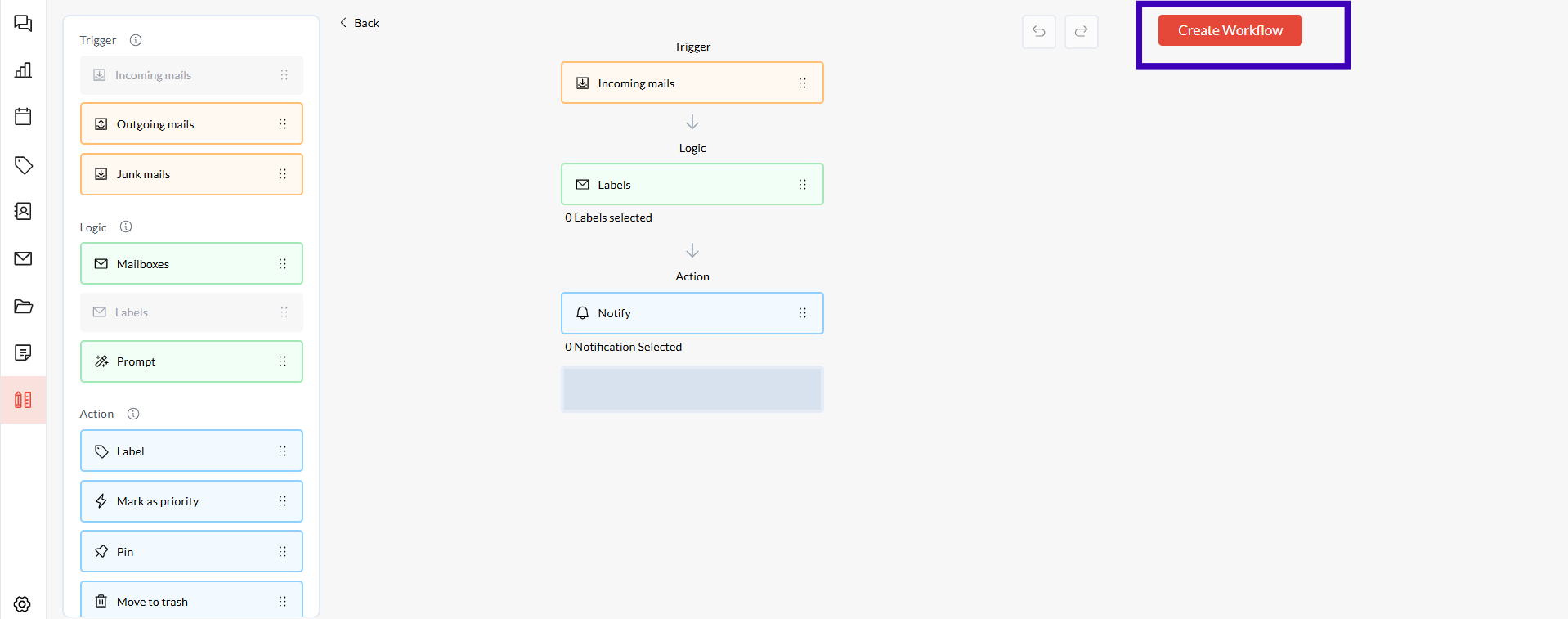
Step 5: Monitor and Edit Automation
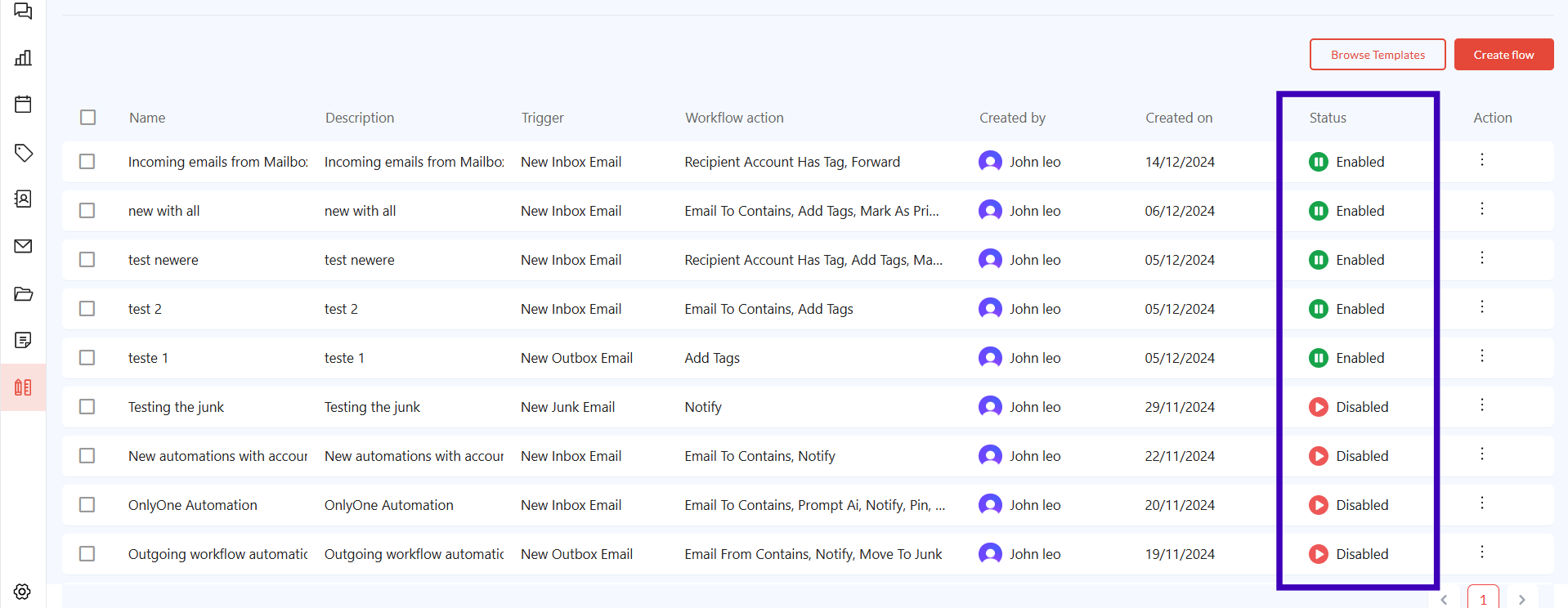
To view or edit active automation, go back to the Automation tab and select "Status."
Click on any active workflow to make adjustments or disable it if it's no longer needed.
Common Issues and Troubleshooting
Issue: "I can't find a template that fits my needs."
Solution: Try customizing an existing template to better match your requirements, or create a new workflow from scratch if needed.
Issue: "The automation is not applying actions correctly."
Solution: Double-check the trigger conditions and actions to ensure they match the emails or events you want to automate.
Issue: "I cannot activate a template."
Solution: Make sure you have the necessary permissions and that your plan includes access to automation features.
Conclusion and Next Steps
Zeninbox's Automation Library is a versatile tool for streamlining email workflows and automating routine tasks. By using pre-built templates, you can save time, maintain consistency, and focus on what truly matters.
Explore the Automation Library today and see how it can simplify your email management.