Drive in Zeninbox
Written By lucidgrowth
Last updated Over 1 year ago
Introduction
Zeninbox's Drive feature is a dedicated space for managing email attachments, documents, and shared files. It allows you to seamlessly organize and access files, making it easier to store, retrieve, and manage documents across different email accounts. This feature is ideal for keeping your workspace organized, especially when handling numerous attachments or shared files daily.
Prerequisites
Ensure you have access to Zeninbox and are logged in with the appropriate permissions.
Your account should be connected to the mailboxes where attachments or shared documents are stored.
It’s helpful to have a basic understanding of how folders and files are organized within Zeninbox Drive.
Step-by-Step Instructions
Accessing the Drive
Navigate to Drive: On the left sidebar of Zeninbox, click on the Drive icon
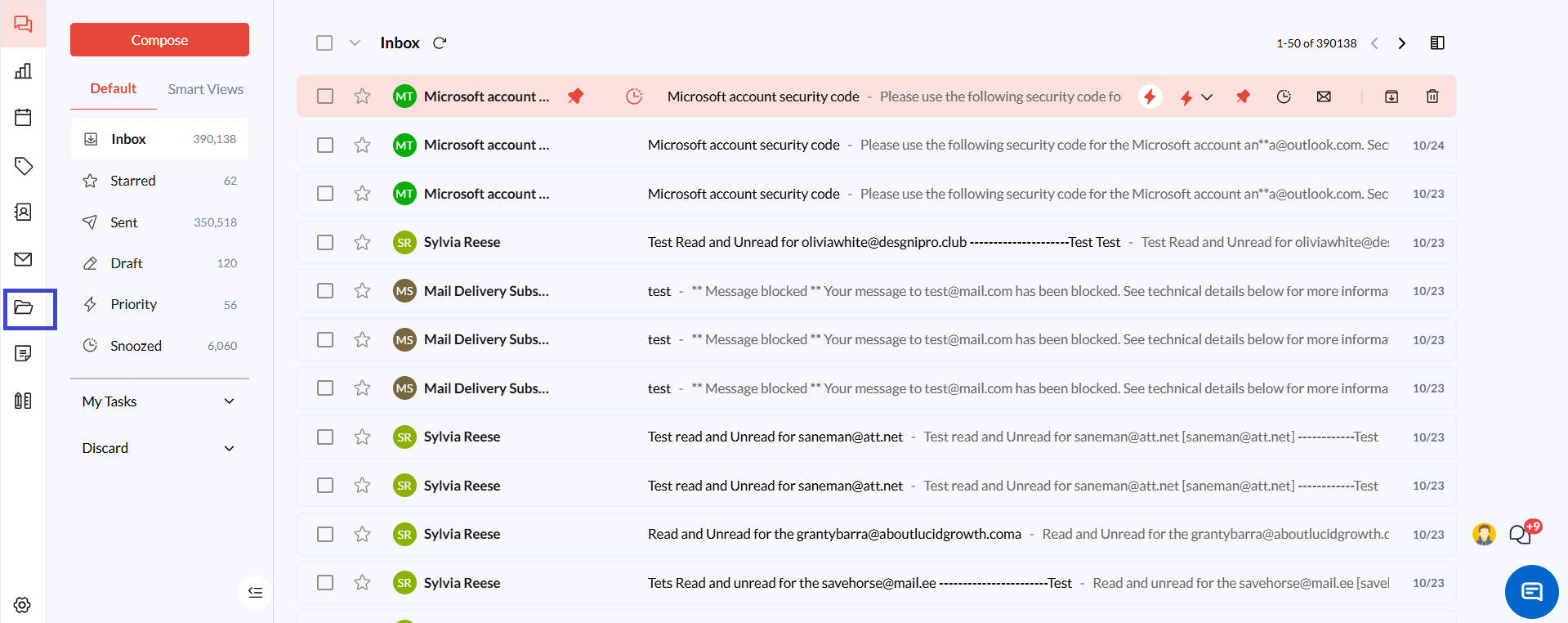
Explore Drive Sections: Within the Drive, you’ll find different sections:
Attachments: Automatically saved email attachments.
My Documents: Files that you have personally uploaded or created.
Shared with me: Documents and attachments shared by team members.
Recent: Your most recently accessed or modified files.
Starred: Important files or folders that you have marked for quick access.
Trash: Deleted files are temporarily stored here for easy recovery.
Viewing Attachments: Click on the Attachments tab to see folders named after each connected mailbox. For example, if you have connected a Gmail account, you will see a folder named like
test@gmail.com.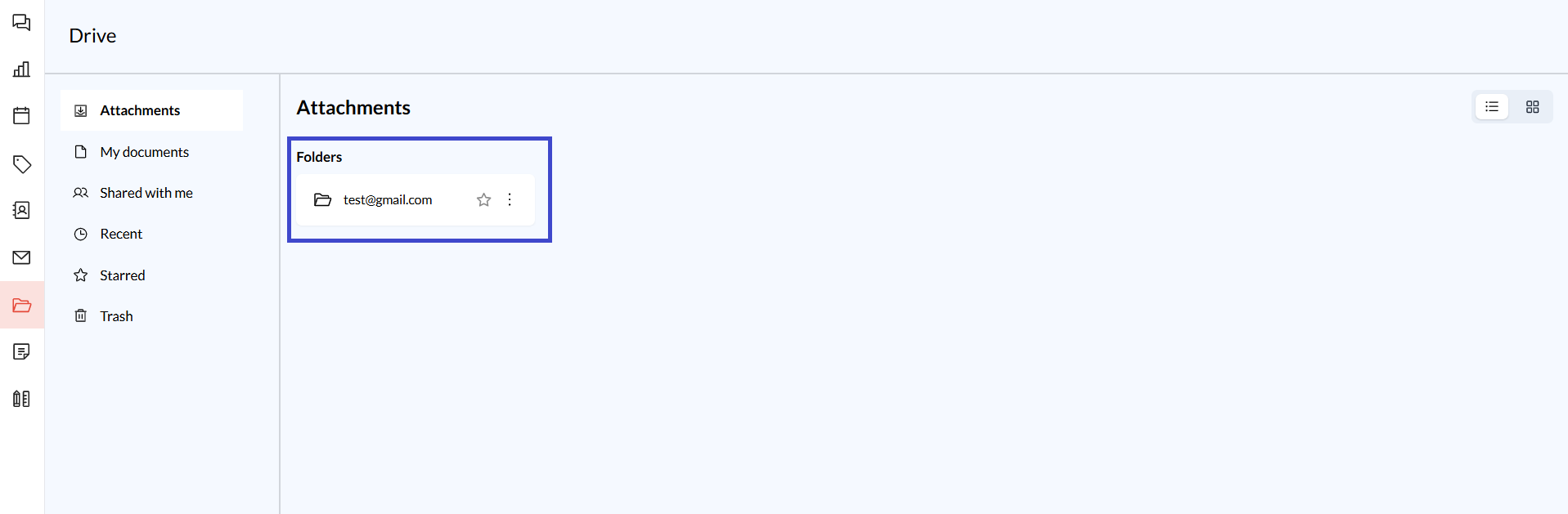
Organizing Files:
Open a Folder: Click on a mailbox folder to view attachments saved under that specific account.
Star a Folder: Click the star icon next to a folder to mark it as important. Starred folders will be accessible from the Starred section.
More Options: Click the three-dot icon next to a folder for options like renaming, moving, or deleting.
Switching Views
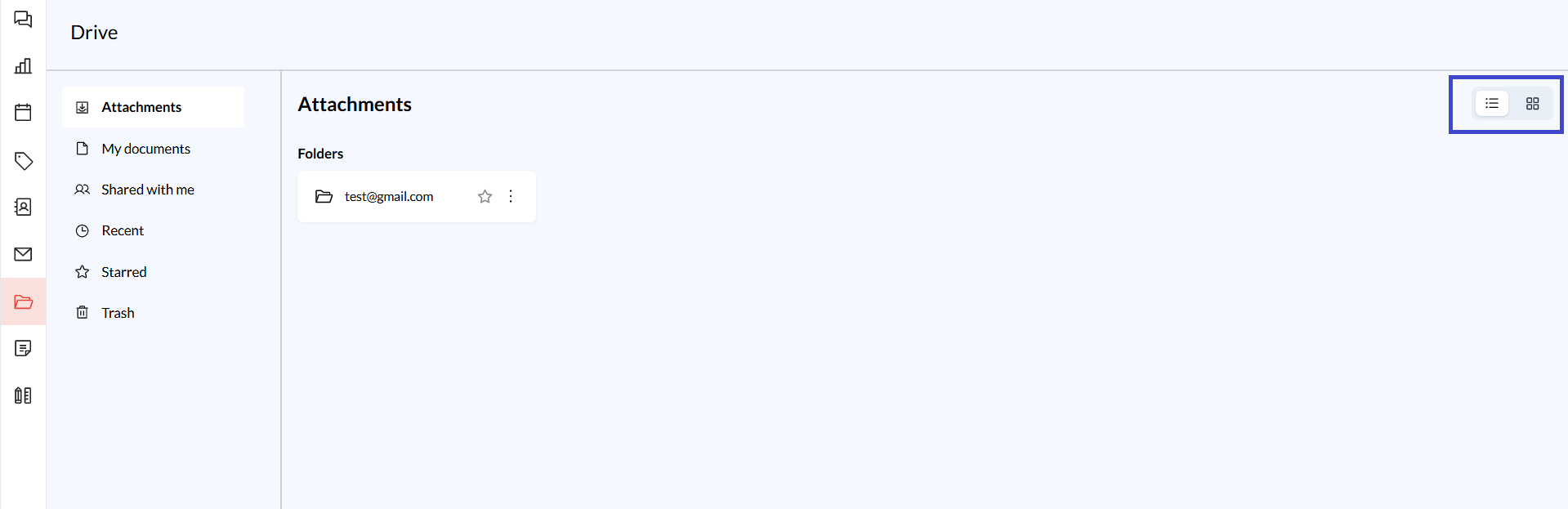
Use the List and Grid icons at the top right of the Drive interface to toggle between different view styles.
Additional Tips and Best Practices
Star Frequently Accessed Files: Use the star feature to keep your most-used documents and attachments easily accessible.
Use Folders for Better Organization: Organize attachments by creating custom folders under My Documents to separate work-related files from other types of content.
Leverage the Trash Section: Deleted files are not permanently removed right away. Use the Trash section to recover files within a set period if needed.
Common Issues and Troubleshooting
Cannot Star Folders: Verify that you have the necessary permissions to manage files in the selected folder.
Files Not Syncing: If attachments are not appearing in the folder, try refreshing the page or reconnecting the associated mailbox.
Conclusion and Next Steps
Zeninbox's Drive feature provides a streamlined way to manage email attachments and documents across various accounts, enhancing productivity and organization. Start organizing your attachments today to keep your workspace clutter-free!
If you encounter any issues or need further assistance, feel free to reach out to our support team.