Insights in Zeninbox
Gain valuable insights into your email performance, team activity, and communication trends to optimize workflows and make data-driven decisions.
Written By lucidgrowth
Last updated Over 1 year ago
Introduction
The Insights feature in Zeninbox offers a detailed view of your email activity, notifications, webhooks, and more. It provides real-time data and analytics, helping users and administrators monitor key metrics like notification delivery, webhook status, email distribution, and task assignments. This guide explains each aspect of the Insights feature, from understanding its components to navigating through the live dashboard for actionable insights.
Purpose and Benefits
Why Use Insights in Zeninbox?
Track Performance: Get real-time information on email and notification performance to ensure effective communication.
Optimize Workflow: Understand how users distribute tasks and adjust for better productivity.
Identify Issues Quickly: Use detailed status reports to identify and resolve issues in notifications and webhook deliveries.
Gain Data-Driven Insights: Use email labels and priority categorizations to improve email management and user engagement.
Prerequisites
Before using the Insights feature, ensure the following:
Zeninbox Account: You need an active Zeninbox account.
Admin or Manager Access: Some sections may require administrative privileges for full access.
Notifications and Webhooks Configured: Ensure that your notifications and webhooks are set up correctly to track their statuses.
Step-by-Step Instructions for Using Insights
Step 1: Understanding Insights in Zeninbox
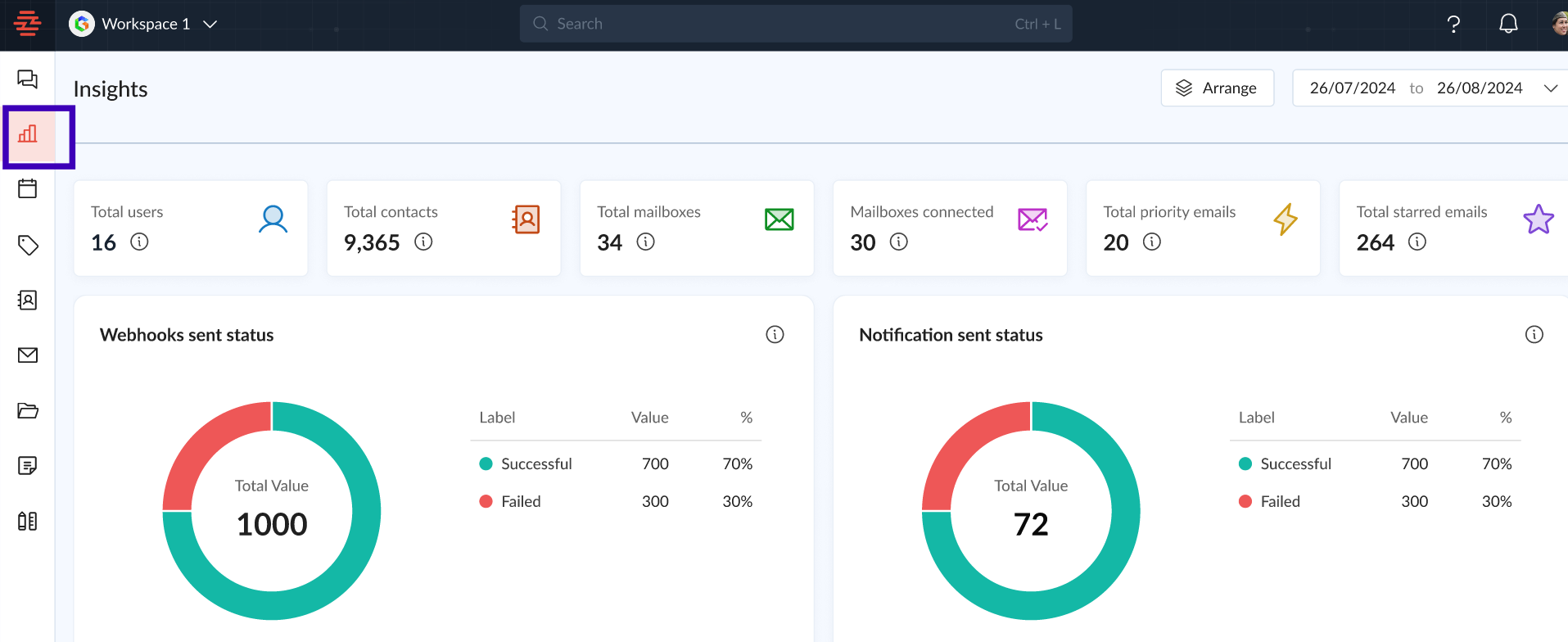
Log in to Zeninbox and navigate to the Insights section from the left-hand menu.
The Insights dashboard displays key metrics such as:
Total Users: Overview of the number of users in your Zeninbox account.
Total Contacts: Displays the number of contacts managed through your account.
Total Mailboxes: Shows the number of mailboxes linked.
Mailboxes Connected: Indicates how many mailboxes are actively synced.
Total Priority Emails: This shows the count of emails marked with different priority levels.
Total Starred Emails: Represents emails flagged as important.
Step 2: Navigating the Insights Live Dashboard
The dashboard features multiple sections, including:
Webhooks Sent Status: Displays the number of webhooks sent, categorized by status (successful or failed).
Notification Sent Status: This shows the total number of notifications sent and their delivery status, as seen in a pie chart.
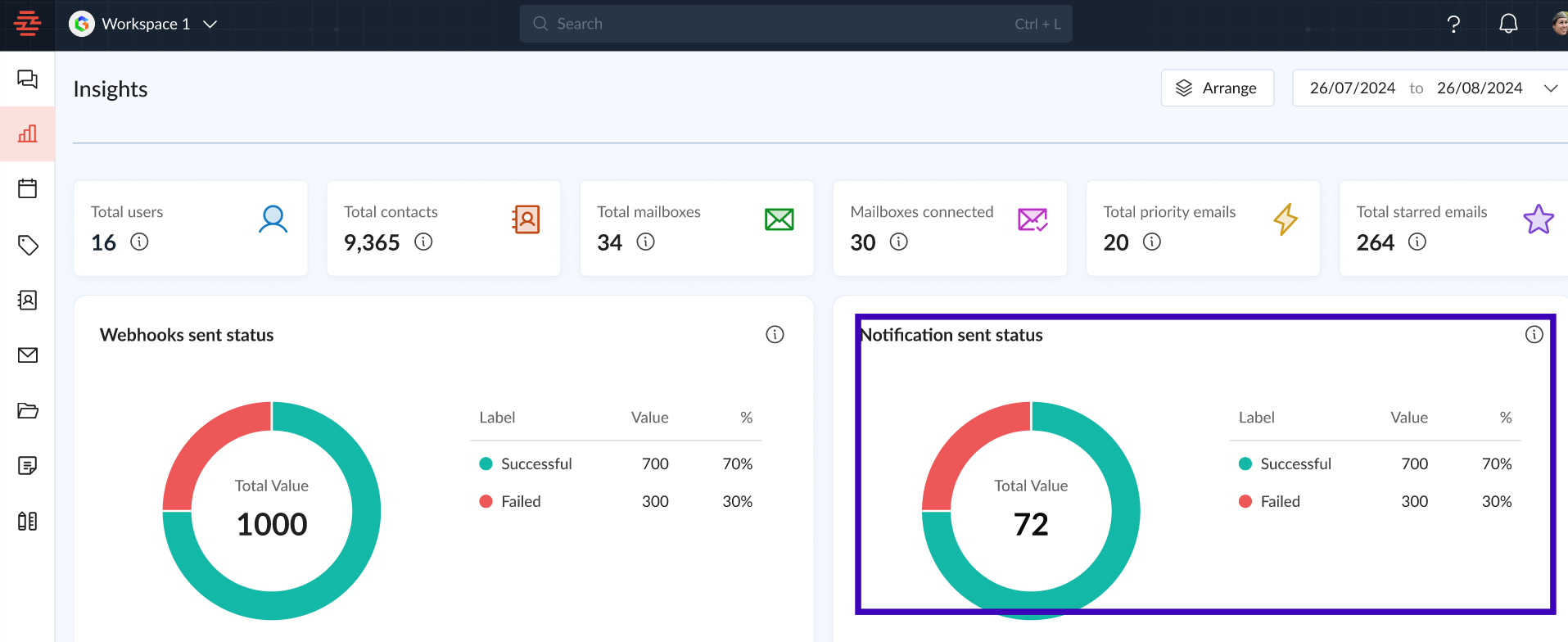
Use the time range filter at the top to adjust the date range for the data displayed, ensuring you are reviewing the relevant period.
Step 3: Checking Notification and Webhook Delivery Status
View the "Notification Successful Delivery Status" panel to see the success rate of notifications sent. This helps track whether messages are being delivered to their intended recipients.
Check the "Webhooks Successful Delivery Status" for a summary of webhook deliveries, showing any issues or errors that need attention.
This data helps identify any delivery issues and allows for quick troubleshooting.
Step 4: Managing Priority Emails and Tasks
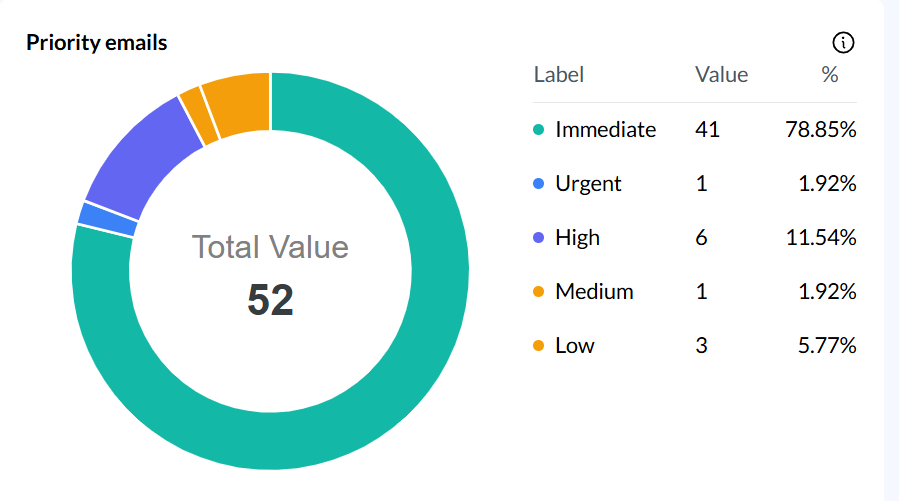
Go to the "Priority Emails" section to see a visual breakdown of emails by their priority level (e.g., Immediate, Urgent, High, Medium, Low).
Use the data to understand which emails need urgent attention and which can be addressed later.
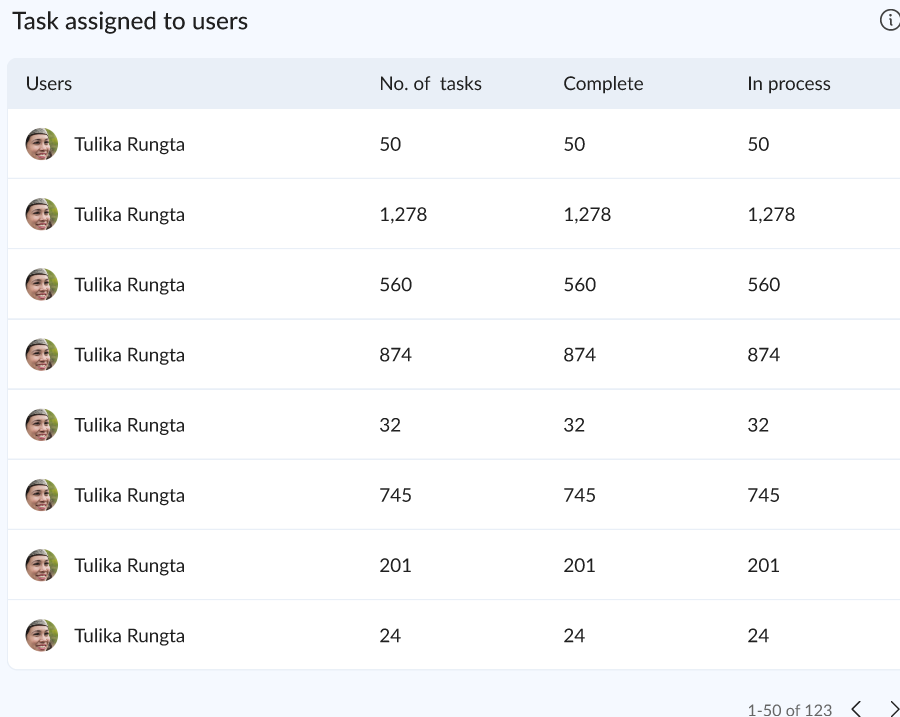
View the "Task Assigned to Users" table to monitor task assignments, including:
Number of Tasks: Total tasks assigned to each user.
Complete vs. In Process: See how many tasks each user has completed versus those still in progress.
SStep 5: Analyzing Email Per Label and Email Types
Select "Email per Label" to view how emails are distributed across different labels. This helps you track the flow of emails based on the labels you’ve created.
Use this data to evaluate the effectiveness of your labeling strategy and adjust as necessary for better email categorization.
Review the "Emails" overview bar chart to see the total number of emails categorized by Inbox, Sent, Spam, Trash, and Unread.
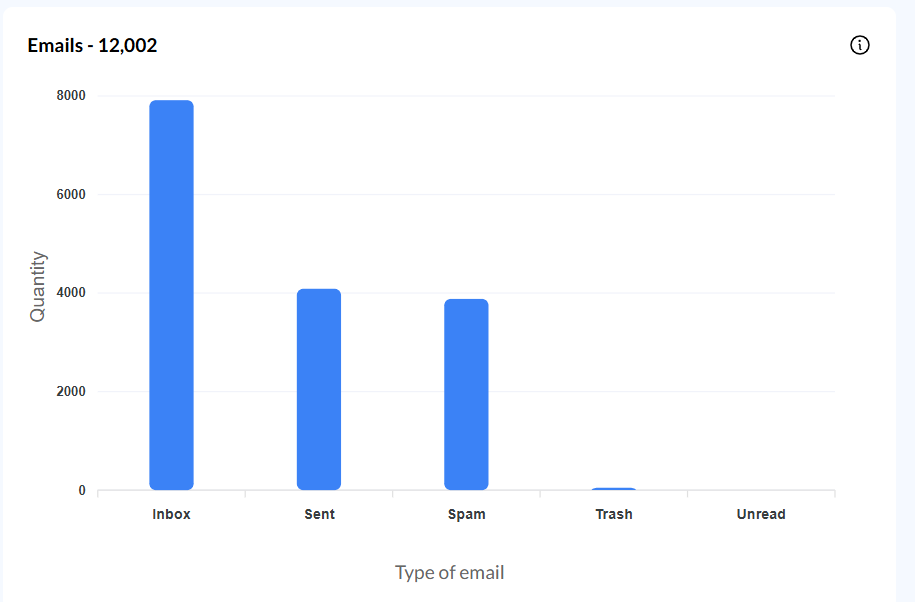
This chart helps you understand the distribution of your email activities, allowing you to identify where most of your messages are stored and take appropriate actions, such as cleaning up spam or managing unread messages.
Common Issues and Troubleshooting
Issue: "My notifications are failing to deliver."
Solution: Check the "Notification Sent Status" panel for error messages and ensure that your recipient's email addresses are valid.
Issue: "Webhooks are not updating properly."
Solution: Review the "Webhooks Sent Status" for any failed attempts and verify your webhook configurations.
Conclusion and Next Steps
Zeninbox's Insights feature offers a powerful way to track, analyze, and improve your email and communication performance. With features like live dashboards, status reports, and task management, you can make informed decisions to boost productivity.
Start exploring the Insights feature today to see how it can enhance your workflow. For more guidance, check out the Help Center.
If you need further assistance, reach out to our support team through Email Support.