Task Assigned to Users
Written By lucidgrowth
Last updated Over 1 year ago
Introduction
Welcome to the Zeninbox Help Center! This article explains how to manage Tasks Assigned to Users within Zeninbox. This feature allows team members to streamline their email-based tasks, ensuring that each responsibility is clearly assigned and tracked within the platform. With this feature, you can boost team productivity and accountability.
What is the purpose of the task assigned to the user’s feature?
The Task Assigned to Users feature is designed to allocate specific email threads or tasks to individual users within Zeninbox. It ensures that each team member knows which tasks are their responsibility, helping to avoid confusion or overlap. By assigning tasks, managers can monitor progress, track workload distribution, and ensure timely follow-ups.
Step-by-Step Instructions
Assigning a Task to a User
Step 1: Log in to Zeninbox.
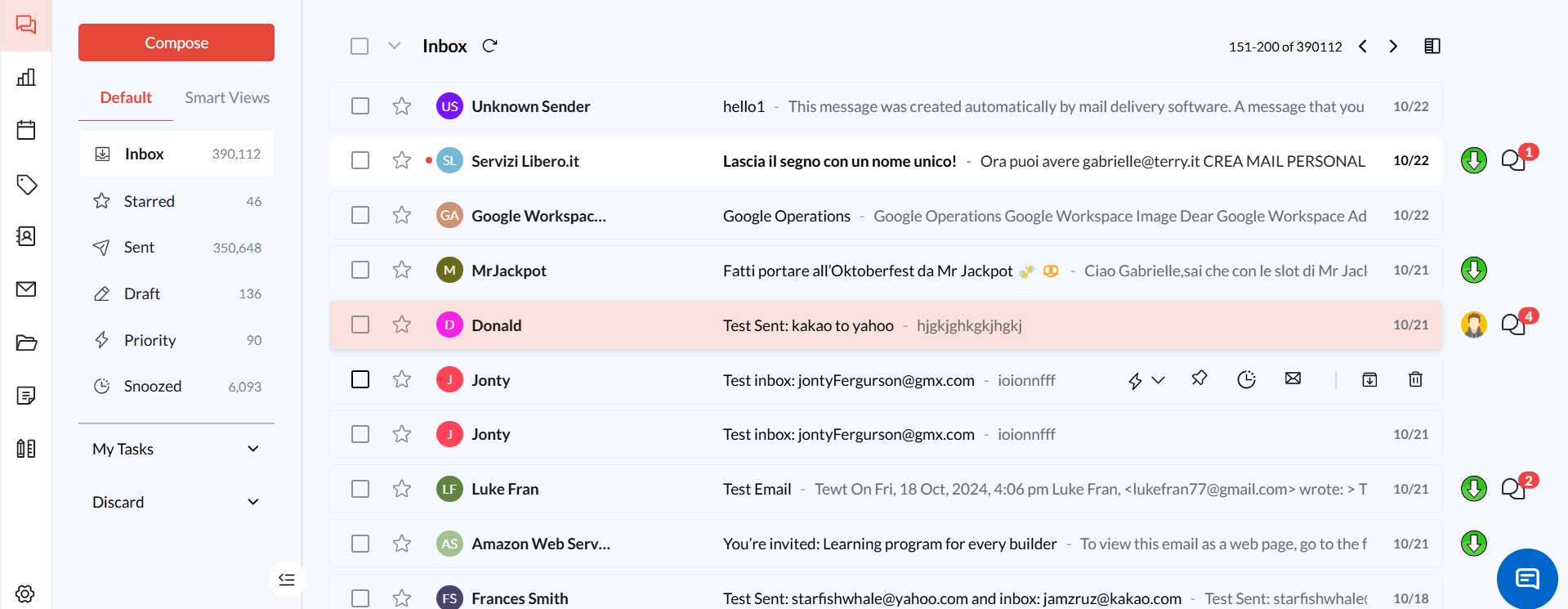
Step 2: Navigate to the Email Thread: Find the email thread or conversation that you want to assign. Use the search bar if needed.
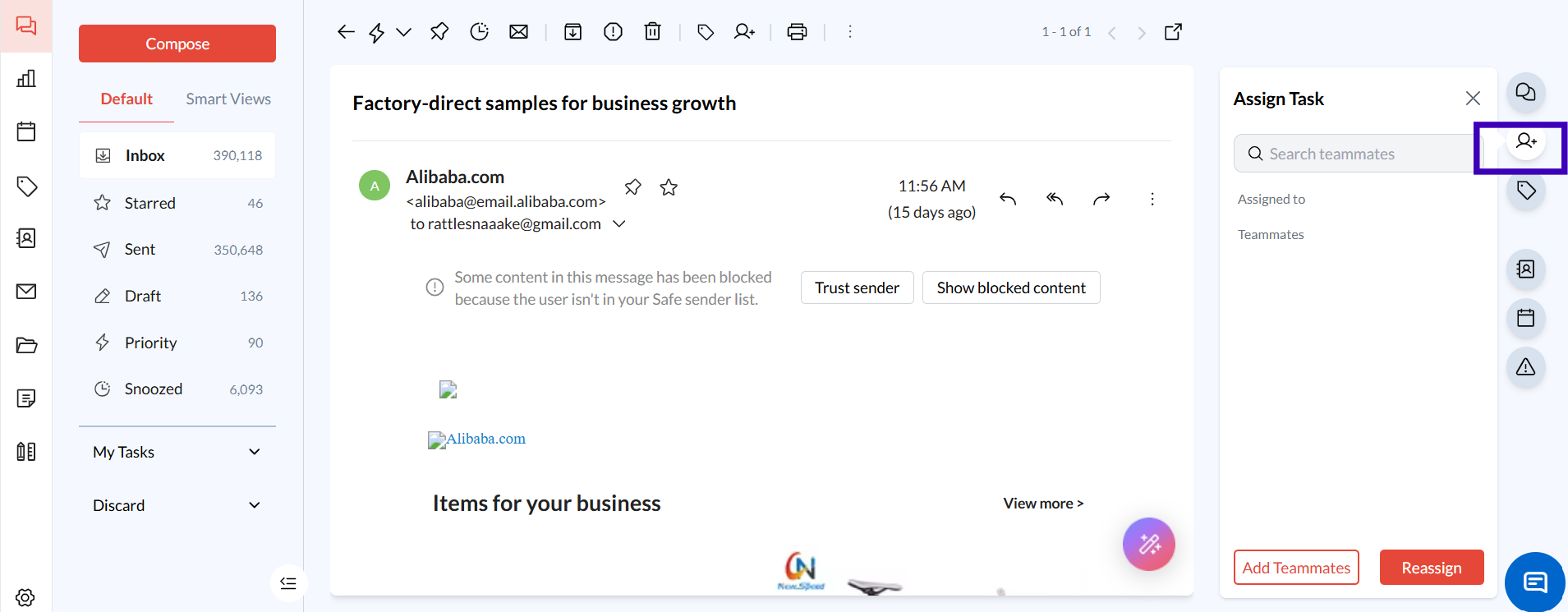
Step 3: Click on the Assign Button: Open the email thread and click on the Assign button, usually located at the top-right of the email view.
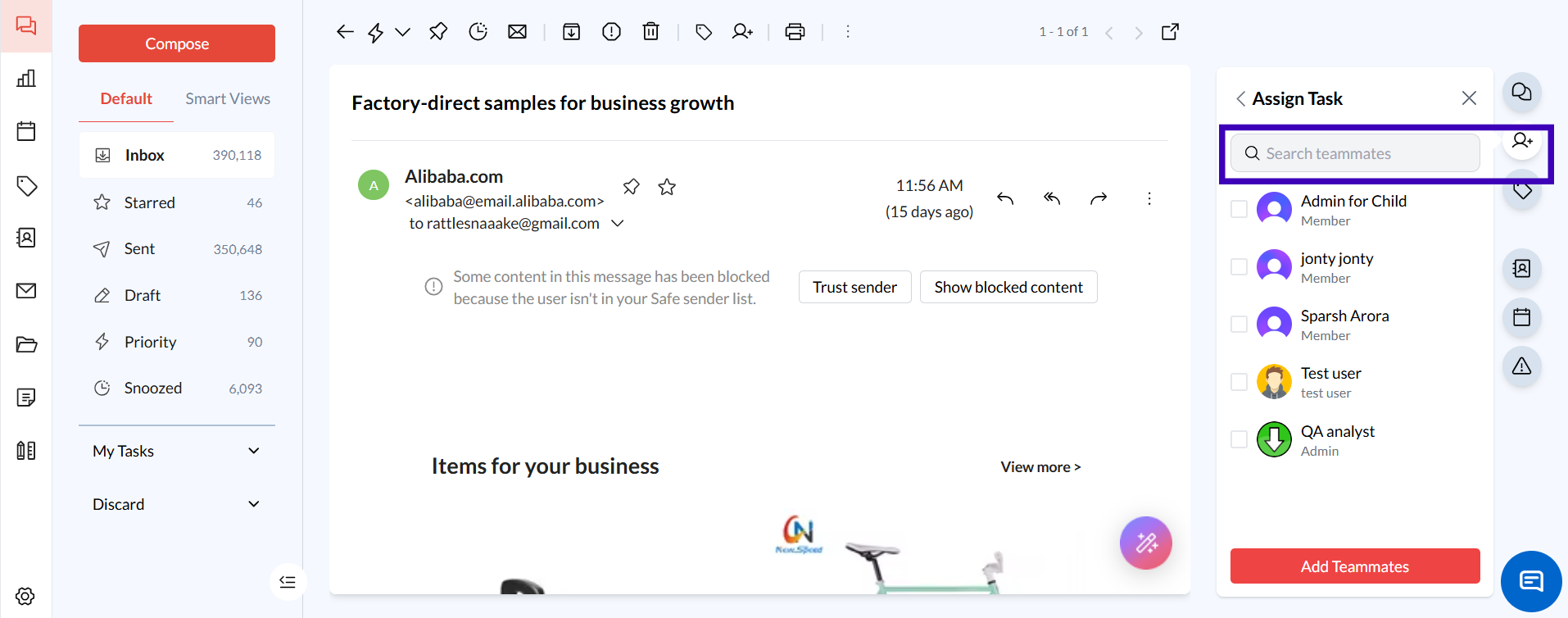
Step 4: Select a Team Member: From the dropdown menu, choose the user to whom you want to assign the task.
Step 5: Confirm Assignment: Click Assign to finalize the task assignment. The email thread will now appear in the assigned user’s task list.
Viewing Assigned Tasks
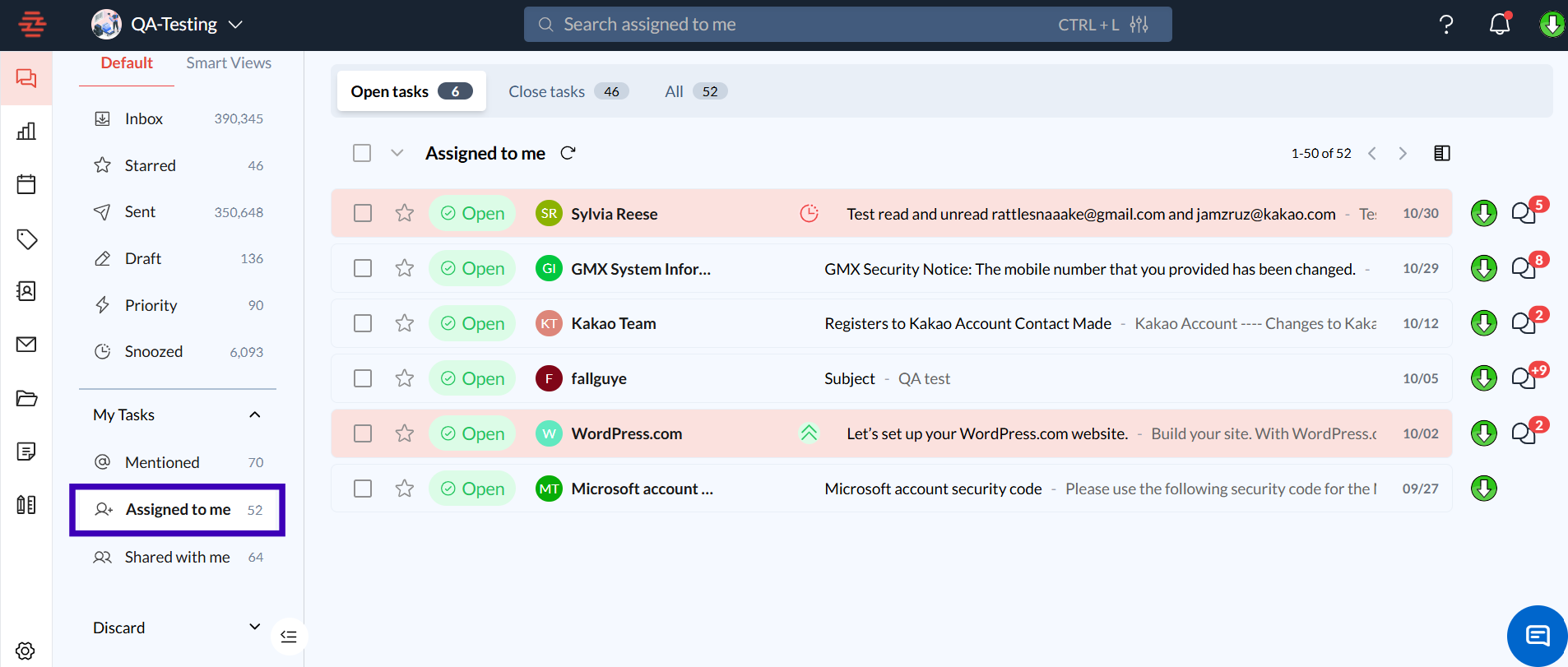
Step 1: Go to the "Assigned to Me" Section. Users can view tasks assigned to them by navigating to the Assigned to Me section from the main menu.
Conclusion and Next Steps
The Task Assigned to Users feature in Zeninbox makes it easy to manage and track tasks within your team, improving efficiency and communication. By clearly designating responsibilities, you can ensure that each email or conversation is handled by the right person.
If you have any additional questions or need further help, our support team is always ready to assist.