How to Expand All Messages in a Conversation Thread in Zeninbox
Written By lucidgrowth
Last updated Over 1 year ago
Introduction
Expanding all messages in a conversation thread in Zeninbox allows you to view every email within a thread at once, providing a complete view of the discussion. This feature is especially helpful when catching up on long email chains or when you need to review the entire history of a conversation.
Key Features of Expanding Conversation Threads
Expand All at Once: View all emails in a conversation thread without needing to click each one.
Collapse for Focus: Quickly collapse the thread to focus on the latest message.
Thread Navigation: Easily scroll through each message while keeping the entire conversation context.
Step-by-Step Guide to Expanding All Messages
1. Locate the Conversation Thread
Navigate to your inbox and click on the conversation thread you want to expand.
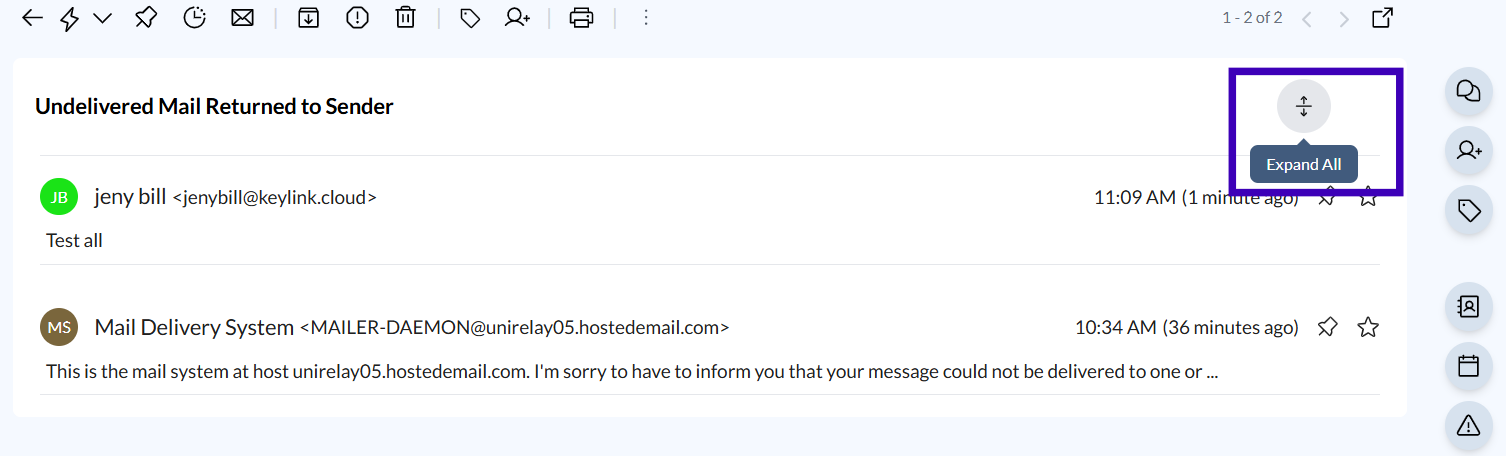
2. Expand All Messages
At the top of the thread, find the "Expand All" option.
Click Expand All to display every message within the thread.
3. Collapse Messages
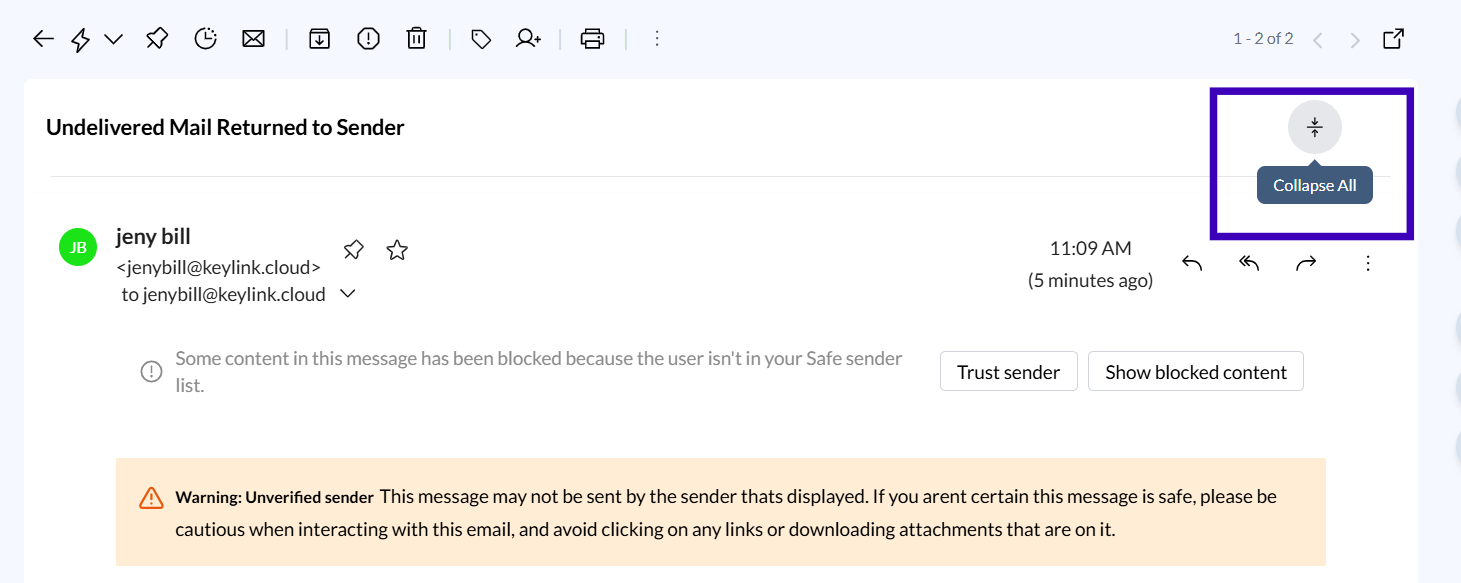
To collapse the thread back, click the "Collapse All" button or use the keyboard shortcut for collapsing.
This will hide older messages, leaving only the most recent email visible.
Common Issues and Troubleshooting
Issue: "Expand All" Option Not Visible
Refresh Page: Sometimes, a quick page refresh will resolve the issue.
Issue: Messages Not Expanding
Clear Cache: Clear your browser's cache and cookies.
Conclusion
Expanding all messages in a conversation thread helps you keep track of every detail in an email chain, making it easier to follow discussions and respond accurately. For more tips on managing email threads, contact our support team for further help.