How to open conversations in external windows?
Written By lucidgrowth
Last updated Over 1 year ago
Introduction
The ability to open conversations in external windows in Zeninbox allows users to manage multiple email threads simultaneously without switching between tabs. This feature enhances multitasking and productivity by keeping important conversations visible in separate windows, making it easier to handle complex workflows.
Key Features/Concepts
External Window: Open any email conversation in a separate window, independent of the main Zeninbox interface.
Multi-tasking Support: Easily manage multiple conversations at once by viewing them side by side.
Independent Navigation: Work within an external conversation window while continuing other tasks in the main Zeninbox interface.
Step-by-Step Guide
Step 1: Select the Conversation
Navigate to your inbox and find the conversation you want to open.
Click to open the conversation as usual.
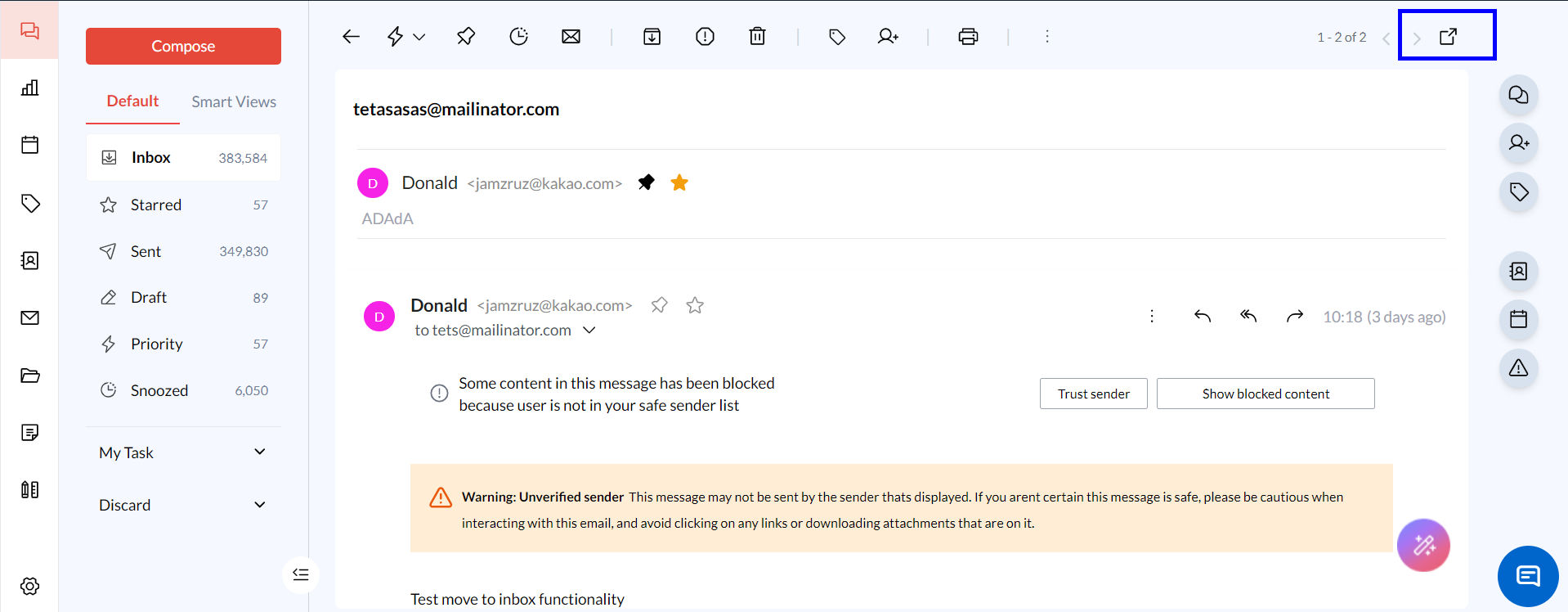
Step 2: Open the Conversation in an External Window
In the top-right corner of the conversation window, look for the Open in External Window icon (small pop-out icon).
Click the icon, and the conversation will open in a new, independent window.
Step 3: Close the External Window
To close an external window, simply click the X button in the corner of the new window or close it like any other browser window.
The conversation will still remain available in your main Zeninbox inbox.
Conclusion
Opening conversations in external windows is a great way to enhance your email management workflow by allowing for better multitasking and increased focus. If you have more questions or want to explore other helpful features, visit our Help Center or contact our support team.